> ## Documentation Index
> Fetch the complete documentation index at: https://docs.aftersell.com/llms.txt
> Use this file to discover all available pages before exploring further.
# Fulfillment
> This article outlines how order processing workflows can be managed.
**Post-purchase fulfillment holds**
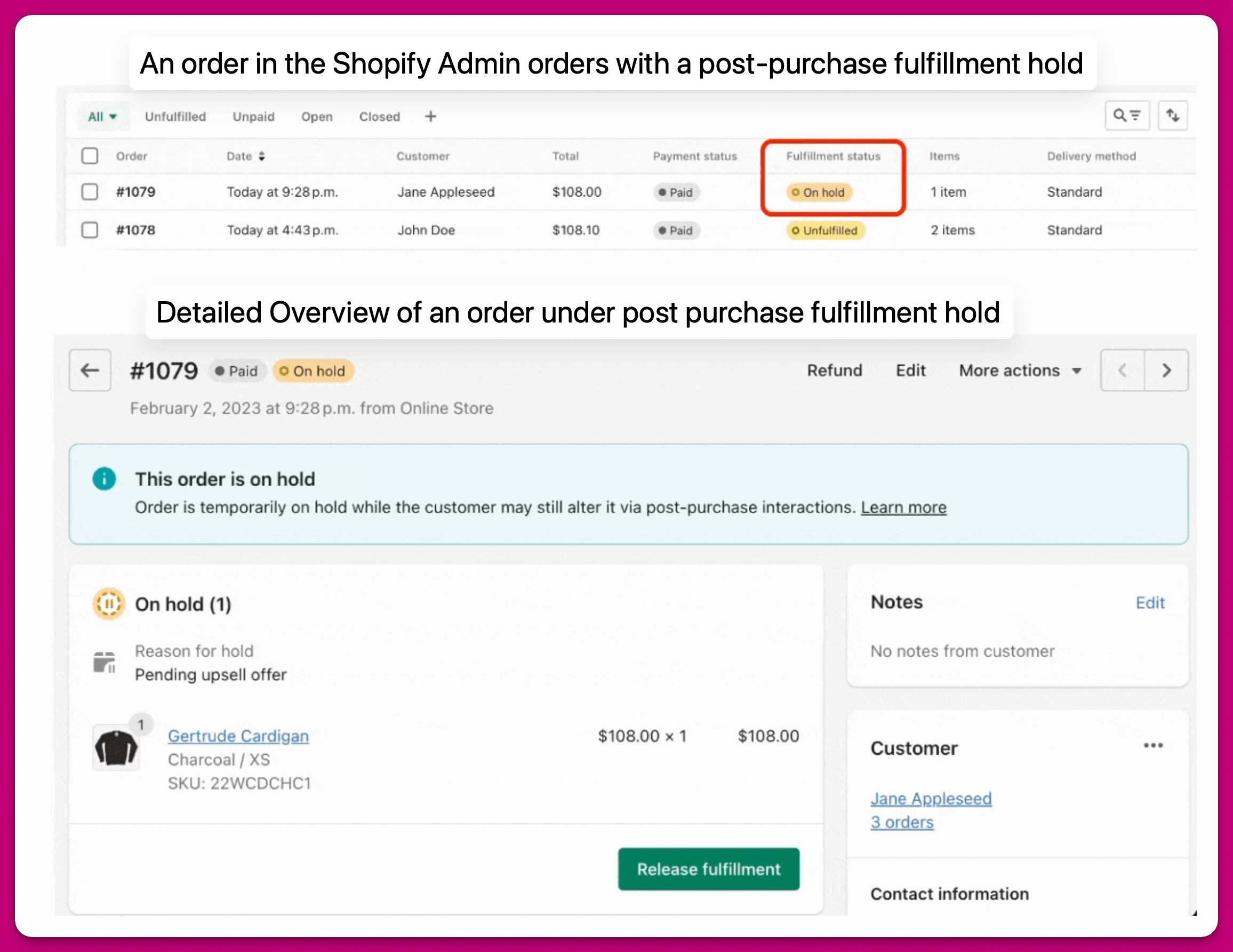
When a customer completes payment during checkout, an order is generated in Shopify. If a post-purchase upsell is offered to the customer, the order will have a fulfillment status of **On Hold**.
The **On Hold** status indicates that fulfillment should be paused, as the customer may accept the upsell, which would add items to the order. This status ensures the order is not processed prematurely, allowing time for potential additions.
 ***
**Releasing post-purchase fulfillment holds**
Once the fulfillment hold is released, the order fulfillment status will change to **Unfulfilled**:
***
**Releasing post-purchase fulfillment holds**
Once the fulfillment hold is released, the order fulfillment status will change to **Unfulfilled**:
 The order hold will automatically release in the following scenarios:
* If the customer clicks Accept or Decline on all post-purchase offers.
* If 60 minutes has passed since the order's creation.
**NOTE:** If the "Release fulfillment holds from post-purchase offers when the offer timer ends" setting is enabled in `Aftersell > Settings > Fulfillment and payment`, the release time may differ.
**DEV Note: How the "Release fulfillment holds from post-purchase offers when the offer timer ends" functions behind the scenes.**
When the above setting is enabled, and Aftersell determines that the order hold should be released, the following actions are performed:
1. Aftersell queries Shopify for the order and retrieves all associated fulfillments (an order may have one or more fulfillments).
2. Aftersell instructs Shopify to release the order hold for each individual fulfillment.
Aftersell will add an event to the order for each fulfillment hold released, displaying the message "Aftersell Post Purchase Upsell released fulfillment for X items."
* **Note**: Aftersell does not modify the number of fulfillments.
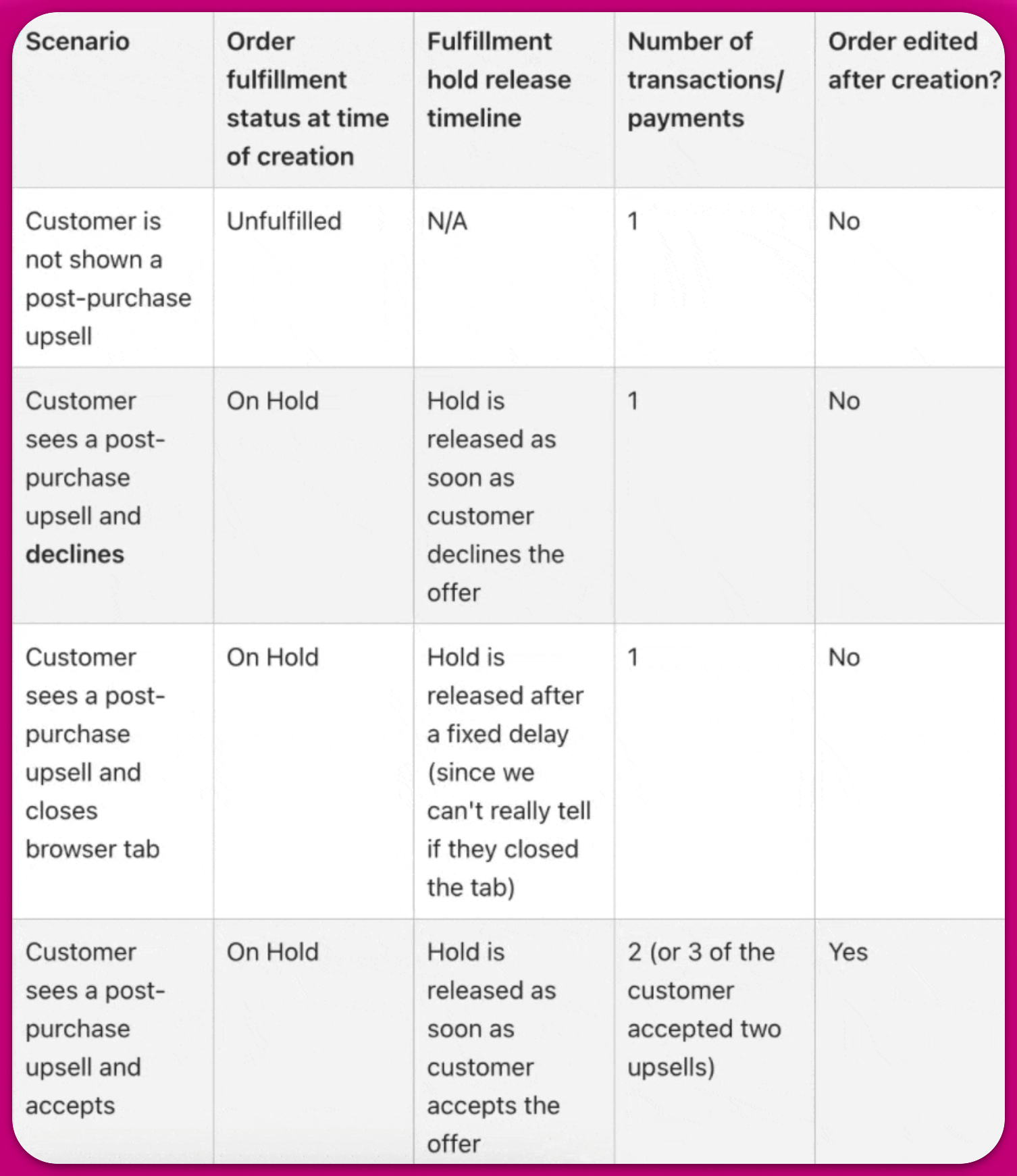
The following table describes the timeline of when the post-purchase fulfillment hold is released for various customer scenarios:
| Scenario | Fulfillment status at creation | Hold release timeline | Transactions / payments | Order edited after creation? |
| :-------------------------------------------------------------- | :----------------------------- | :--------------------------------------------------------------------------------- | :-------------------------------------------- | :--------------------------- |
| Customer is not shown a post-purchase upsell | Unfulfilled | N/A | 1 | No |
| Customer sees a post-purchase upsell and **declines** | On Hold | Released as soon as the customer declines the offer | 1 | No |
| Customer sees a post-purchase upsell and closes the browser tab | On Hold | Released after a fixed delay (there is no reliable signal that the tab was closed) | 1 | No |
| Customer sees a post-purchase upsell and **accepts** | On Hold | Released as soon as the customer accepts the offer | 2 (or 3 if the customer accepted two upsells) | Yes |
The order hold will automatically release in the following scenarios:
* If the customer clicks Accept or Decline on all post-purchase offers.
* If 60 minutes has passed since the order's creation.
**NOTE:** If the "Release fulfillment holds from post-purchase offers when the offer timer ends" setting is enabled in `Aftersell > Settings > Fulfillment and payment`, the release time may differ.
**DEV Note: How the "Release fulfillment holds from post-purchase offers when the offer timer ends" functions behind the scenes.**
When the above setting is enabled, and Aftersell determines that the order hold should be released, the following actions are performed:
1. Aftersell queries Shopify for the order and retrieves all associated fulfillments (an order may have one or more fulfillments).
2. Aftersell instructs Shopify to release the order hold for each individual fulfillment.
Aftersell will add an event to the order for each fulfillment hold released, displaying the message "Aftersell Post Purchase Upsell released fulfillment for X items."
* **Note**: Aftersell does not modify the number of fulfillments.
The following table describes the timeline of when the post-purchase fulfillment hold is released for various customer scenarios:
| Scenario | Fulfillment status at creation | Hold release timeline | Transactions / payments | Order edited after creation? |
| :-------------------------------------------------------------- | :----------------------------- | :--------------------------------------------------------------------------------- | :-------------------------------------------- | :--------------------------- |
| Customer is not shown a post-purchase upsell | Unfulfilled | N/A | 1 | No |
| Customer sees a post-purchase upsell and **declines** | On Hold | Released as soon as the customer declines the offer | 1 | No |
| Customer sees a post-purchase upsell and closes the browser tab | On Hold | Released after a fixed delay (there is no reliable signal that the tab was closed) | 1 | No |
| Customer sees a post-purchase upsell and **accepts** | On Hold | Released as soon as the customer accepts the offer | 2 (or 3 if the customer accepted two upsells) | Yes |
 ***
## Order routing for upsells
When an upsell is accepted, Aftersell creates a separate fulfillment for the upsell items. By default, this fulfillment is not re-routed through your store's order routing rules, which can result in the upsell being fulfilled from a different location than the original order — creating a split fulfillment.
You can enable the **Re-run order routing on Aftersell upsells** toggle in `Aftersell > Settings > Fulfillment and payment > Order routing` to have Shopify re-apply your store's [order routing rules](https://help.shopify.com/en/manual/fulfillment/setup/order-routing) to any fulfillment containing only Aftersell upsells, once its hold is released after the post-purchase or thank you page flow completes.
A common use case is to configure your order routing rules to minimize split fulfillments as the first priority, which helps reduce the number of orders where the upsell is fulfilled separately from the original order.
> **Note:** This toggle requires the **merchant-managed fulfillment orders** and **third-party fulfillment orders** Shopify permissions. If these permissions have not been granted, a banner will appear on the settings page prompting you to grant access. The toggle is disabled until both permissions are granted.
***
## **Integrating with external fulfillment services (3PL)**
Certain fulfillment services or custom workflows may not be configured to handle the
**On Hold** status for order fulfillment. If your process does not properly manage post-purchase fulfillment holds, there is a risk of partially fulfilling orders or generating unnecessary extra fulfillments for a single order.
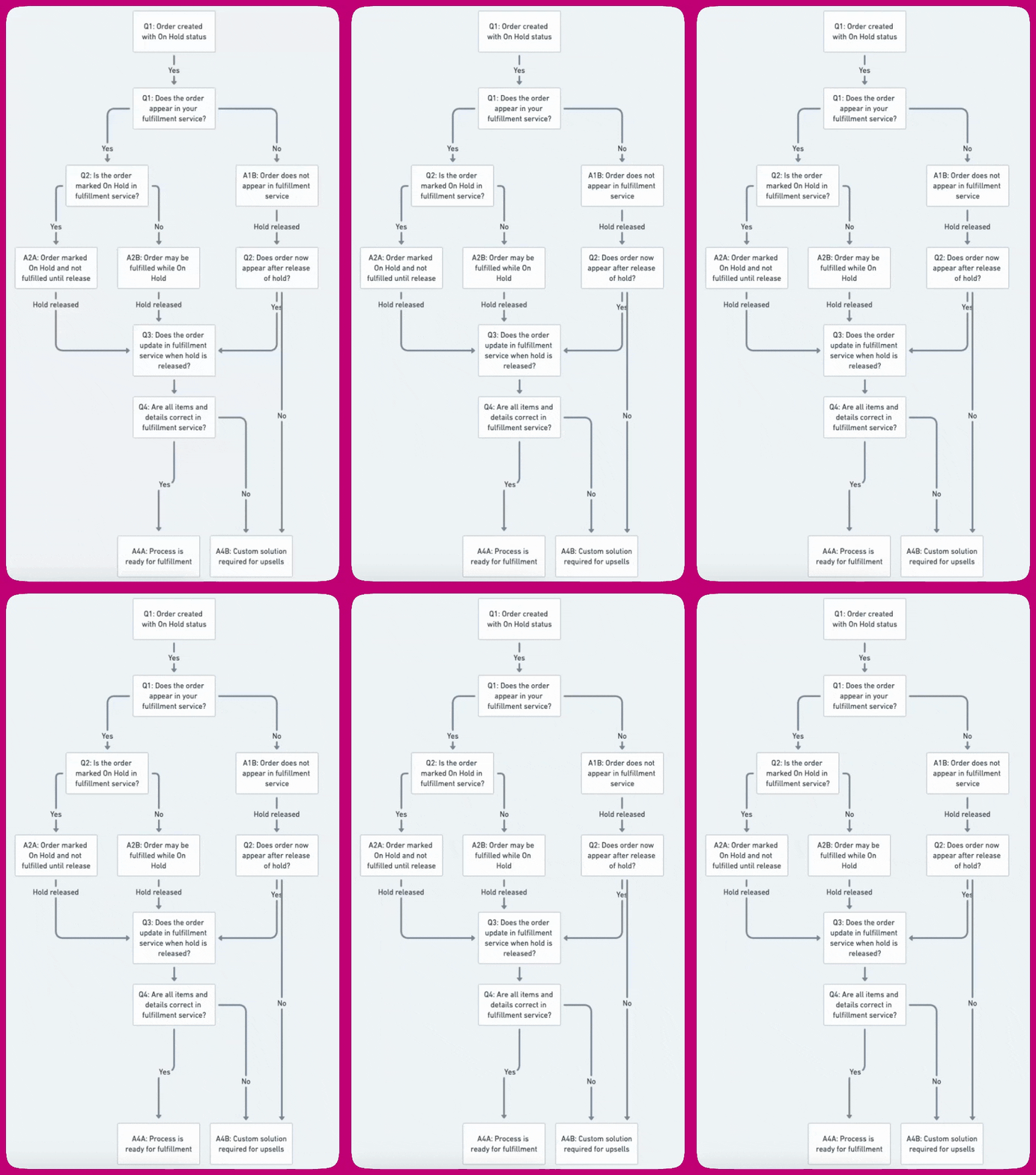
Fulfillment workflows differ from store to store, as do the solutions for managing orders with post-purchase upsells. Every post-purchase order is created with an **On Hold** status; work through the checks below to assess whether your fulfillment service handles that correctly:
1. **Does the order appear in your fulfillment service while it is On Hold?**
* **Yes** → go to step 2.
* **No** → the order will not sync until the hold releases. Once the hold is released, check whether it appears. If it does, continue to step 3; if it never appears, a custom solution is required.
2. **Is the order marked On Hold in your fulfillment service?**
* **Yes** → the service will not fulfill it until the hold is released. Continue to step 3.
* **No** → the order may be fulfilled while still On Hold, so it could ship before any accepted upsell items are added. Continue to step 3, but watch for premature fulfillment.
3. **When the hold is released, does the order update in your fulfillment service** (accepted upsell items and quantities synced)?
4. **Are all items and details then correct in your fulfillment service?**
* **Yes** → your process is ready for post-purchase upsells.
* **No** → a custom solution is required.
***
## Order routing for upsells
When an upsell is accepted, Aftersell creates a separate fulfillment for the upsell items. By default, this fulfillment is not re-routed through your store's order routing rules, which can result in the upsell being fulfilled from a different location than the original order — creating a split fulfillment.
You can enable the **Re-run order routing on Aftersell upsells** toggle in `Aftersell > Settings > Fulfillment and payment > Order routing` to have Shopify re-apply your store's [order routing rules](https://help.shopify.com/en/manual/fulfillment/setup/order-routing) to any fulfillment containing only Aftersell upsells, once its hold is released after the post-purchase or thank you page flow completes.
A common use case is to configure your order routing rules to minimize split fulfillments as the first priority, which helps reduce the number of orders where the upsell is fulfilled separately from the original order.
> **Note:** This toggle requires the **merchant-managed fulfillment orders** and **third-party fulfillment orders** Shopify permissions. If these permissions have not been granted, a banner will appear on the settings page prompting you to grant access. The toggle is disabled until both permissions are granted.
***
## **Integrating with external fulfillment services (3PL)**
Certain fulfillment services or custom workflows may not be configured to handle the
**On Hold** status for order fulfillment. If your process does not properly manage post-purchase fulfillment holds, there is a risk of partially fulfilling orders or generating unnecessary extra fulfillments for a single order.
Fulfillment workflows differ from store to store, as do the solutions for managing orders with post-purchase upsells. Every post-purchase order is created with an **On Hold** status; work through the checks below to assess whether your fulfillment service handles that correctly:
1. **Does the order appear in your fulfillment service while it is On Hold?**
* **Yes** → go to step 2.
* **No** → the order will not sync until the hold releases. Once the hold is released, check whether it appears. If it does, continue to step 3; if it never appears, a custom solution is required.
2. **Is the order marked On Hold in your fulfillment service?**
* **Yes** → the service will not fulfill it until the hold is released. Continue to step 3.
* **No** → the order may be fulfilled while still On Hold, so it could ship before any accepted upsell items are added. Continue to step 3, but watch for premature fulfillment.
3. **When the hold is released, does the order update in your fulfillment service** (accepted upsell items and quantities synced)?
4. **Are all items and details then correct in your fulfillment service?**
* **Yes** → your process is ready for post-purchase upsells.
* **No** → a custom solution is required.
 If your fulfillment process requires a custom solution to work with post-purchase upsells, please contact Aftersell Support for assistance.
***
## ShipStation Integration
If you're utilizing ShipStation with a direct connection to Shopify, your fulfillment process should automatically integrate with post-purchase upsells.
However, if you're using an intermediary service to connect Shopify and ShipStation (such as NetSuite), you might require a custom solution. Please refer to the next section to review the expected order format in ShipStation to ensure everything is operating correctly.
**How On Hold Orders Look in ShipStation**
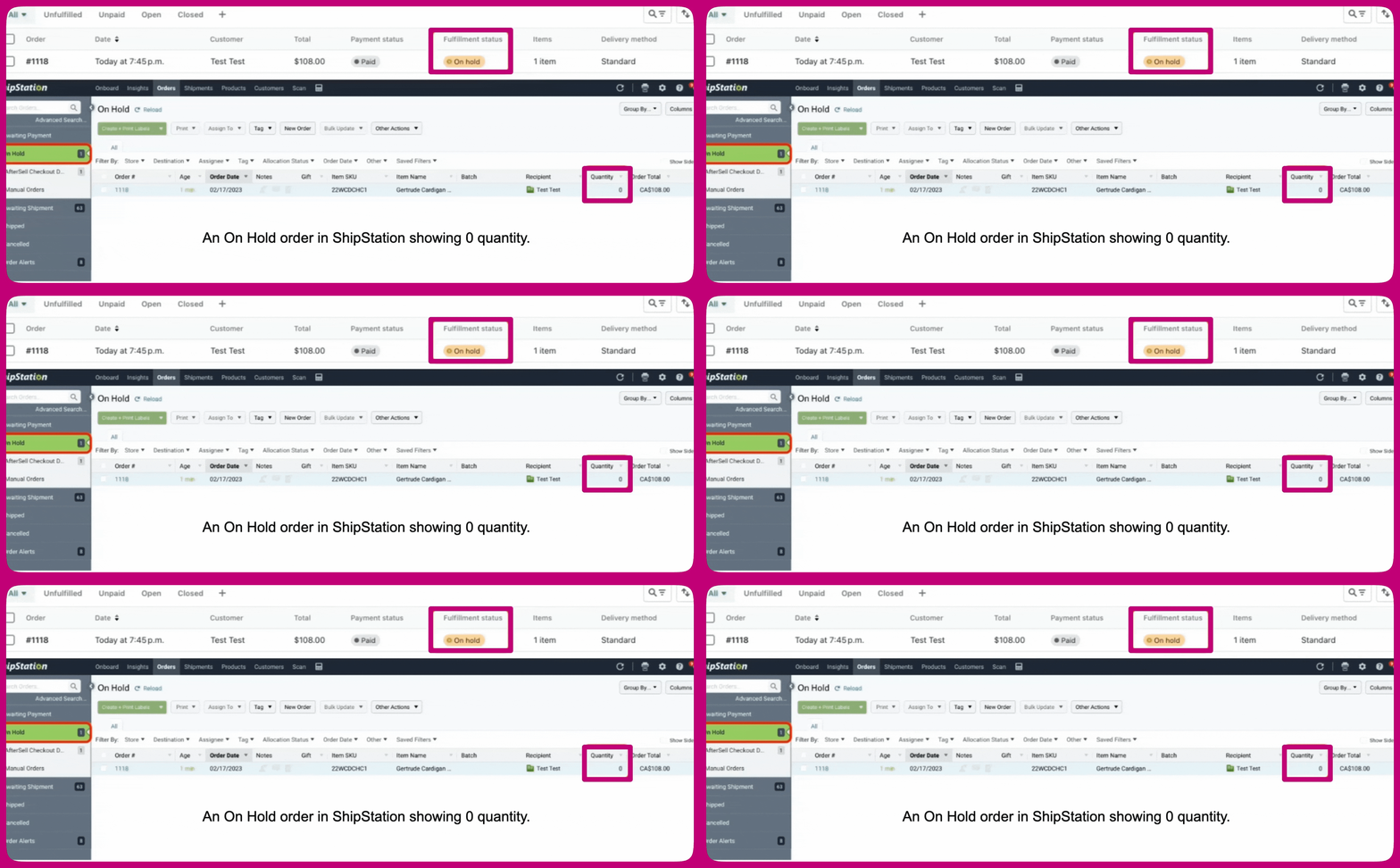
Orders marked as **On Hold** in Shopify will appear in the On Hold section of ShipStation. These orders will display a quantity of **0**. The quantity shown in ShipStation represents the fulfillable amount, which is indicated as **0** while the order is **On Hold** because none of the items are ready to be fulfilled yet (since the order may still be adjusted with post-purchase upsell items).
If your fulfillment process requires a custom solution to work with post-purchase upsells, please contact Aftersell Support for assistance.
***
## ShipStation Integration
If you're utilizing ShipStation with a direct connection to Shopify, your fulfillment process should automatically integrate with post-purchase upsells.
However, if you're using an intermediary service to connect Shopify and ShipStation (such as NetSuite), you might require a custom solution. Please refer to the next section to review the expected order format in ShipStation to ensure everything is operating correctly.
**How On Hold Orders Look in ShipStation**
Orders marked as **On Hold** in Shopify will appear in the On Hold section of ShipStation. These orders will display a quantity of **0**. The quantity shown in ShipStation represents the fulfillable amount, which is indicated as **0** while the order is **On Hold** because none of the items are ready to be fulfilled yet (since the order may still be adjusted with post-purchase upsell items).
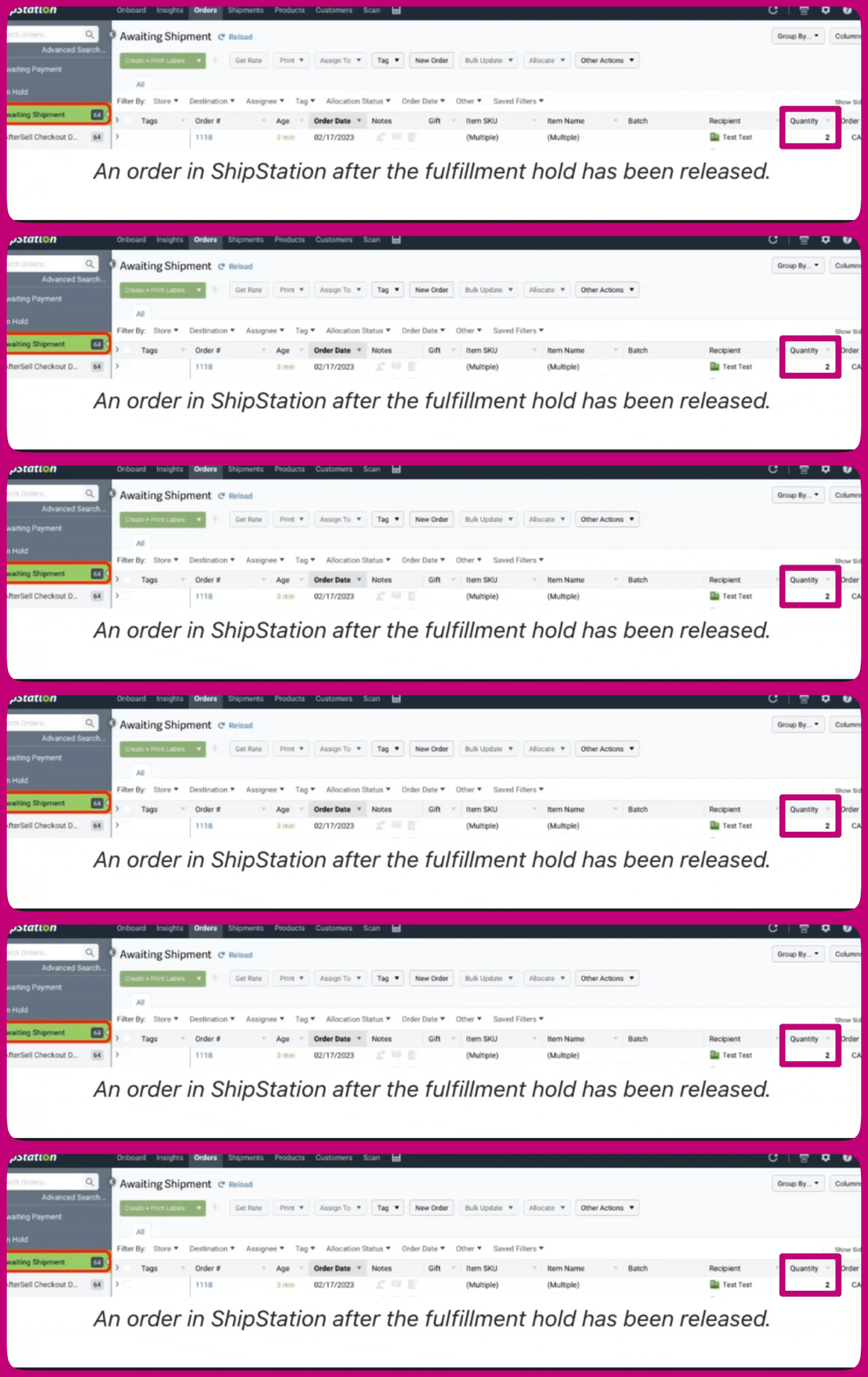
 After the order fulfillment hold is lifted, the order will shift to the Awaiting Shipment tab in ShipStation. The quantity will be updated to accurately reflect the total quantity of the order, including any post-purchase upsell item(s).
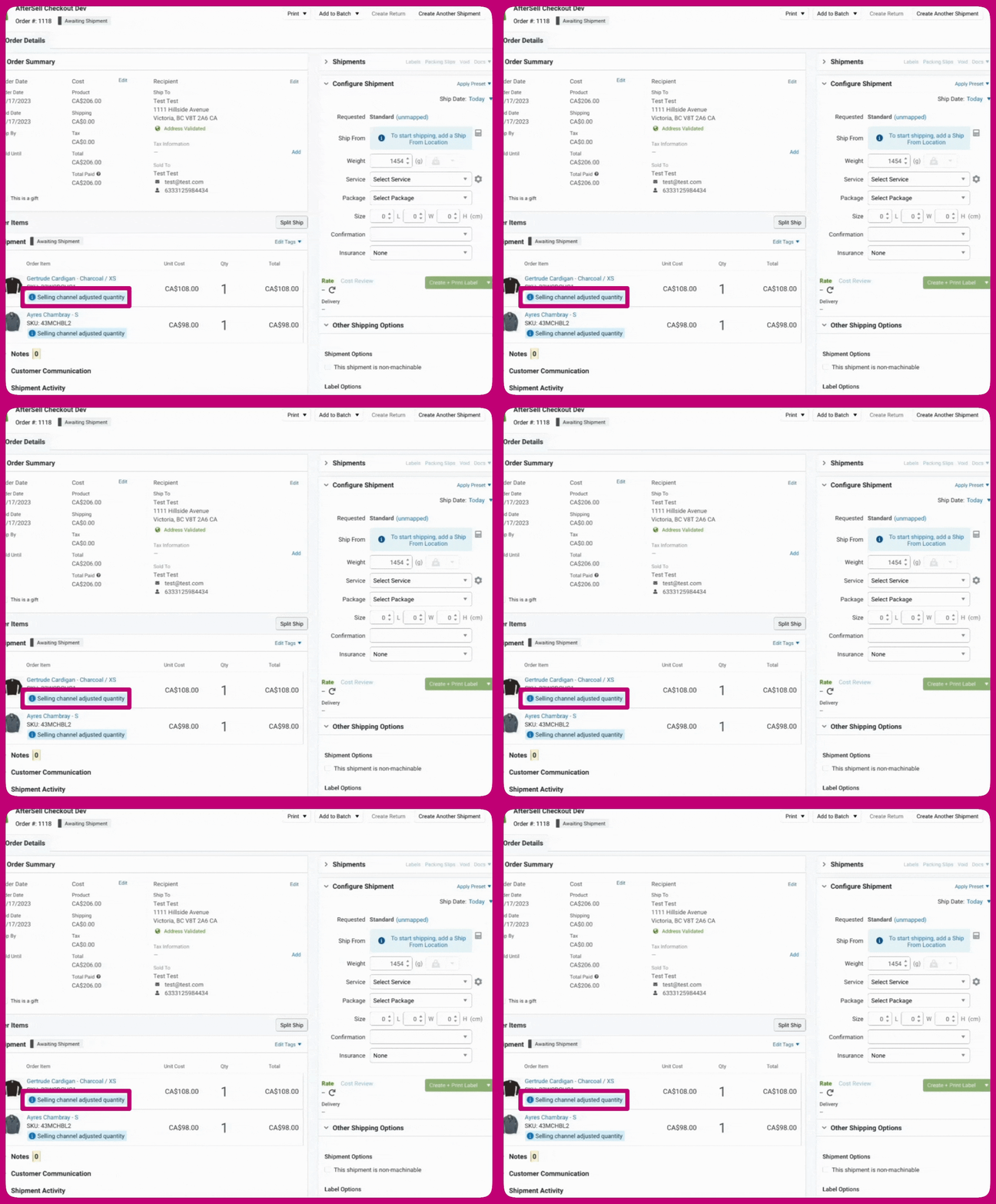
 These orders will indicate that the quantity has been updated by the selling channel, which is Shopify in this instance.
 ***
## Testing Notes
If you're testing your ShipStation integration and aren't seeing orders come in immediately, you can manually refresh the orders for your store.
***
## Testing Notes
If you're testing your ShipStation integration and aren't seeing orders come in immediately, you can manually refresh the orders for your store.
