> ## Documentation Index
> Fetch the complete documentation index at: https://docs.aftersell.com/llms.txt
> Use this file to discover all available pages before exploring further.
# Installing Aftersell
> How to install Aftersell on your Shopify store
**This guide will walk you through the process of installing Aftersell on your Shopify store. It is a quick and easy process, and only takes 2 minutes!**
## Step 1: Shopify App Store
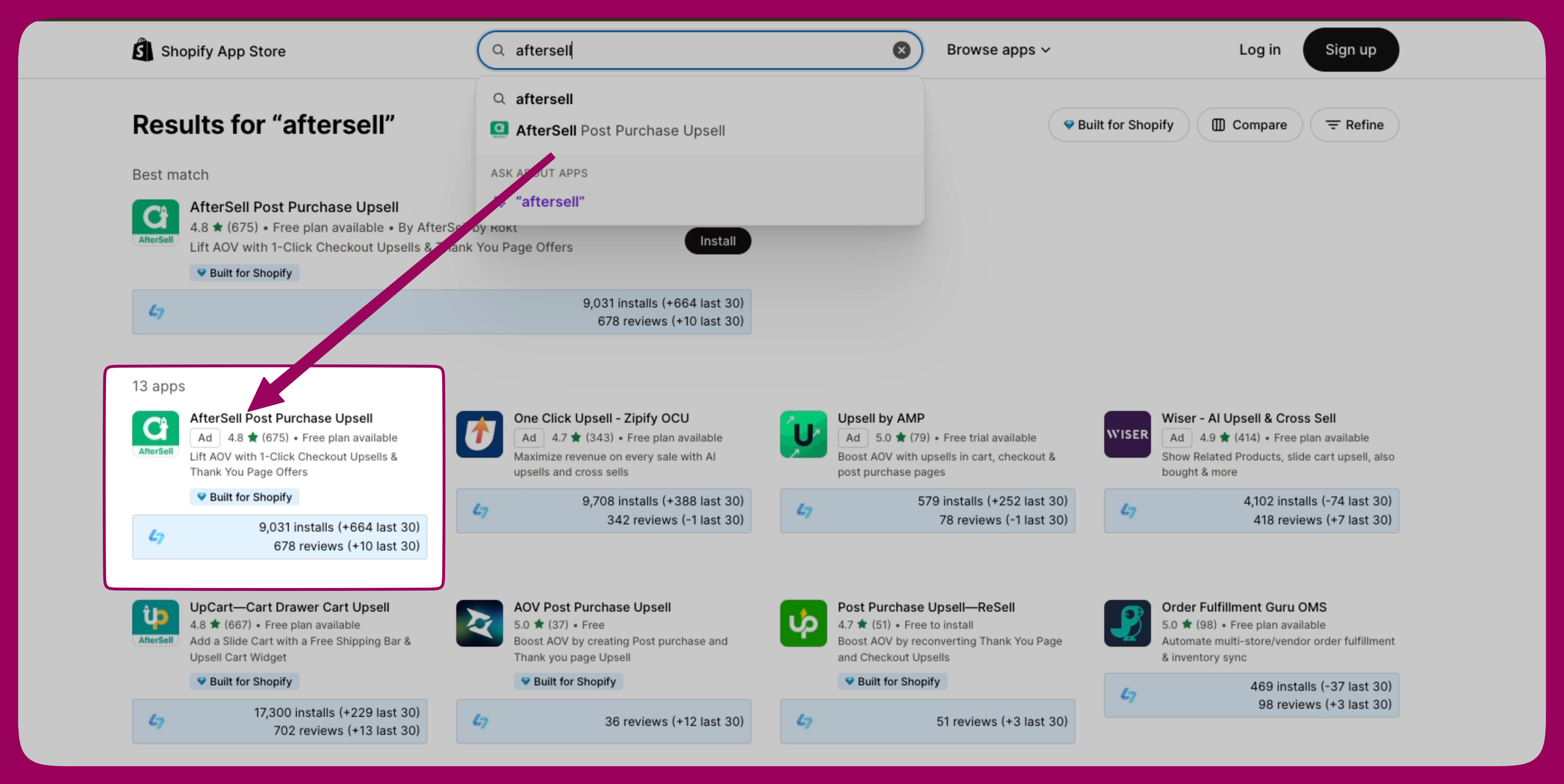
Navigate to the Shopify App Store. Use the search bar at the top to search for "Aftersell." Look for Aftersell in the search results and click on it.
 [Aftersell on Shopify App Store](https://apps.shopify.com/aftersell)
## Step 2: Install Aftersell
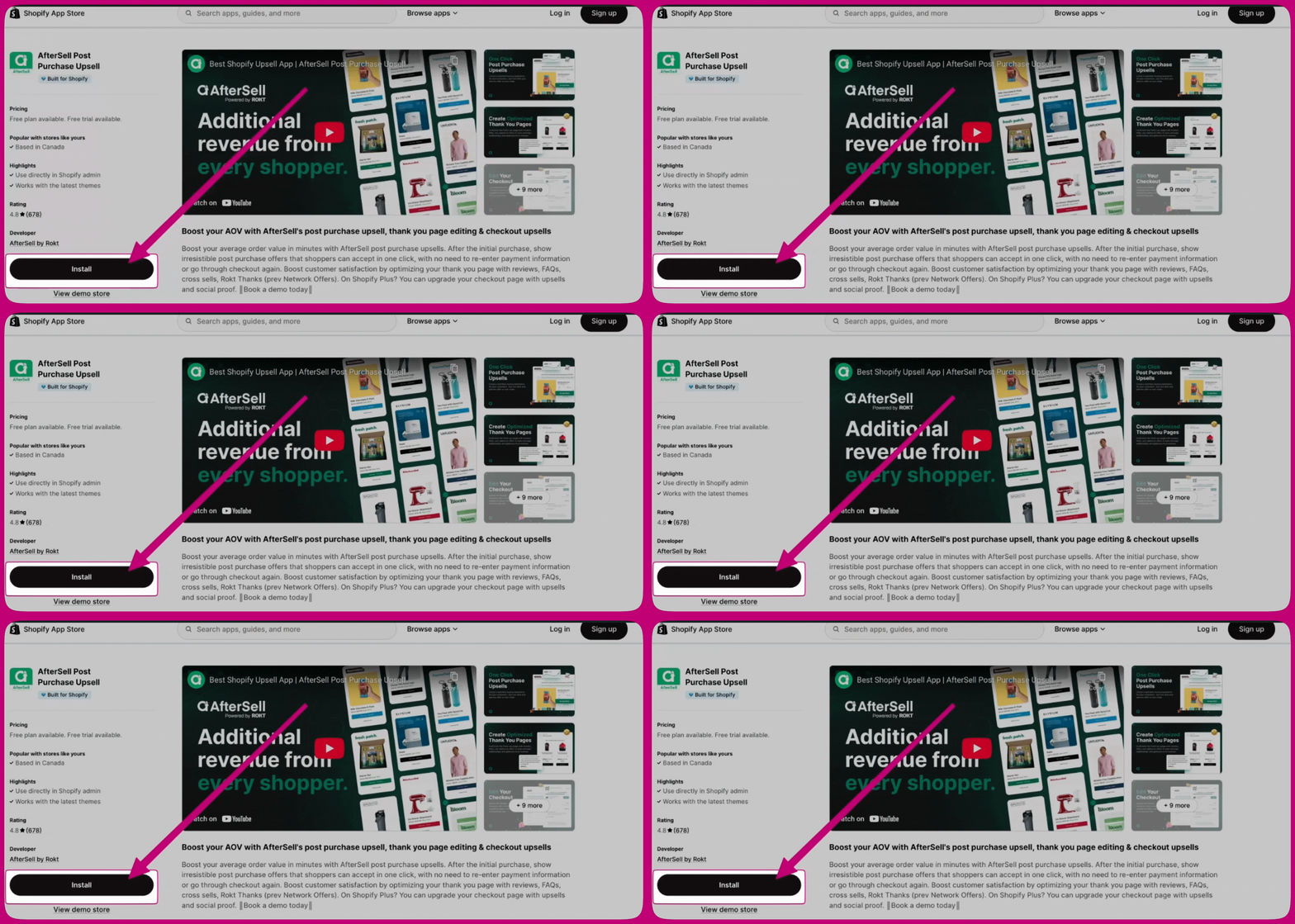
On the Aftersell app page, click the "Install" button. You will be redirected to a page where you can review the permissions the app requires.
[Aftersell on Shopify App Store](https://apps.shopify.com/aftersell)
## Step 2: Install Aftersell
On the Aftersell app page, click the "Install" button. You will be redirected to a page where you can review the permissions the app requires.
 ## Step 3: Configure Aftersell
After successful installation, you will be redirected to the Aftersell dashboard. Follow the on-screen prompts to complete the initial setup and configure Aftersell according to your preferences.
## Step 3: Configure Aftersell
After successful installation, you will be redirected to the Aftersell dashboard. Follow the on-screen prompts to complete the initial setup and configure Aftersell according to your preferences.