

Overview
This guide is designed for merchants using Upcart who want to change the color of the text that says ‘Save $XXX’ beneath the products in the cart. Changing the color allows you to design your cart with your own branding in mind.Try the built-in setting first. The Cart Editor has a Savings text color picker under Design > Colors that sets exactly this colour, on both module versions, with no code. Only reach for CSS when you need something the picker can’t express — a gradient, per-product colours, or overriding the picker on one surface.
Example
Here is what the cart will look after changing the color of the savings text: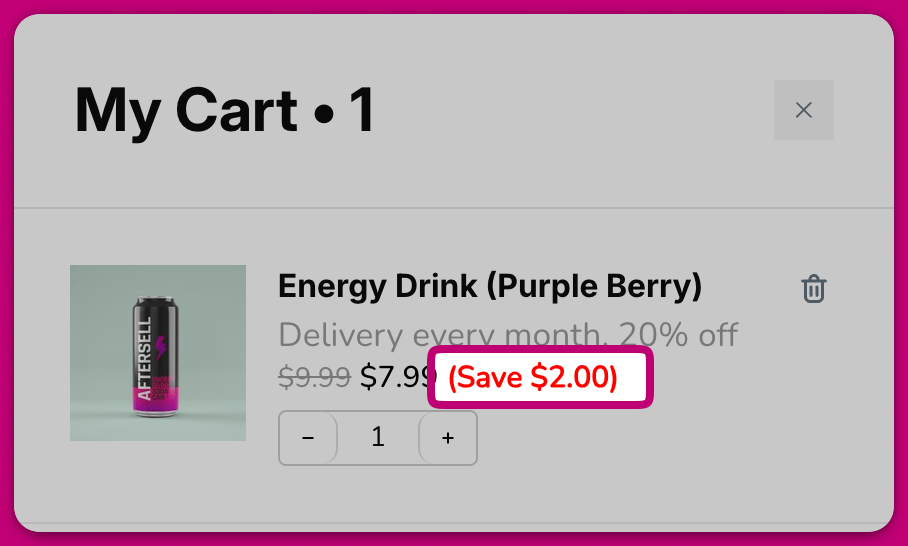
Accessing Custom CSS Settings
To begin customizing the CSS for your Upcart, follow these steps:- Open the Upcart App.
- Click on Cart Editor.
- Open Settings and select the Custom CSS tab (behind More settings if the tab row overflows).
Applying Custom CSS
Once you are in the Custom CSS section, you can change the color of the product savings text by following these steps:- Locate the CSS input area.
- Copy and paste the following code into the CSS input area:
Choosing a Color format
You can replacered with any color of your choice using three different ways.
For example:
- Named Color:
green - RGB:
rgb(0,128,0) - Hex Code:
#008000