

Check whether you need this at all. On both module versions, Upcart already hides the quantity selector on its own reward items, and already suppresses the reward’s product-page link unless you’ve turned on Allow reward product page access from cart in the Rewards module (it’s off by default).So reach for the script below only for free items Upcart didn’t grant — a gift added by another app or by your own code, which Upcart doesn’t recognise as a reward.The script’s selectors are Version 1 only.
.upcart-product-item and the .upcart-product-* CSS below belong to the V1 cart items module. On Version 2, target the public product-tile classes instead — .upcart-public-component-product-tile__quantity-selector, __quantity-minus, __quantity-plus and __product-title — see the V2 CSS selector library.Overview
This guide is intended for Upcart merchants looking to eliminate quantity selectors and product page links for free and reward items. Making this adjustment protects your reward strategy and helps prevent misuse of your rewards offerings.Example
Here is what the cart will look like after disabling the quantity selector and product page links: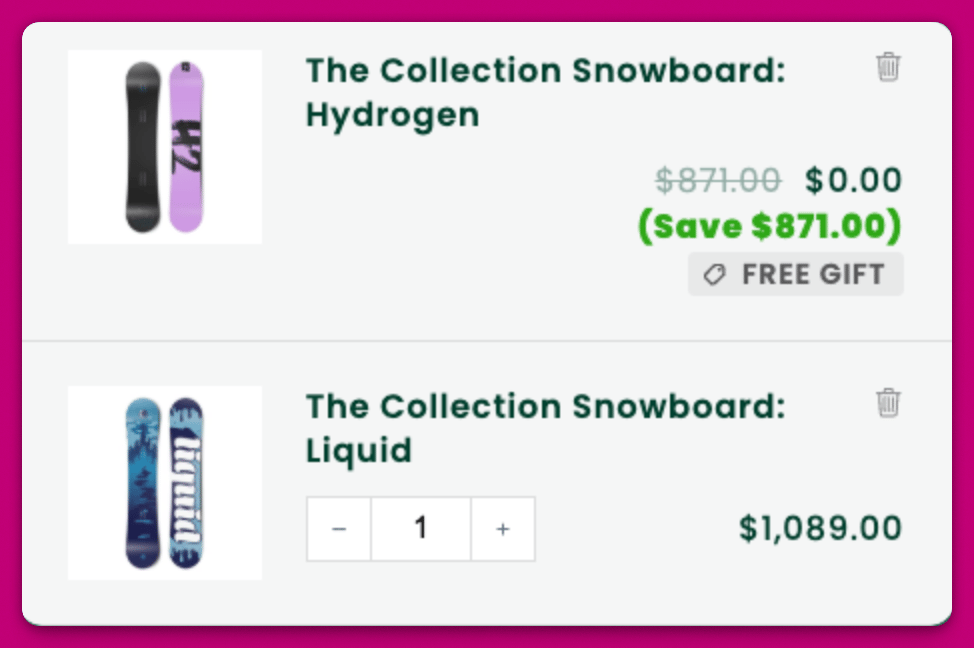
Accessing Custom CSS and HTML Settings
To begin customizing the CSS and HTML for your Upcart, follow these steps:- Open the Upcart App.
- Click on Cart Editor.
- Click on Settings and select the “Custom HTML” tab and then the “Custom CSS” tab
CSS and HTML Code Changes
CSS
Copy and paste the code below into the Custom CSS section. Save and add the HTML below.HTML Scripts (Before load)
Copy and paste the code below into the Custom HTML dropdown for Scripts (Before load). Save.Legacy note:
window.upcartOnCartLoaded and window.upcartOnCartUpdated callbacks still work but are deprecated and log console warnings. Use upcartSubscribeCartLoaded and upcartSubscribeCartUpdated for all new scripts.