Introduction
If the subtotal setting (pictured below) isn’t working for you, here’s a document going over how to insert a subtotal line manually.Enabling Subtotal Line
You can easily enable the Subtotal line in the cart Design settings. Here is where to find the setting: Cart Editor > Design > General > Enable subtotal line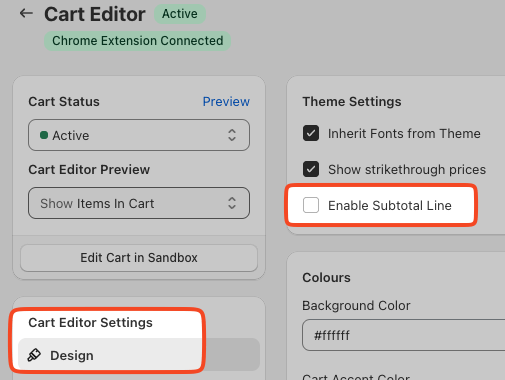
Inserting Subtotal via Code
Accessing Custom CSS and HTML Settings
To begin customizing the CSS for your Upcart, follow these steps:- Open the Upcart App within your dashboard.
- Navigate to the Cart Editor.
- Open Settings. It is a row of tabs — pick Custom HTML or Custom CSS (they sit behind More settings if the row overflows).
HTML
Make sure to select an HTML location to target the changes you would like to see in Upcart. In our case, we would want the subtotal line to be “above the checkout button”. Feel free to change the “Subtotal” text below to match your preferred language.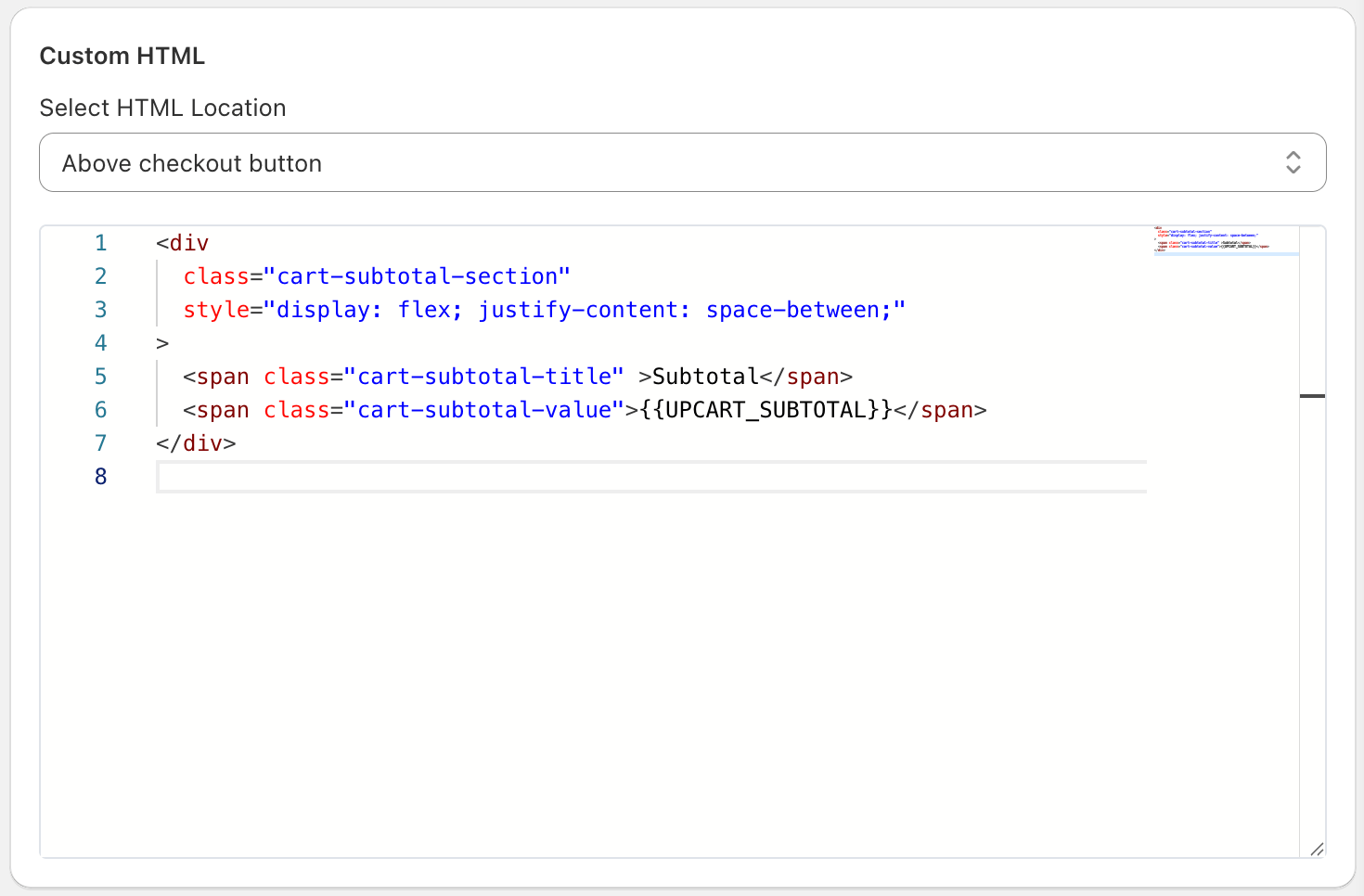
CSS
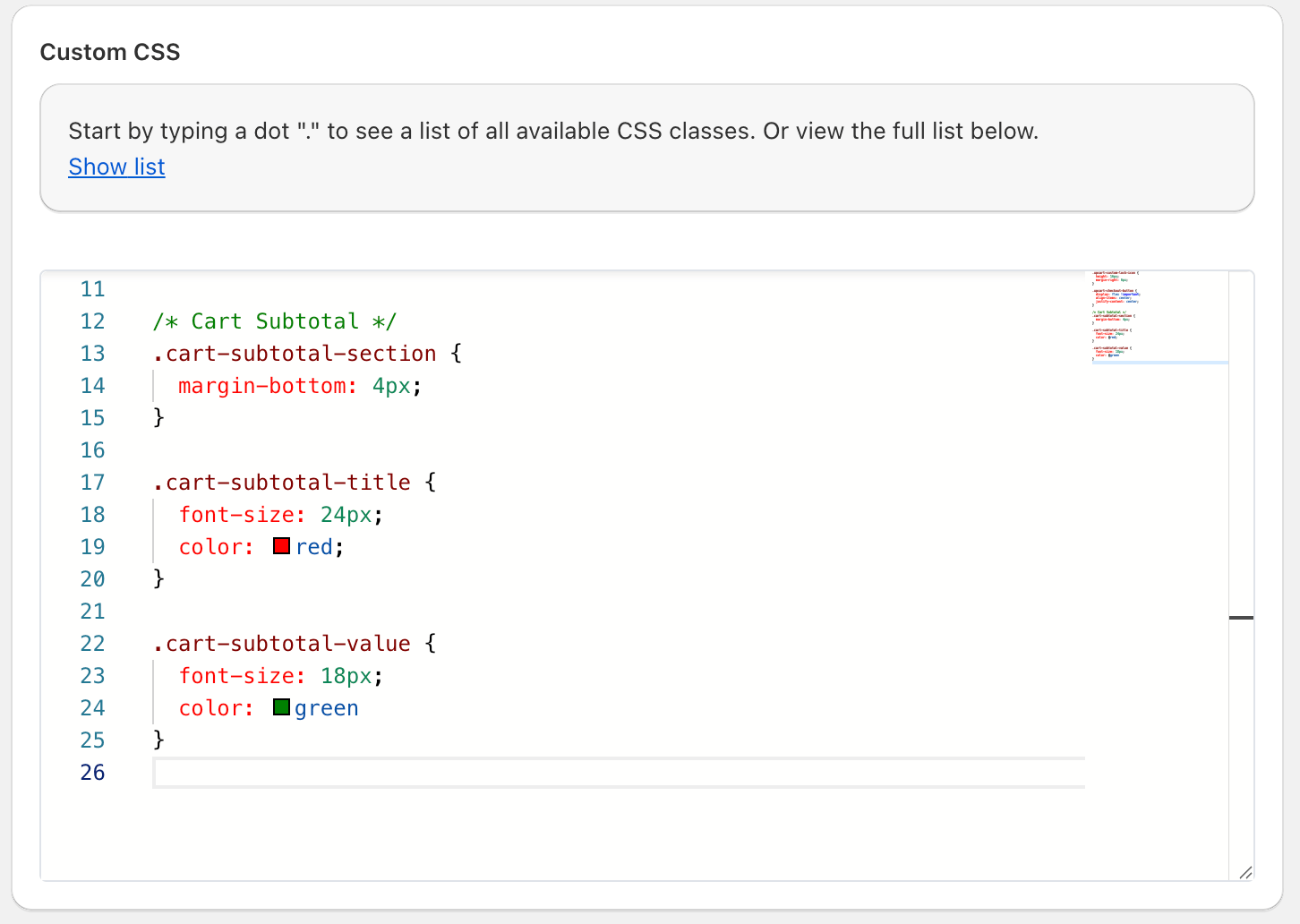
In Settings =>Custom CSS, Change the font size and colors in custom CSS as needed. Don’t forget to hit “Save” when you’re done!