

A Simple Analogy: A Restaurant & a Waiter
Imagine you’re dining at a restaurant.- You, the customer, browse the menu and place an order for a cheeseburger and fries (similar to making a request for cart data).
- The waiter (API) takes your order and communicates it to the kitchen (just like an API receives your request and sends it to a server).
- The kitchen (server) prepares your meal, processing the order and gathering the necessary ingredients (much like how a server retrieves or manipulates cart data).
- The waiter (API) then delivers the meal to your table, allowing you to enjoy your food (just as an API returns the requested data and updates your cart).
How This Relates to Upcart’s API
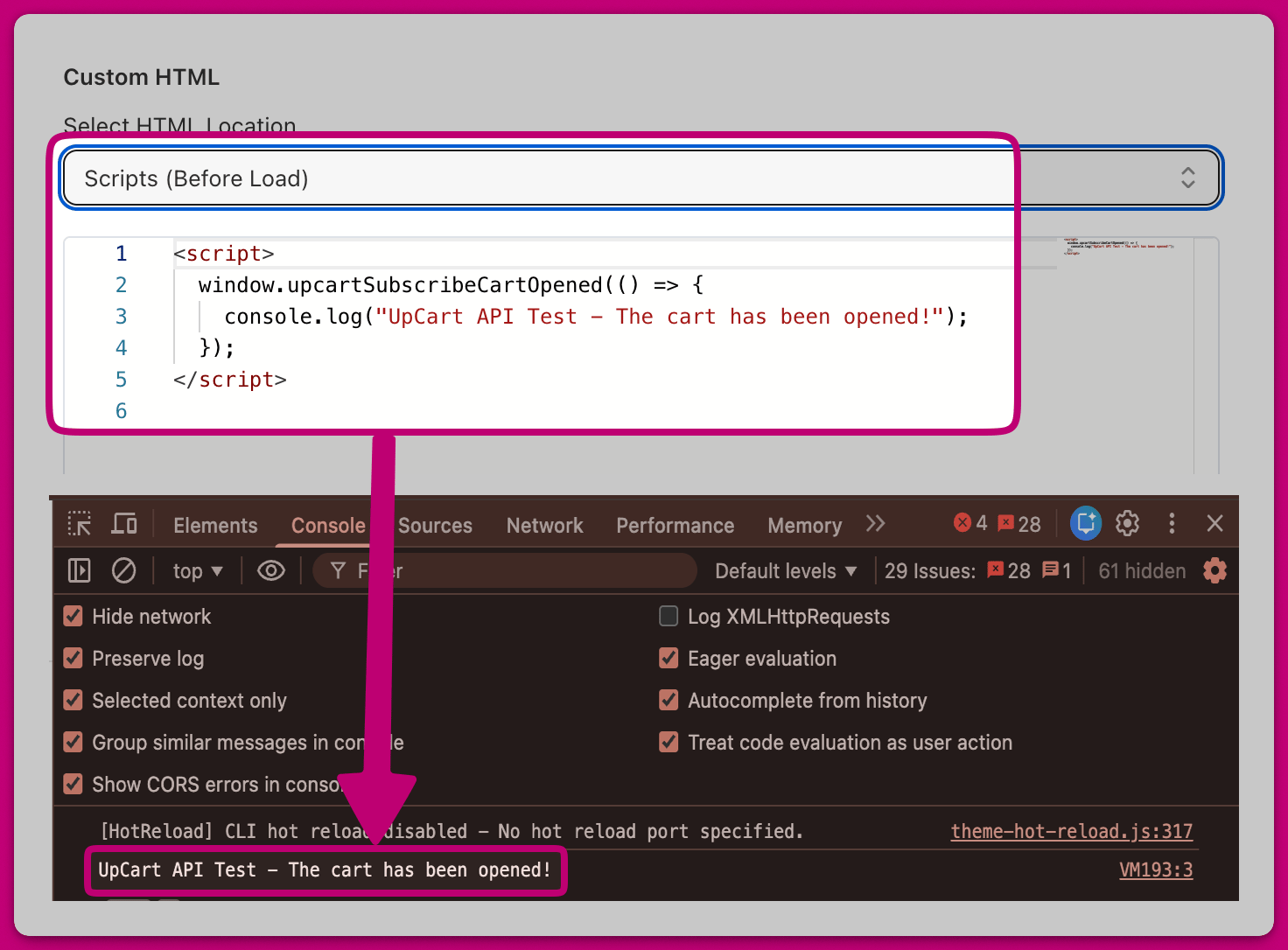
Upcart’s Public API gives you the flexibility to customize and manage your cart’s functionality, much like providing specific instructions to a waiter. For instance, if you want to test whether Upcart’s API is functioning correctly, you can run a simple script within your custom HTML that logs a message whenever the cart opens:Verifying If It’s Working
- Open your store and navigate to Upcart Settings → Custom HTML to add the script.
- Save your changes and refresh your store.
- Open the browser console (F12 or Ctrl + Shift + J on Windows, or Cmd + Option + J on Mac).
- Open Upcart’s cart, and you should see the confirmation message appear in the console:
Want to Learn More About APIs?
If you’re interested in diving deeper into APIs and JavaScript, here are some beginner-friendly resources to help you get started. Beginner-Friendly API & JavaScript Learning:- W3Schools: JavaScript Basics – Learn basic scripting to use Upcart’s API
- MDN Web Docs: APIs for Beginners – Understand how APIs work in web stores
- Shopify Developer Docs – Shopify AJAX API (useful for merchants integrating Upcart with Shopify’s cart)