

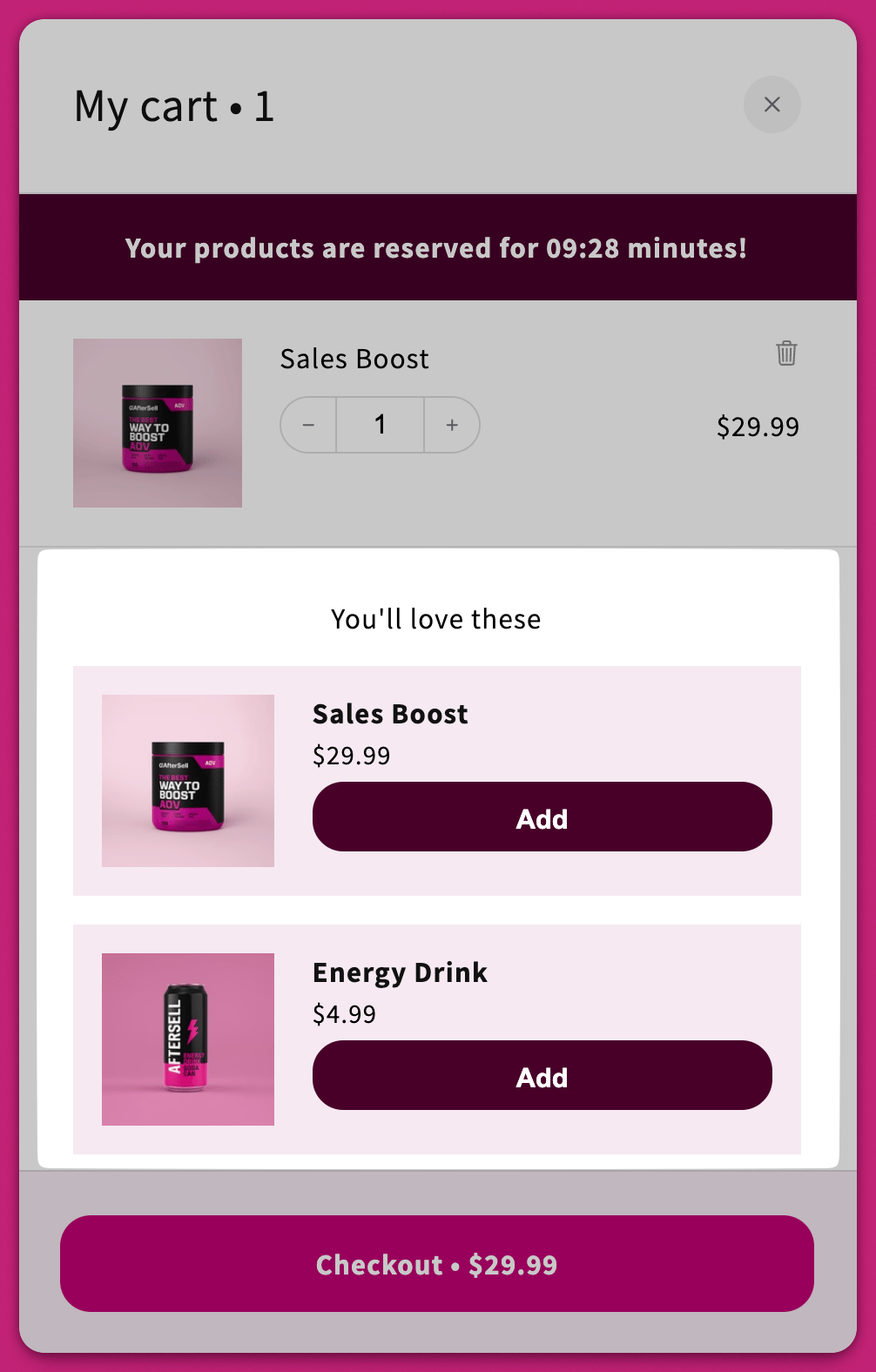
Product Selection
AI Recommended Upsells
Enable this setting to use Shopify’s Product Recommendation Algorithm to suggest upsells automatically.Recommendation Algorithm
This option appears only if AI recommendations are enabled. Choose your desired Recommendation Intent: Recommendation Intent. The intent changes which products Shopify returns; it does not change the section heading. However you set it, upsells render under your Upsell title (default “You’ll love these”).Related products
Shows similar or substitutable products.- Important: Products must share a collection to be considered “related.”
Complementary products
Shows add-ons or accessories.- Note: Complementary intent must be manually configured in the Shopify Search & Discovery app. The algorithm only auto-generates for “Related” products.
Learn more in Shopify’s documentation.
Smart Variant Matching
This checkbox only appears when Use AI recommended upsells is on and the Recommendation Algorithm is set to Related. It isn’t available for manual upsells or for the Complementary intent.
Manual Upsells Configuration
Manual upsells can be set up only when AI Recommended Upsells is disabled. Click Configure Manual Upsells.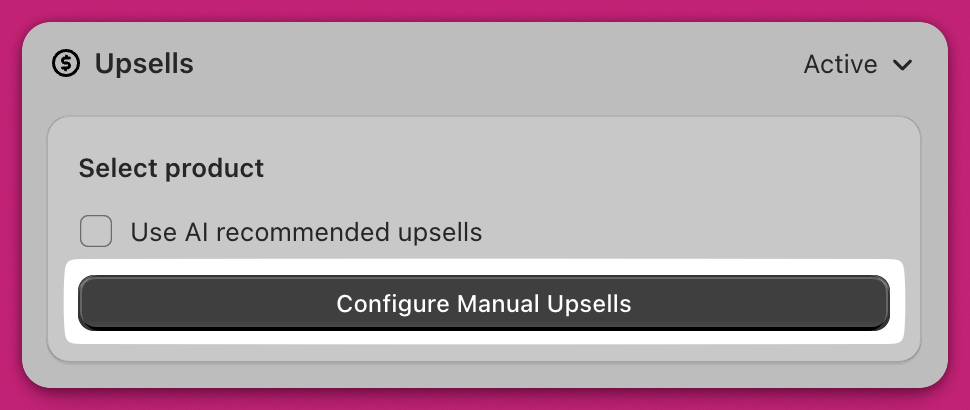
- Trigger
Specific Trigger: choose at least one product that must be in the cart.
Collection: the trigger fires when any cart item belongs to the chosen collection — pick it from the Collection tab of the selection modal.
All Products: display the upsell when any product is in the cart. - Upsell
Select the product(s) to show when the trigger matches — or a collection, which pulls its products in.
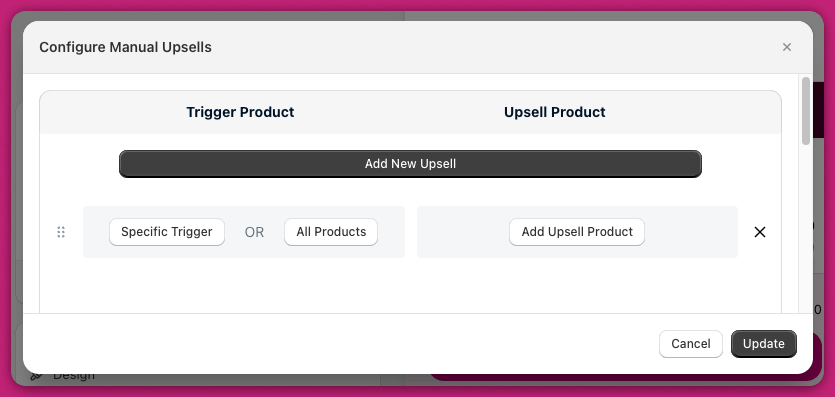
Order of Upsell Appearance
Upsells are evaluated from top to bottom. To arrange the priority of rows, drag and drop them in the Cart Editor under the Configure Manual Upsells section. The system displays upsells based on their top-to-bottom arrangement in the Cart Editor.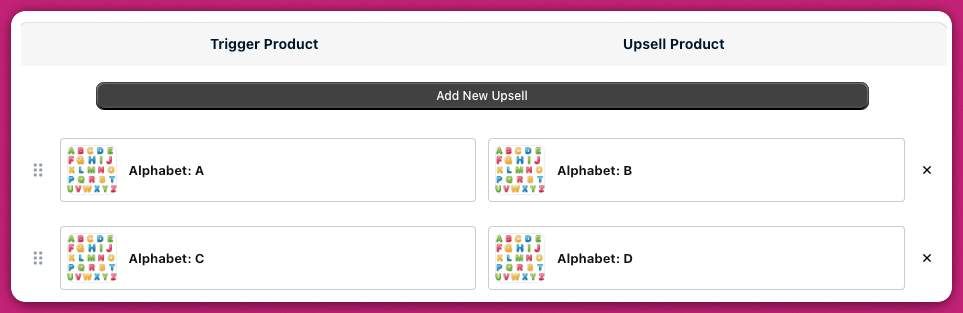
Displaying Reviews
Upcart can display product reviews on upsells and product recommendations to help customers make informed purchase decisions. Reviews are not shown on standard cart line items. Upcart uses the Shopify Storefront API to read review data stored in product metafields. Because of this, reviews will only appear if your review app exposes product review data in a format the Storefront API can access.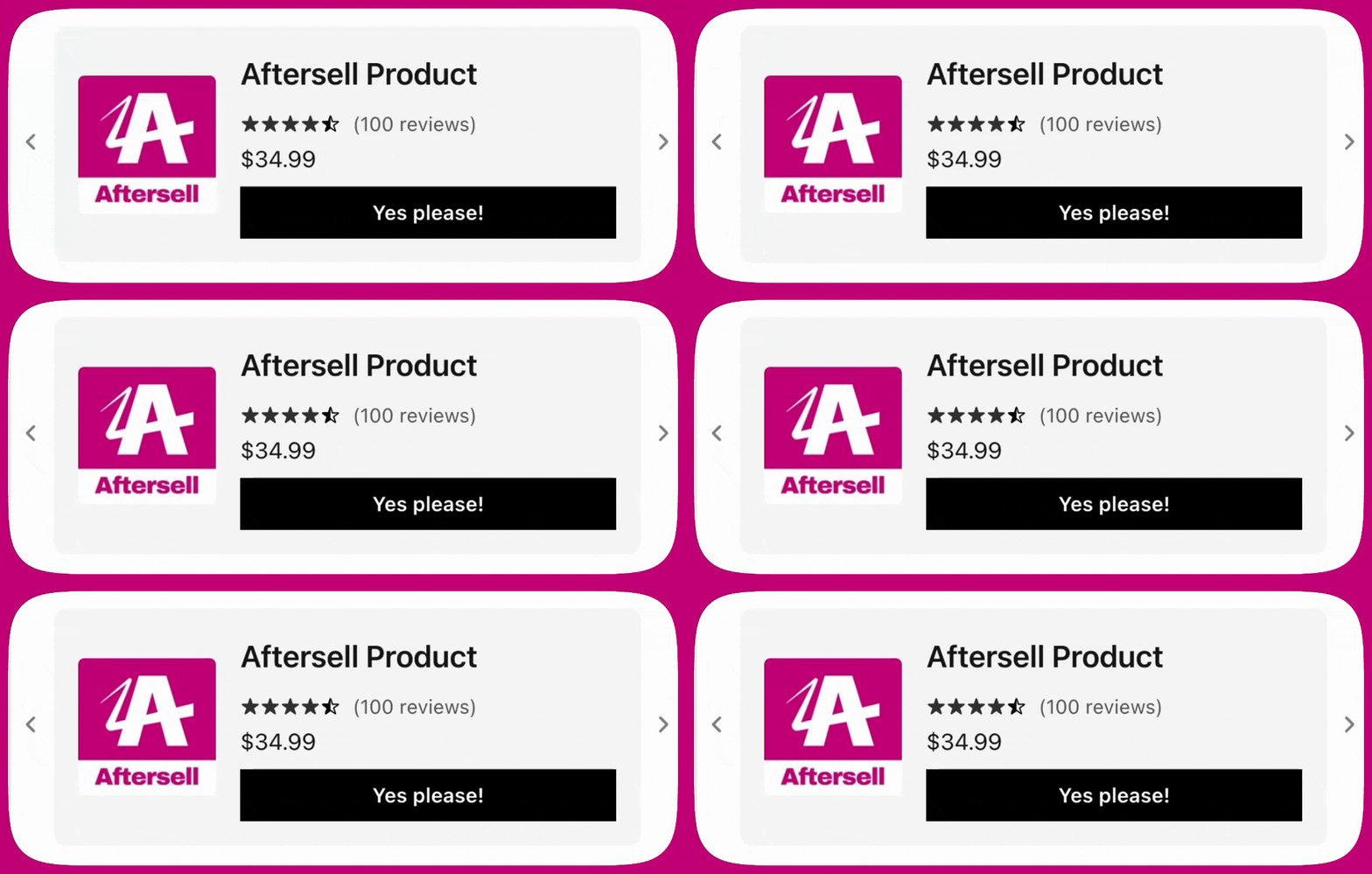
Supported review apps
At this time, Upcart supports reviews from the following apps:- Shopify Product Reviews
https://apps.shopify.com/product-reviews - Junip
https://apps.shopify.com/junip - Okendo
https://apps.shopify.com/okendo-reviews - Growave
https://apps.shopify.com/growave - Fera
https://apps.shopify.com/fera - Yotpo
- Stamped
- Loox
- REVIEWS.io
- Automizely
- Judge.me
- Ali Reviews
- Trustoo
- Rivo
- Rivyo
- Vitals