

Overview
Some themes don’t update the icon automatically and this guide will walk you through how to fix it using a bit of custom code. Follow the steps below to get everything syncing correctly. Here’s an example of what this mismatch looks like: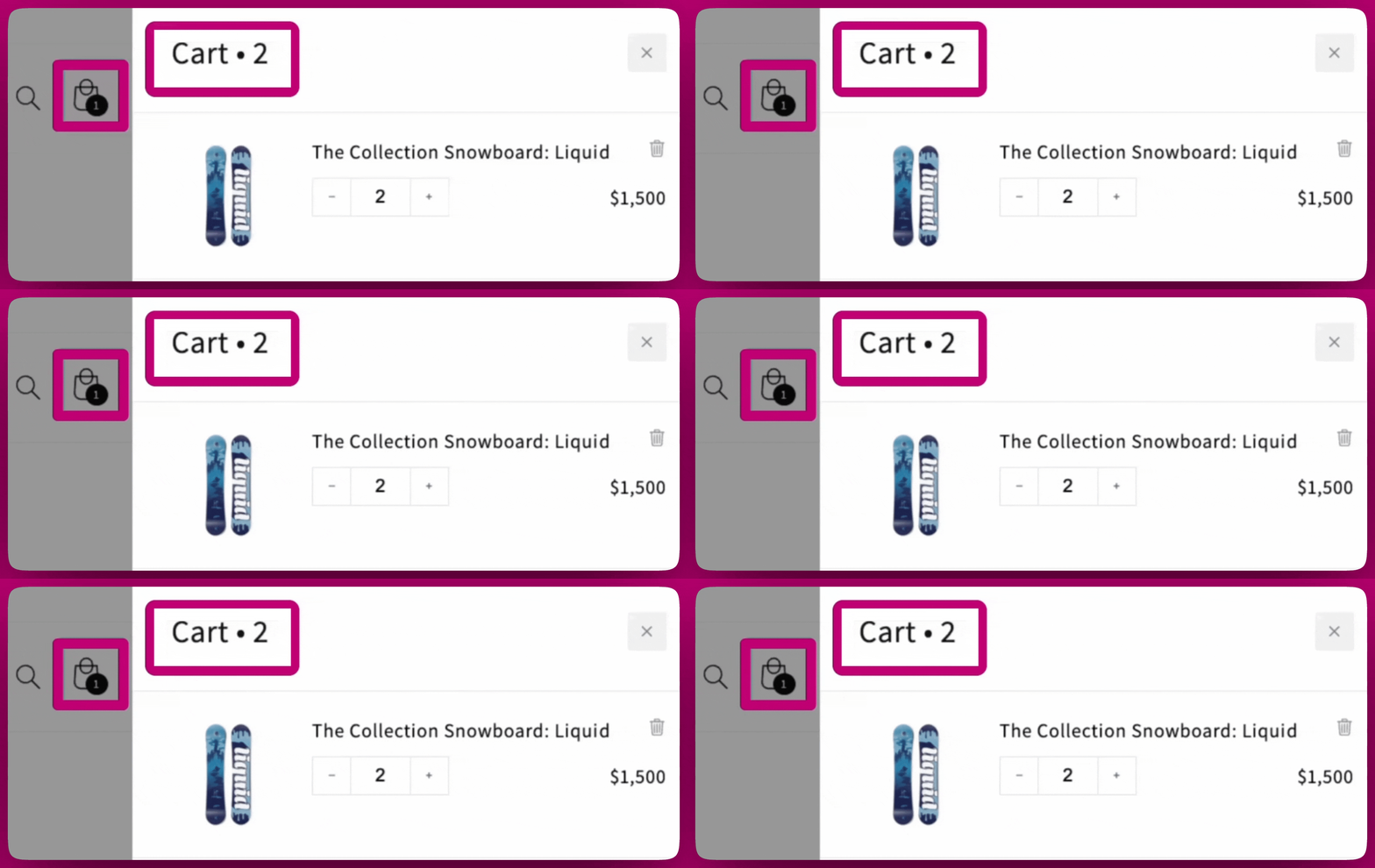
Important Steps Before You Start!
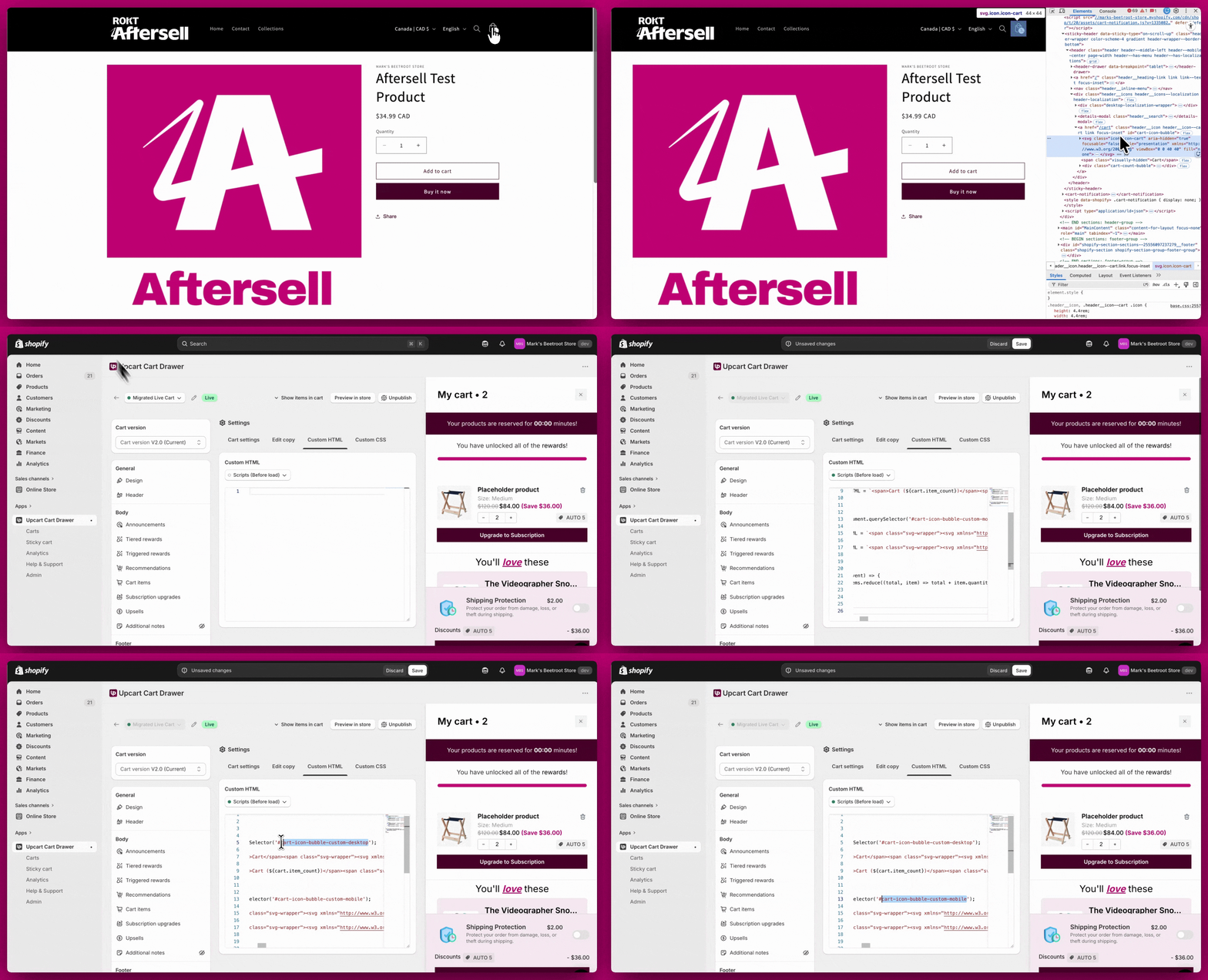
To fix the cart icon issue, you’ll need to identify the class name of your cart icon. Every theme is different, and this step ensures the code works specifically for your store.1. Use Chrome Developer Tools
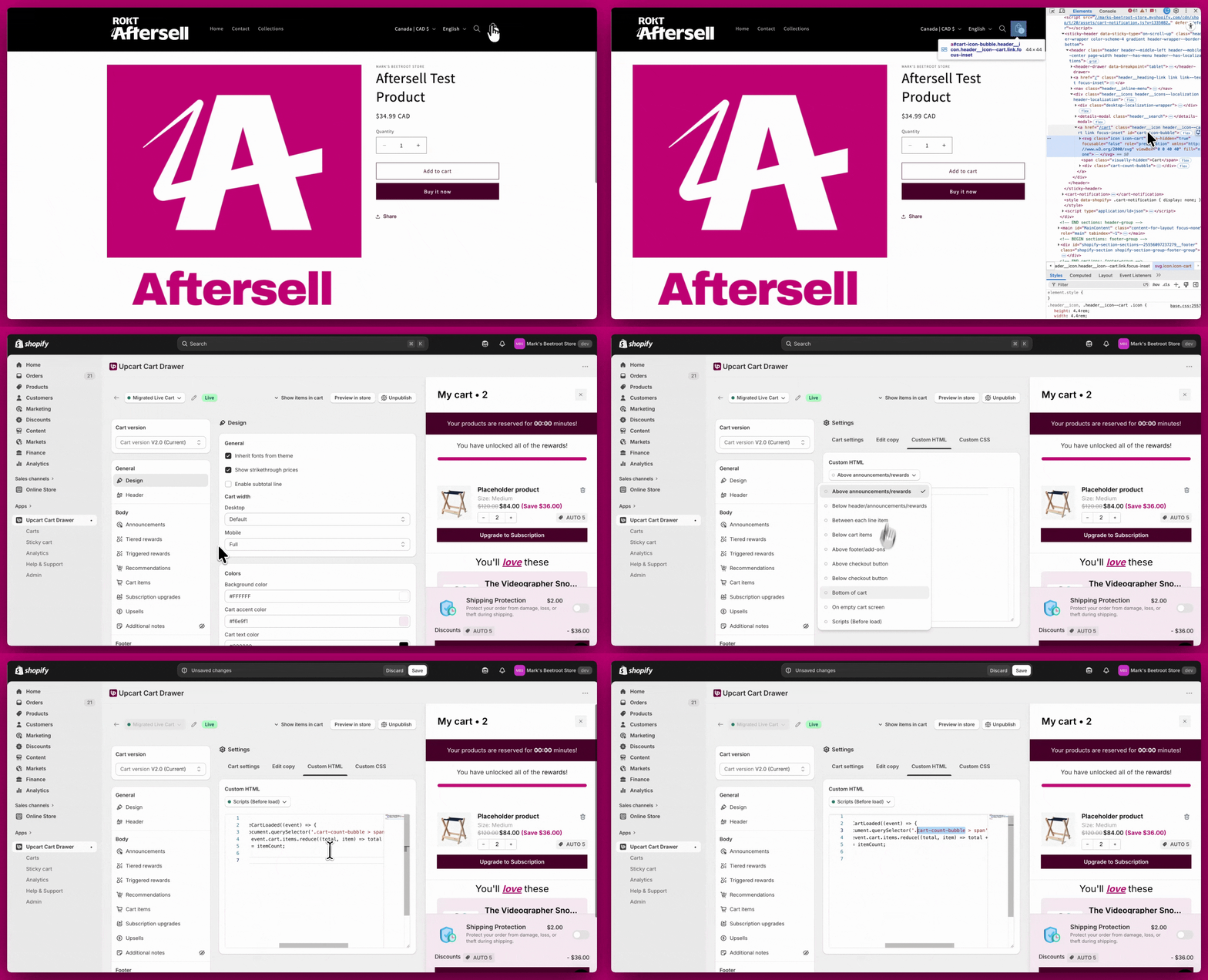
Every theme is different, so you’ll need to use Chrome Developer Tools (Inspect) to identify the class name of your cart icon.- Right-click your cart icon on your storefront and select Inspect in Google Chrome.
- Find the HTML element for your cart icon (e.g.,
<span class="cart-count-bubble">). - Need help using Chrome Developer Tools? Check out this guide for step-by-step instructions.
2. Reach Out for Help (Optional)
If you’re unable to locate your cart icon class or feel stuck, don’t worry! You have options:- Contact Your Theme Developer: They know your theme best and can help you find the correct class.
- Hire a Shopify Expert: If you need additional support, Shopify has a directory of trusted experts who can assist. Find a Shopify Expert here.
🚧 Custom Code Disclaimer
The example code provided below is just a template, it won’t work if you copy and paste it directly. You must replace the placeholder class name (e.g.,.cart-count-bubble > span) with the specific class name for your cart icon.
Step by Step Fix
We’ve broken this process into three levels of fixes, starting with the simplest solution (Level 1). Each level builds on the previous one, try Level 1 first, then move to Level 2 or 3 only if needed.Step 1: Add Custom Code in Upcart
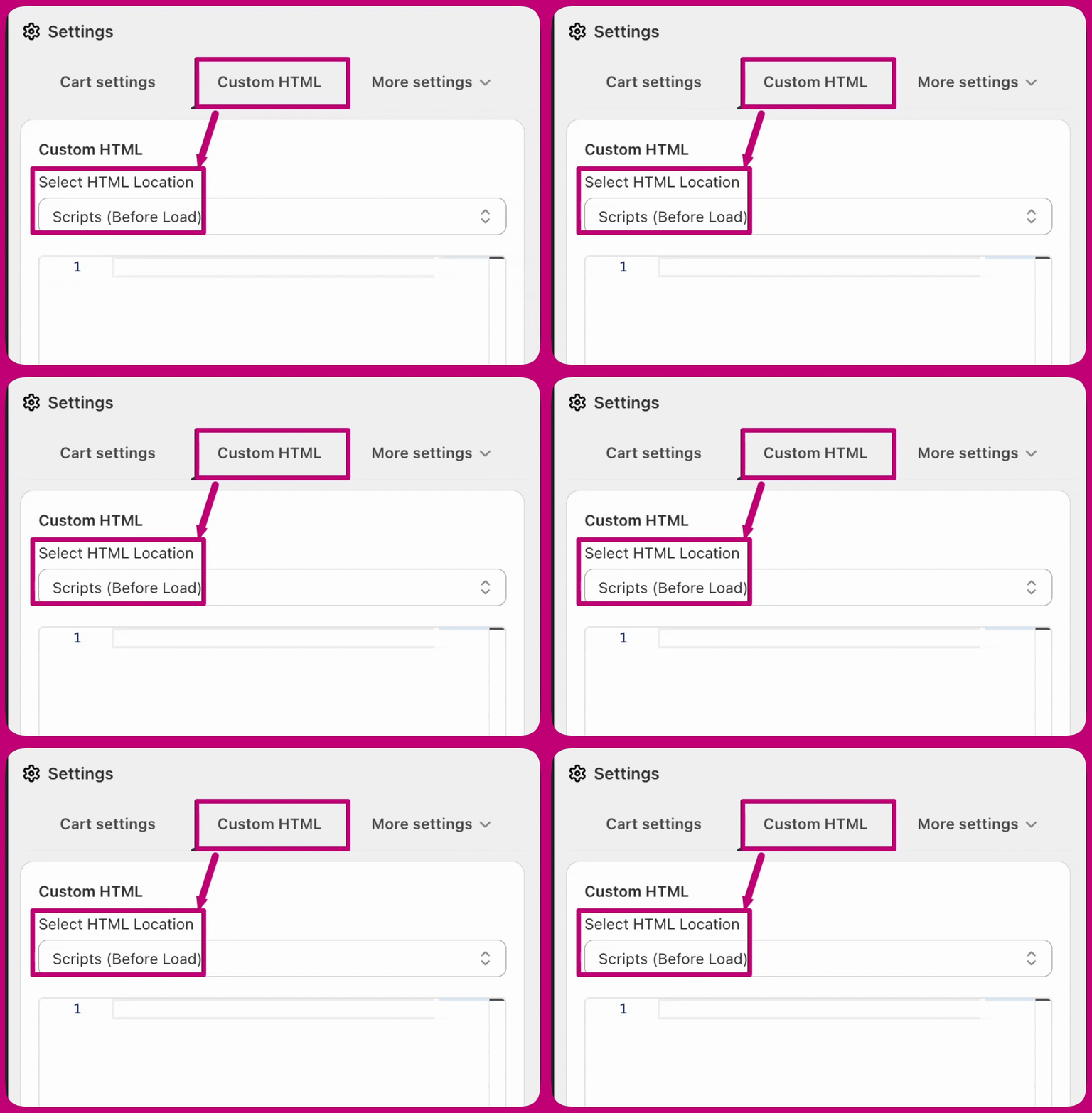
First, since we’ll need to add some custom HTML code in the Upcart editor, let’s get that section ready:- Go to Upcart Editor > Settings, then open the Custom HTML tab (behind More settings if it doesn’t fit on the tab row).
- Set the location as Scripts (Before Load).
- Paste your edited code here (we’ll provide examples for each level below).
Step 2: Apply the fix by level
Level 1 (Basic)
When the cart loads, this script totals the quantities on the cart’s line items and writes that into the count element inside your theme’s cart bubble. It fits themes where the count lives in a simple nested element (for example,.cart-count-bubble > span).
Don’t Forget
- Replace
.cart-count-bubble > spanwith your cart icon class. - Test it on your storefront after adding the code.
Example Code for Level 1
Legacy note:
window.upcartOnCartLoaded callbacks still work but are deprecated and log console warnings. Use upcartSubscribeCartLoaded for all new scripts. Note that event.cart does not have an item_count property, use event.cart.items.reduce((total, item) => total + item.quantity, 0) to calculate the total item count.Level 2 (Moderate)
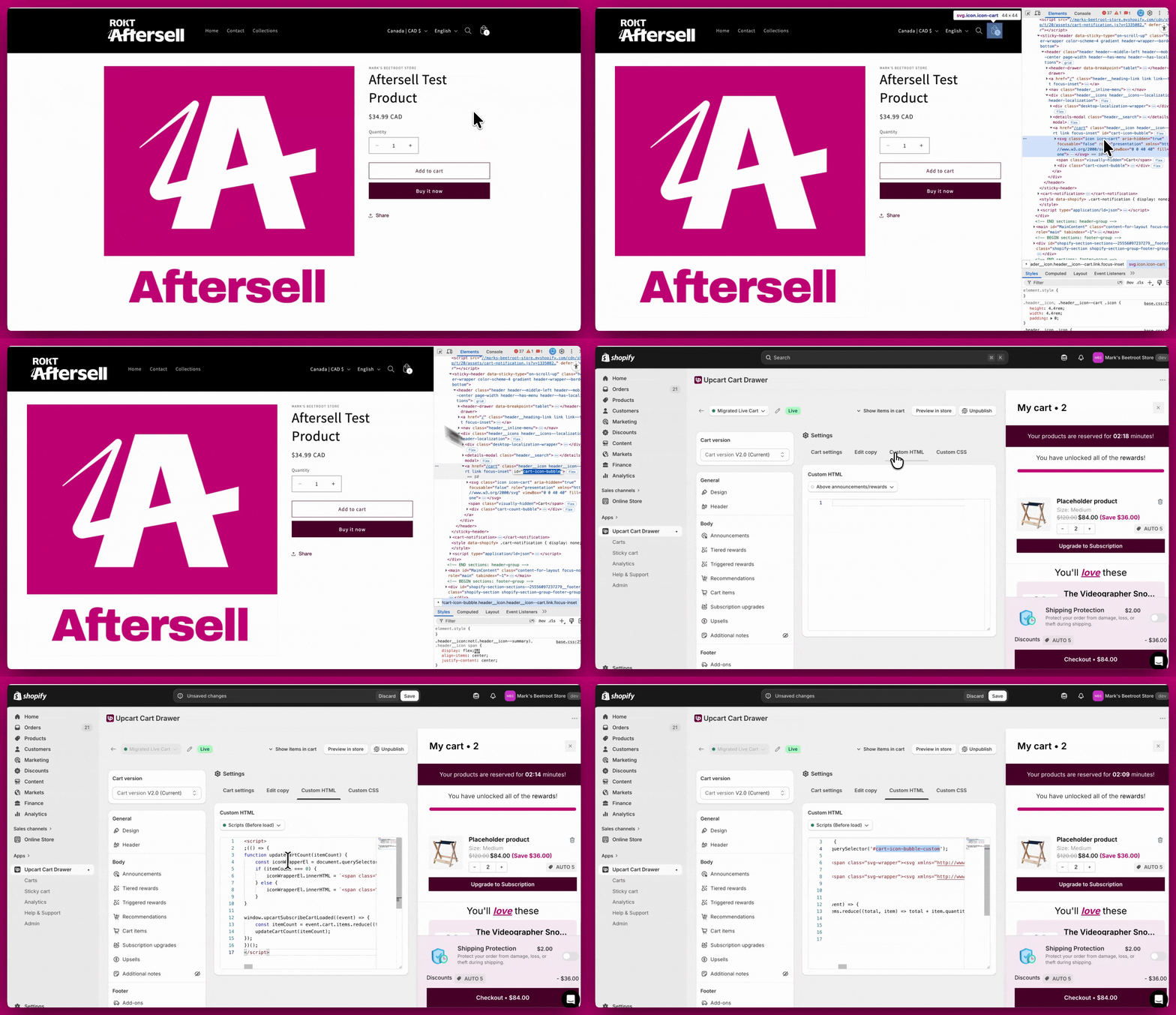
If Level 1 didn’t work, your theme may replace the entire cart icon HTML when the count changes. This version rebuilds the icon markup for empty vs. non-empty cart states so the count and icon stay in sync. Don’t Forget- Replace
#cart-icon-bubble-customwith your theme’s cart icon wrapper selector. - Test it after saving.
Example Code for Level 2
Legacy note:
window.upcartOnCartLoaded callbacks still work but are deprecated and log console warnings. Use upcartSubscribeCartLoaded for all new scripts.Note that event.cart has no item_count property — the scripts above derive the total with event.cart.items.reduce((total, item) => total + item.quantity, 0) and pass it in as itemCount. Older copies of these snippets that interpolate cart.item_count throw a ReferenceError and silently never update the icon.Level 3 (Advanced)
If your theme uses separate cart icon markup for desktop and mobile, run the same update logic against two selectors so each viewport gets the correct HTML and count. Don’t Forget- Replace
#cart-icon-bubble-custom-desktopand#cart-icon-bubble-custom-mobilewith your theme’s classes. - Test thoroughly on both desktop and mobile views.
Example Code for Level 3
Legacy note:
window.upcartOnCartLoaded callbacks still work but are deprecated and log console warnings. Use upcartSubscribeCartLoaded for all new scripts.Note that event.cart has no item_count property — the scripts above derive the total with event.cart.items.reduce((total, item) => total + item.quantity, 0) and pass it in as itemCount. Older copies of these snippets that interpolate cart.item_count throw a ReferenceError and silently never update the icon.Still not working?
If none of these levels solve the issue, don’t worry, you’re not out of options! This likely means your theme requires more advanced customization. Here’s what you can do next:- Reach out to your theme developer for help.
- Hire a Shopify Expert who can create a custom solution tailored to your store.