

What are you experiencing?
Start here to jump straight to the right solution:- Upcart opens briefly, then redirects to the cart page
- Customers are taken directly to the cart page instead of seeing Upcart
- Two carts are appearing at the same time (Upcart and the theme cart)
- Upcart is not opening at all
- Upcart not being fully enabled
- Theme cart settings conflicting with Upcart
- Enhanced AJAX API Compatibility configuration
- Third-party apps overriding cart behavior
- Theme cart drawers conflicting with Upcart
Step 1: Make Sure Upcart Is Fully Active
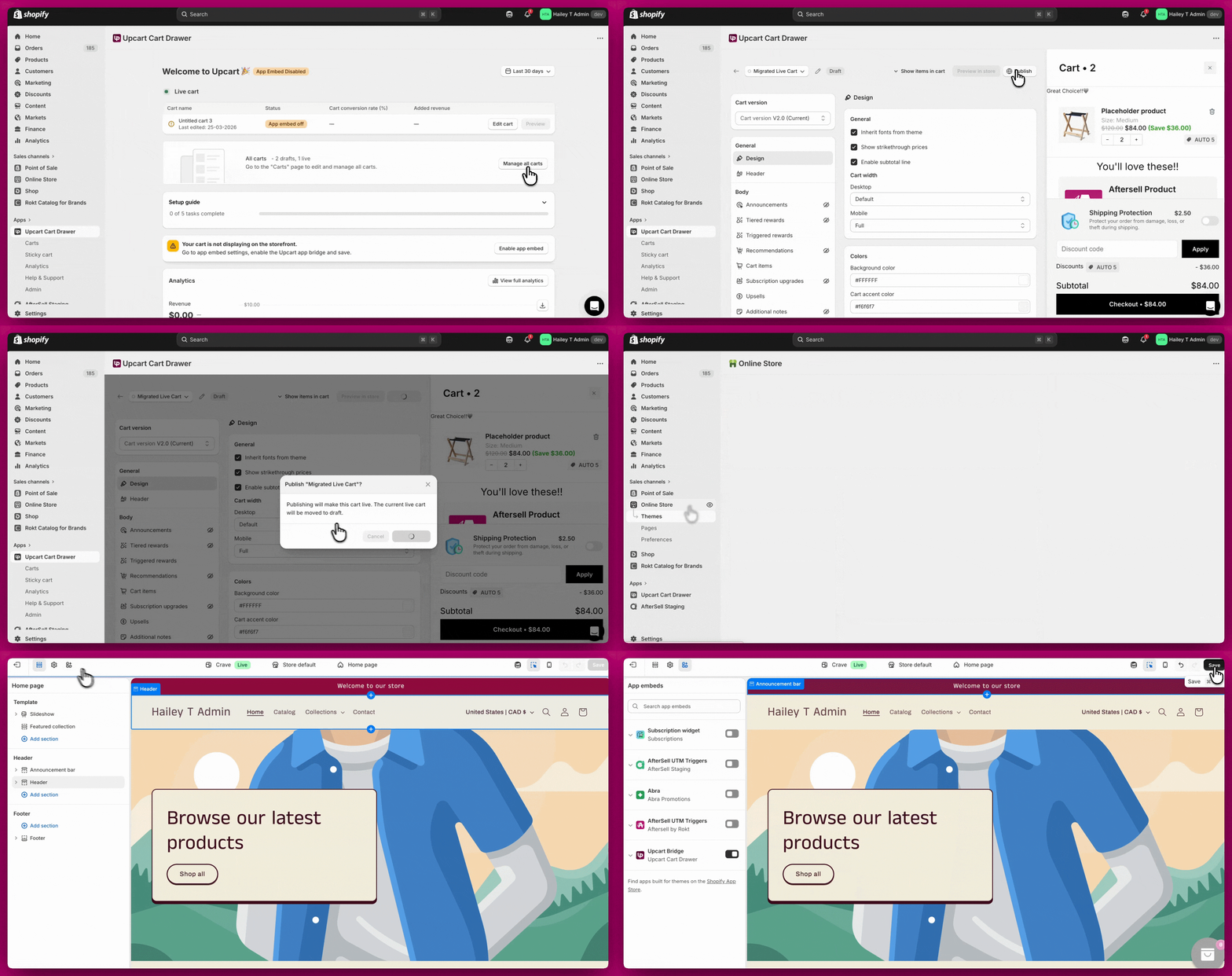
Before troubleshooting anything else, confirm Upcart is properly enabled.1. Ensure the Cart Is Activated
If the cart is disabled inside the Upcart editor, it will not appear on your storefront.- Open Upcart
- Go to Manage all carts
- Confirm the cart is published
2. Enable the App Embed
If the app embed is disabled, Upcart will not load.- Go to Shopify Admin > Online Store > Themes > Customize
- Open App Embeds
- Toggle Upcart ON
- Save
Issue 1 & 2: Upcart Redirecting to the Cart Page
If Upcart briefly opens and then redirects, or customers are taken directly to the cart page, this is usually caused by one of the following. Work through each step and test after every change.1. Check Checkout Button Setting in Upcart
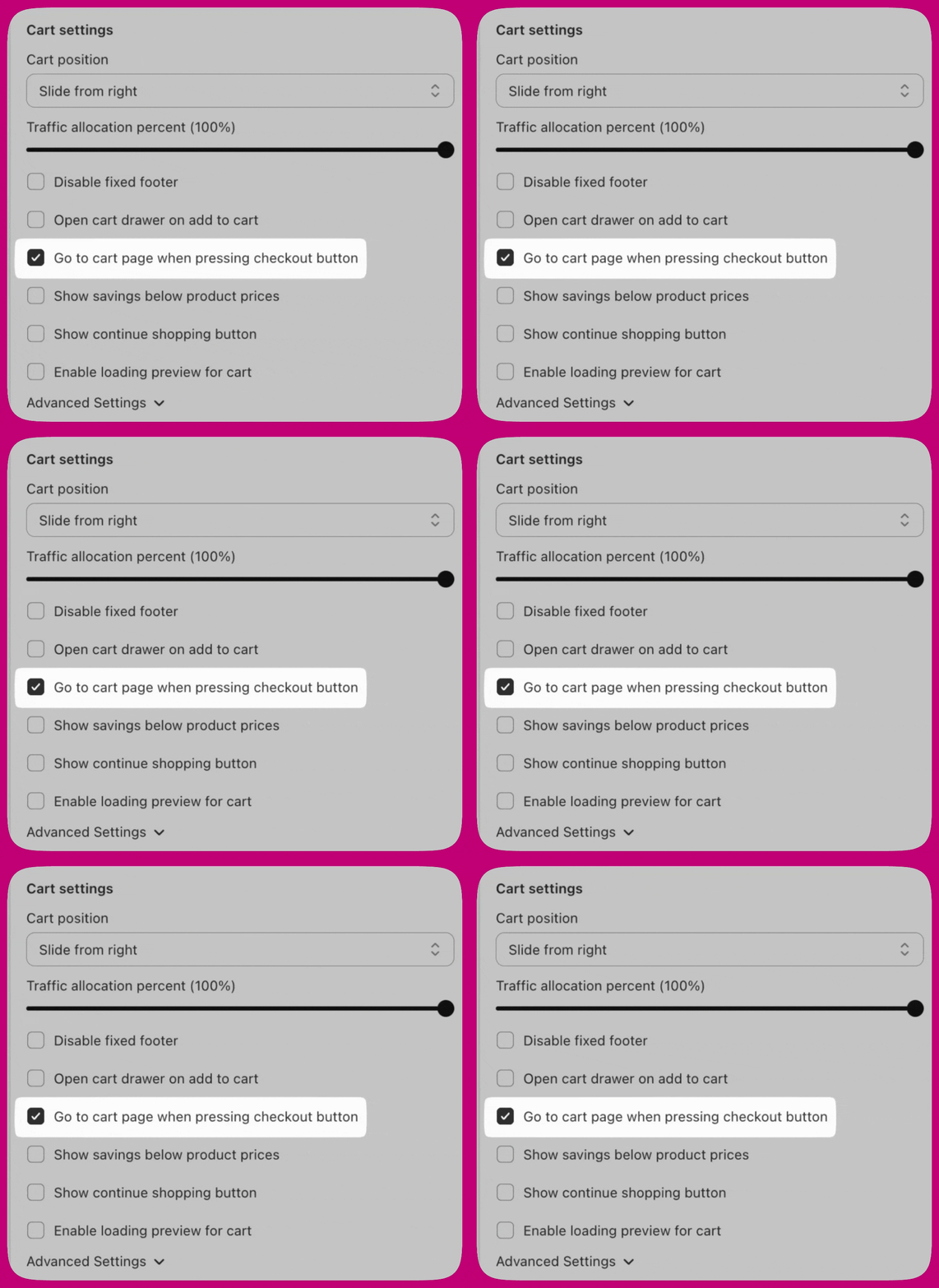
If customers click Checkout and are sent back to the cart page:- Go to Upcart > Cart Editor > Settings > Cart settings
- Locate “Go to cart page when pressing checkout button”
- Turn this OFF
- Save and test
2. Check Enhanced AJAX API Compatibility
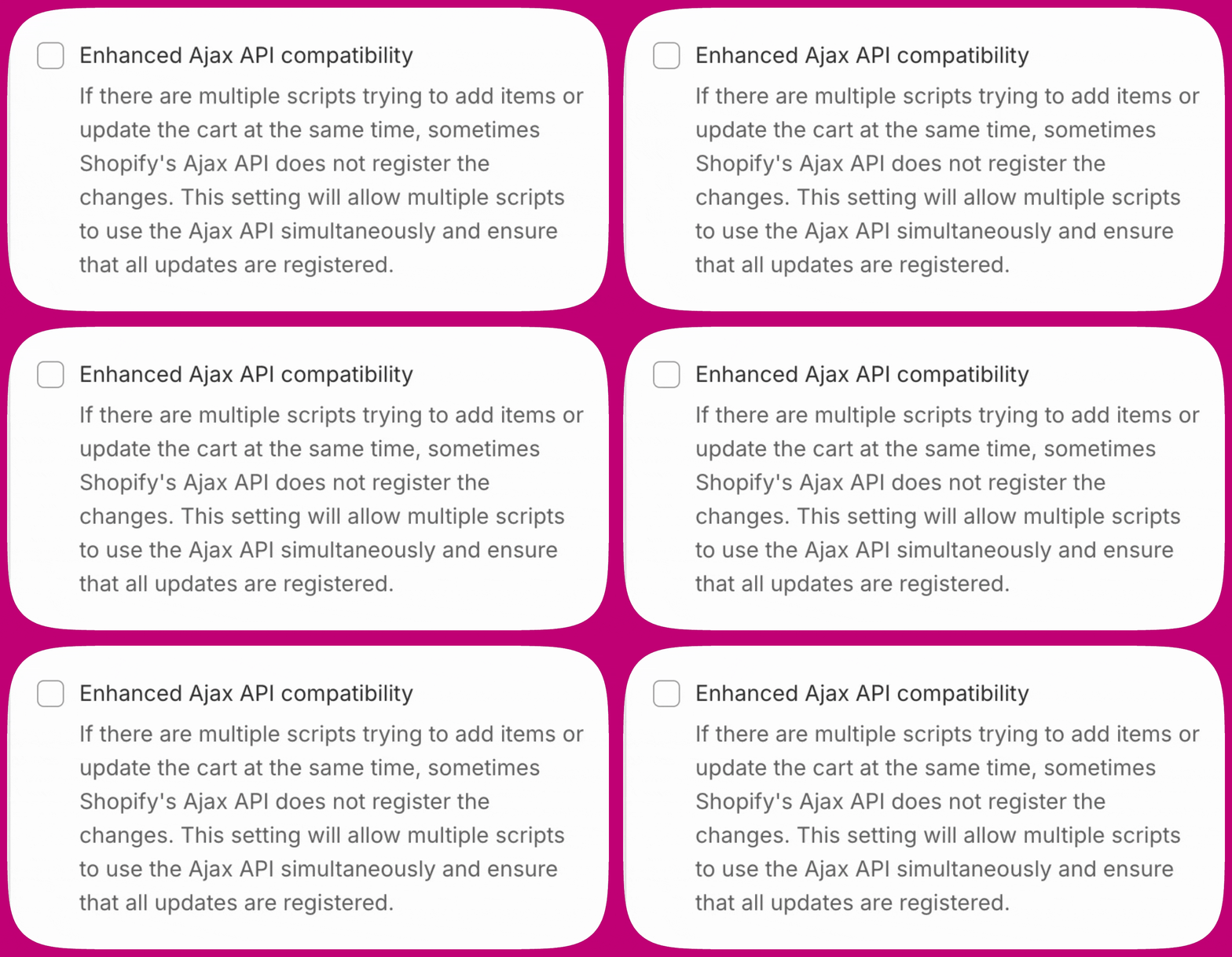
Go to Upcart > Cart Editor > Settings > Cart settings, expand Advanced Settings, and locate Enhanced AJAX API Compatibility. This setting changes how Upcart handles Add to Cart events:- Disabled (recommended for most stores) - Upcart intercepts Add to Cart calls and prevents redirects
- Enabled - Upcart stops intercepting Add to Cart calls, allowing other apps to control cart behavior including redirects
upcartRegisterAddToCart) instead.
For complete guidance, see Enhanced AJAX API Compatibility.
3. Change Theme Cart Type to “Page”
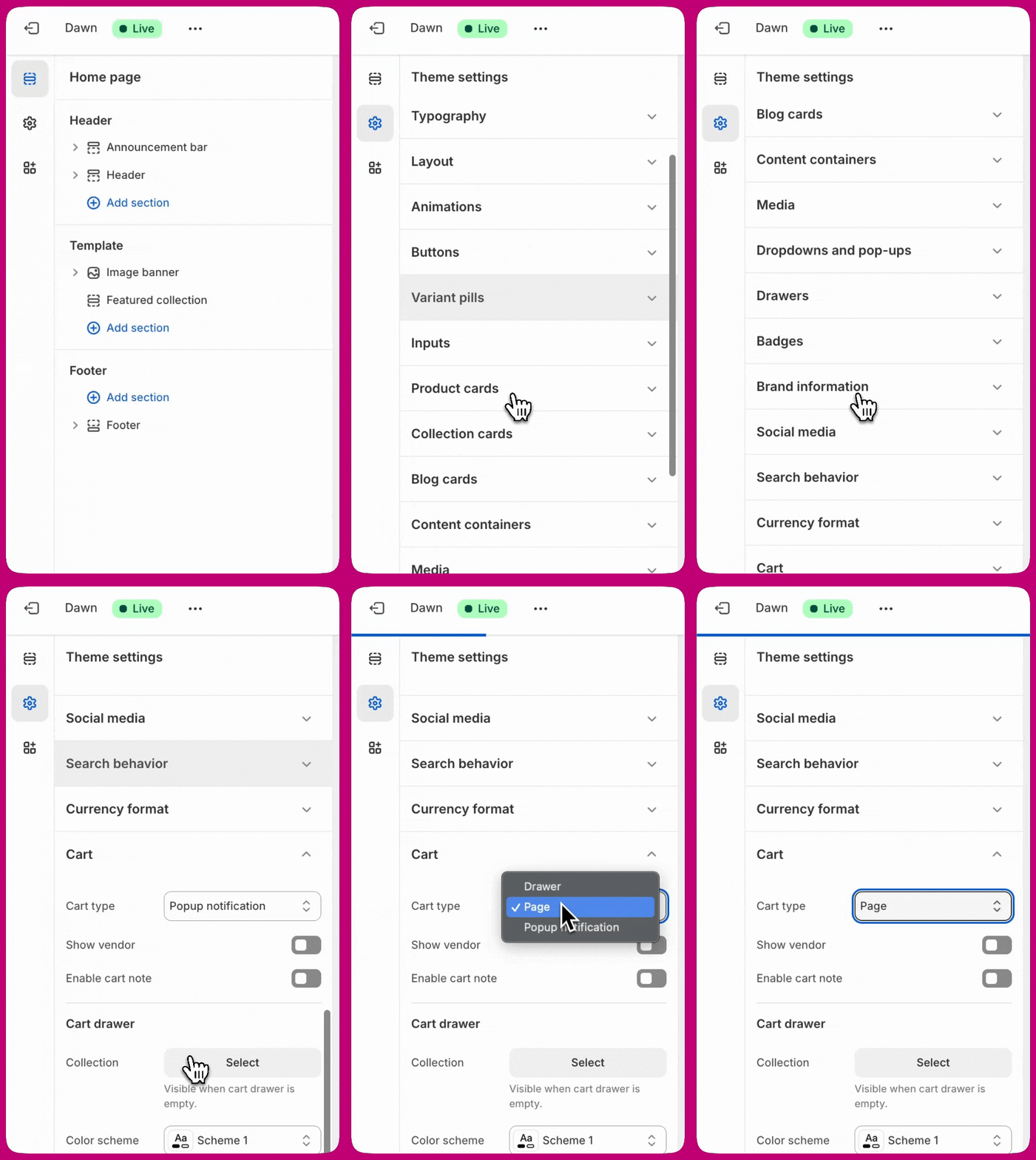
Your theme’s cart drawer or popup may be overriding Upcart.- Go to Shopify Admin > Online Store > Themes
- Click Customize
- Open Theme Settings > Cart
- Change Cart Type to Page
- Save and test
If your theme does not include a “Cart Type” (or equivalent) setting, contact your theme developer to locate or add the correct option. Upcart cannot modify theme settings directly.
4. Disable Theme Cart Redirect Settings
Some themes automatically redirect customers to the cart page after adding a product, bypassing Upcart entirely.- Go to Shopify Admin > Online Store > Themes > Customize
- Open Theme Settings > Products (or Cart)
- Look for settings like:
- Enable cart redirection
- Redirect to cart after add
- Go to cart after add
- Turn these OFF, save, and test
5. Check for Conflicts With Other Apps
Many third-party apps override cart behavior. Open the settings of any cart-related apps and look for options such as:- Redirect to cart
- Go to cart after add
- Automatically open cart page
- Action after product is added
- Globo Product Options - Disable “Redirect to the shopping cart page after adding a product”
- Zepto Product Personalizer - Go to Zepto > Settings > Add to Cart Settings and change “Action after a product is added to the cart” to “Stay on the product page and show a success message”
- PageFly - Disable any cart redirect or redirection rules in PageFly settings
- Replo - Adjust “go to page” settings to allow the cart drawer to open
Issue 4: Upcart Is Not Opening at All
If nothing happens when customers add to cart or click the cart icon, this is usually caused by a theme conflict or Upcart not detecting the correct buttons.Disable Theme’s Native Cart Drawer
- Go to Shopify Admin > Online Store > Themes > Customize
- Open Theme Settings > Cart
- Set cart type to Page
- Save
Upcart Not Detecting Your Buttons?
Some themes use custom code that prevents Upcart from automatically detecting the Add to Cart button or Cart icon. If that’s the case, you can manually specify the button selectors. Step 1: Find the class name- Open your store in Google Chrome
- Right-click the Add to Cart button or Cart icon
- Click Inspect
- In the highlighted code, look for something like:
icon-cart). Do not copy class= or the quotation marks.
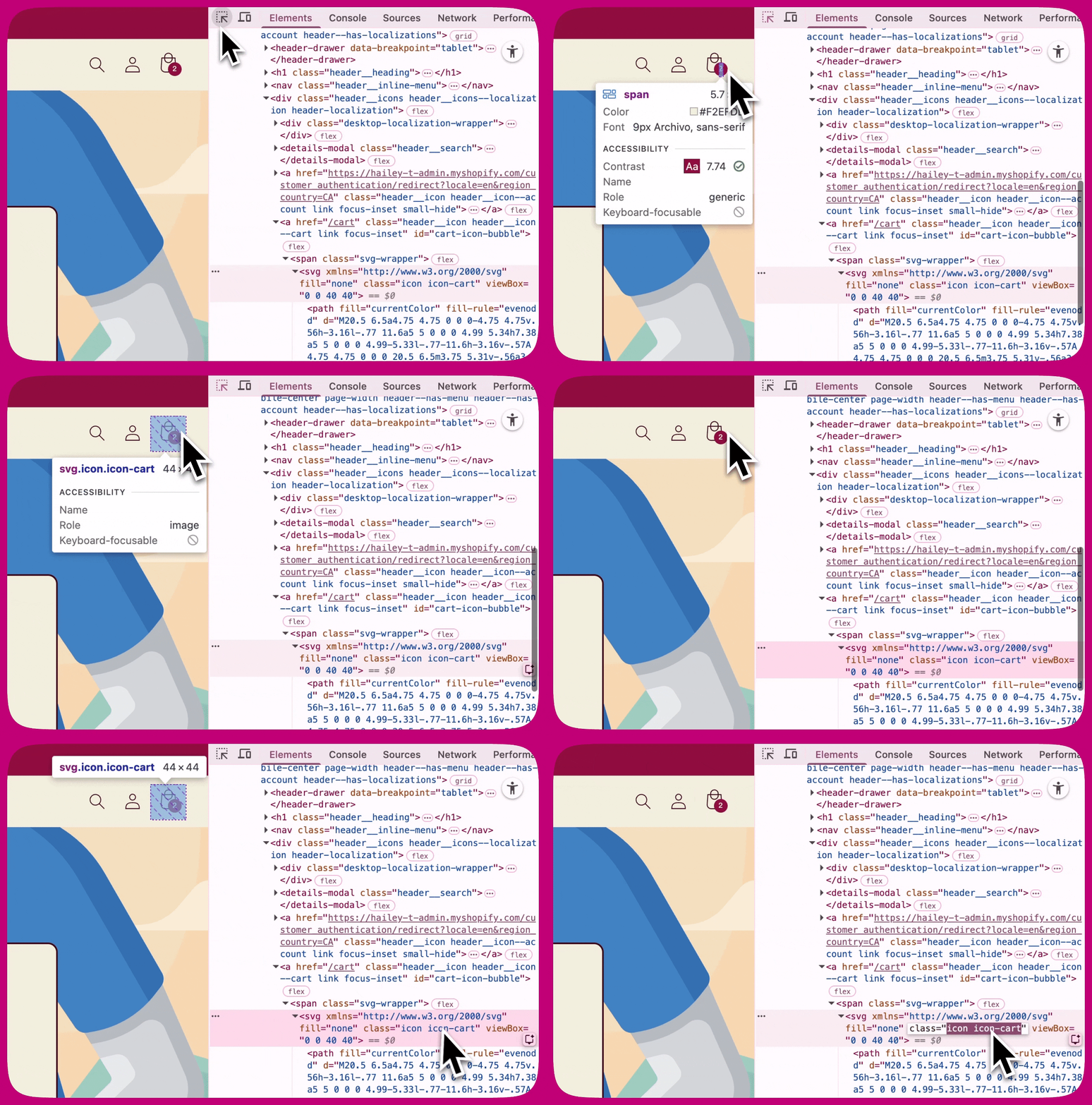
.icon-cart
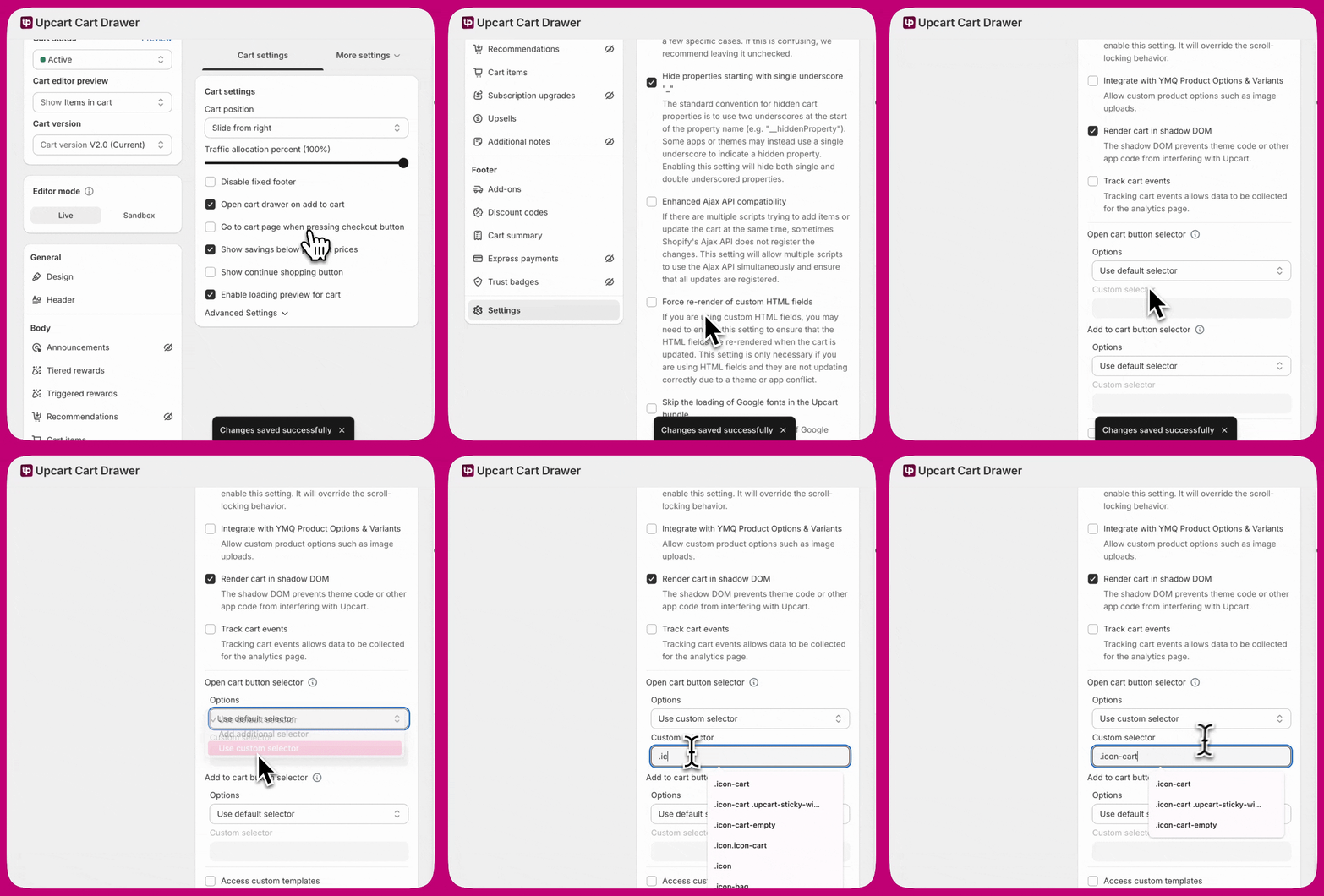
- Open Upcart
- Go to Cart Editor > Settings > Cart settings, then expand Advanced Settings
- Find the selector group you need:
- Open cart button selector — for the cart icon
- Add to cart button selector — for the add to cart button
- In that group’s Options dropdown, choose Add additional selector (keeps Upcart’s own detection and adds yours) or Use custom selector (yours only). The Custom selector field stays disabled while Use default selector is chosen.
- Paste
.icon-cartinto Custom selector and save
Additional Troubleshooting
If the issue persists after working through the steps above, try the following one at a time, testing after each change.Toggle Shadow DOM (ON/OFF)
In some themes, the Shadow DOM setting affects how Upcart detects buttons and cart events.- Go to Upcart > Cart Editor > Settings > Cart settings, then expand Advanced Settings
- Locate Render cart in shadow DOM
- Toggle ON, save, and test
- Toggle OFF, save, and test again
Toggle AJAX Setting (ON/OFF)
Some stores behave better with AJAX handling switched, depending on theme and app setup.- Go to Upcart > Cart Editor > Settings > Cart settings, then expand Advanced Settings
- Locate Enhanced Ajax API compatibility
- Toggle ON, save, and test
- Toggle OFF, save, and test again
Clear Browser Cache
Old cached scripts can retain previous cart behavior and prevent Upcart from loading correctly.- Open browser settings
- Go to Privacy & Security
- Select Clear Browsing Data
- Clear cached images, files, and cookies
- Refresh and test
Test With a Default Shopify Theme
- Go to Shopify Admin > Online Store > Themes
- Add a free theme such as Dawn
- Enable it temporarily
- Test Upcart
Disable Apps One by One
- Go to Shopify Admin > Apps
- Disable one cart-related app at a time
- Test after each
Check Browser Console for Errors
- Open your store
- Press F12 (or right-click > Inspect)
- Open the Console tab
- Add a product to cart
- Look for errors, especially anything related to add.js or cart events
- Screenshot any errors to share with support
When to Contact Support
If you have completed all steps and Upcart still is not working, reach out to support with:- Theme name and version
- List of cart-related apps installed
- Console error screenshots
- Steps you have already tried