

Introduction
Adding a lock icon to your checkout button is a simple yet effective way to boost customer confidence by showing that their payment information is secure. This familiar symbol reassures customers about their data protection, making them more comfortable during the checkout process. In this tutorial, I’ll guide you on how to add a lock icon to your checkout button using CSS, which will enhance security and improve the overall user experience. These steps are perfect for store owners or developers with a basic understanding of CSS. By adding this small but impactful visual cue, you can align the Upcart checkout button with your site’s design, helping to build trust and encourage customers to complete their purchases. Let’s get started!Getting Started: Choose a Lock Icon
First, you’ll need to choose a lock icon to add to your store. We have some available below for you to use, but you’re welcome to use your own. To use your own, upload it to your Shopify store’s Files section under Settings > Files and copy its URL. There is no icon field in Upcart for the checkout button. Instead, you paste an HTML image tag into the Checkout button text field, which renders HTML — take one of the snippets below and swap itssrc for your own URL.
Here are Lock Icons we have available for you to select:
HTML to add:

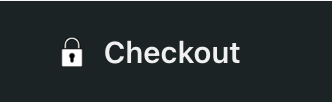


Placing the Lock Icon:
After choosing the lock icon, go to Manage All Carts > Edit > Settings > Edit copy and find the Checkout button text field. You can paste it either before the word “Checkout” or after. Additionally, this is where you can change the word “Checkout” to something else, such as “Secure Checkout” or similar.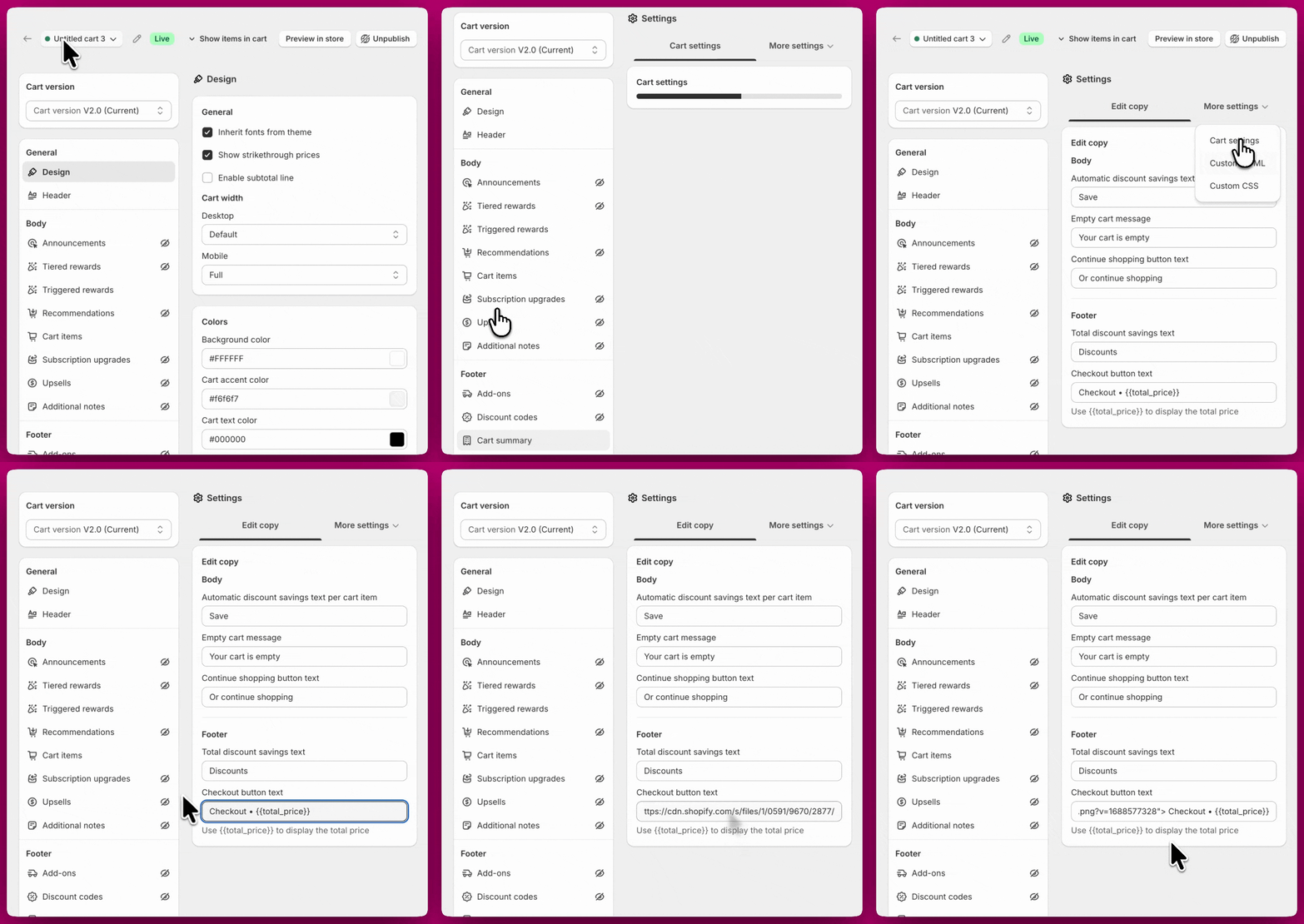
Accessing Custom CSS Settings
To begin customizing the CSS for your Upcart, follow these steps:- Open the Upcart App within your dashboard.
- Navigate to the Cart Editor.
- Open Settings and select the Custom CSS tab. Settings is a row of tabs rather than one long page — if you don’t see Custom CSS, it’s behind More settings.
Applying Custom CSS to show the lock icon:
Once you are in the Custom CSS section, copy and paste the code below to show and place your lock icon. Please note that the bigger the padding number, the smaller the icon will be.- Locate the CSS input area.
- Copy and paste the following code into the CSS input area:
- Adjust
heightunder.upcart-custom-lock-iconfor a different size of the icon. Recommend16pxor20pxfor a bigger lock icon