

See also:
General Settings | Rewards Settings ⚠️ If your store only sells in one currency or market, you may skip this guide.
Accessing advanced settings
In the Cart Editor, go to:Rewards > General settings > Enable use of pre-discounted cart total > Show advanced settings
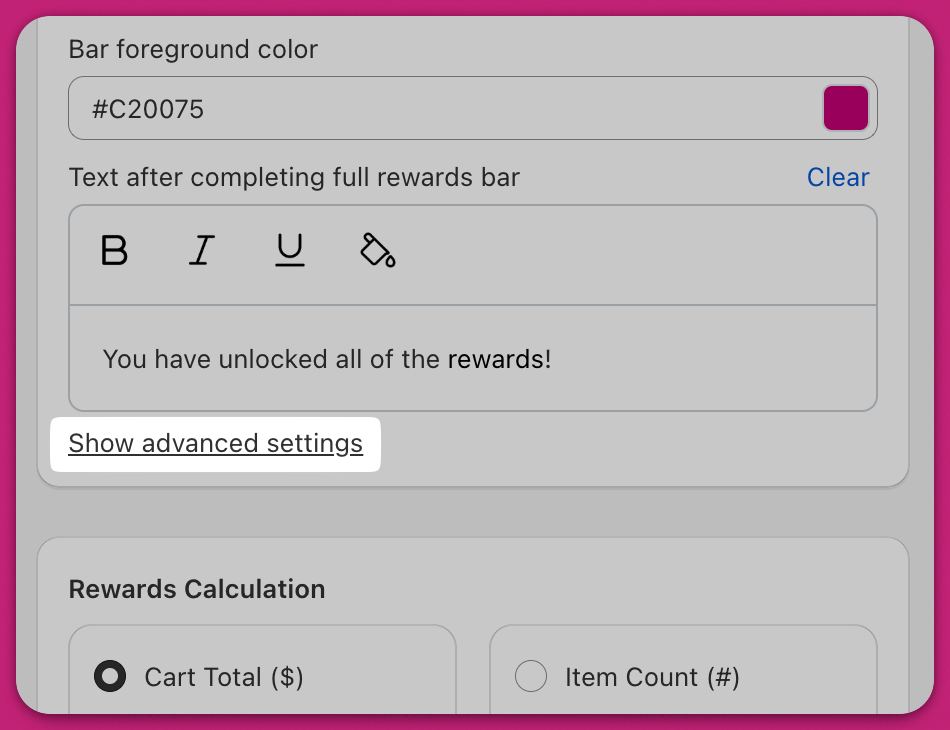
Allow Reward Product Page Access from Cart
Enable this to let customers click on reward products directly from the cart drawer.They will be redirected to the product’s Shopify page, which is useful when additional information (e.g. sizing, ingredients, or reviews) is available on the product detail page.
Enable Automatic Currency Conversion
Upcart will automatically convert reward thresholds using Shopify’s real-time exchange rates based on the customer’s location. For example, a reward set at $100 USD will appear in the local equivalent, such as €91 EUR or ¥14,000 JPY, depending on the exchange rate at the time. ⚠️ If Geolocation Pricing Override is also enabled, Shopify’s exchange rate will apply to any custom values you’ve defined, which may lead to unintended pricing behavior. We recommend enabling only one of these settings at a time.Enable Geolocation Pricing Override
Use this setting to define custom reward minimums per country instead of relying on currency conversion. For example, you may want customers in the US to qualify for a reward at $75, while customers in Japan need to reach ¥1,000, regardless of exchange rate fluctuations. This feature works best if your store uses Shopify Markets with multiple currencies enabled.What Happens When You Click “Configure Geolocation Pricing”
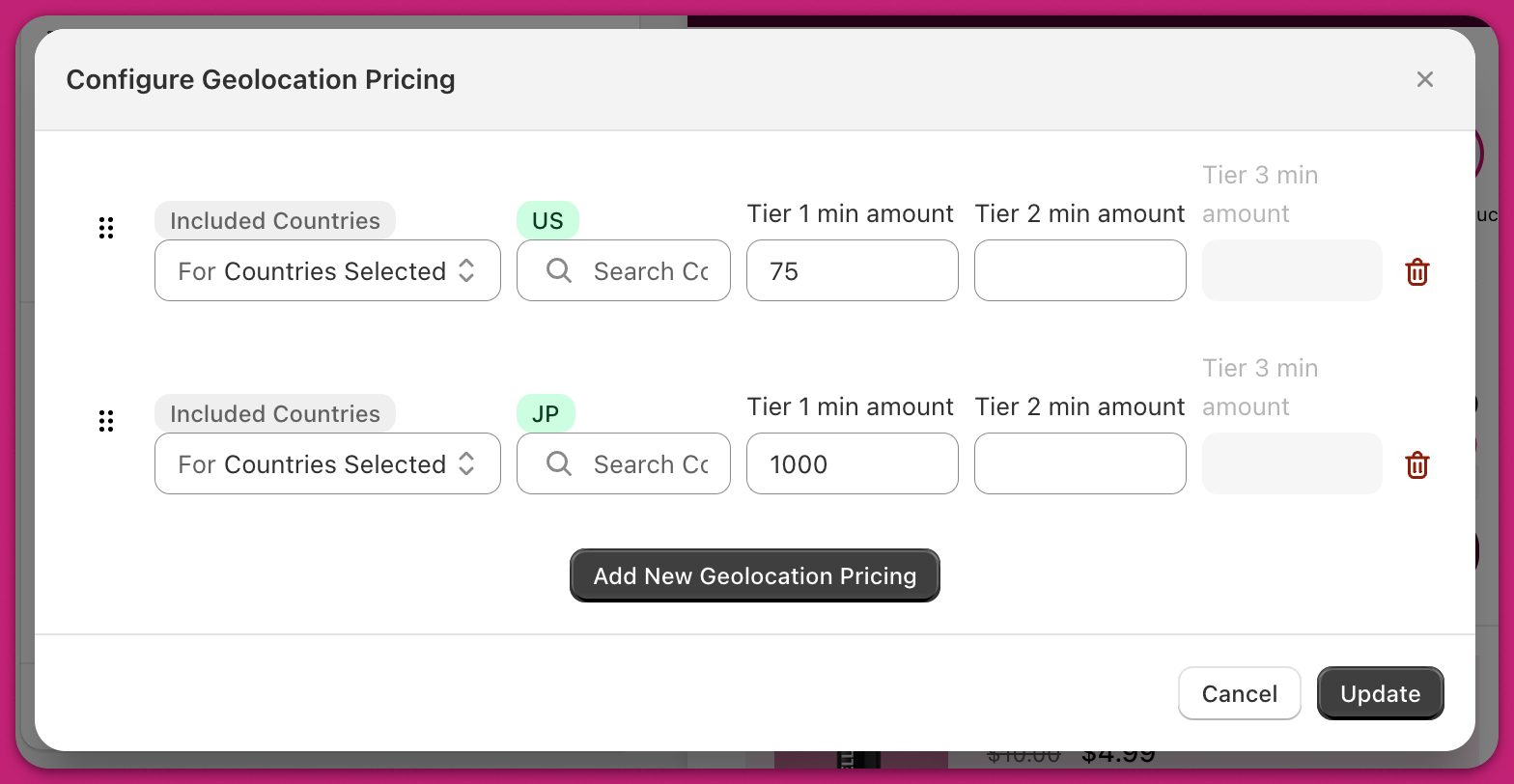
US for the United States, JP for Japan) into the country selector. Then, enter the desired minimum amounts for Tier 1, Tier 2, and Tier 3. You can fill in any or all of the tiers depending on your reward setup.
Shopify List of Country Codes
You can add multiple rows to target different markets. For instance, one row might apply a rule to US customers, while another targets Japan.
📌 Tip on Rule Order:Upcart processes these rules from top to bottom. To prevent conflicts, place broad rules (like “All Countries”) at the bottom, and more specific ones (e.g. “Only US and JP”) above them. When finished, click Update to apply your changes.