

Geolocation Pricing
Set custom reward thresholds per country instead of relying on automatic currency conversion. Note: This feature applies to the Tiered Rewards module only. It is not available for Discounts. Geolocation Pricing lets you define custom reward minimum amounts for specific countries, giving you precise control over reward thresholds across international markets. This is useful when you want customers in different regions to qualify for rewards at locally appropriate amounts rather than relying on exchange rate conversions. For example, you may want US customers to qualify at $75, while customers in Japan need to reach 8,000 JPY regardless of exchange rate fluctuations. This feature works best if your store uses Shopify Markets with multiple currencies enabled.Where to Find It
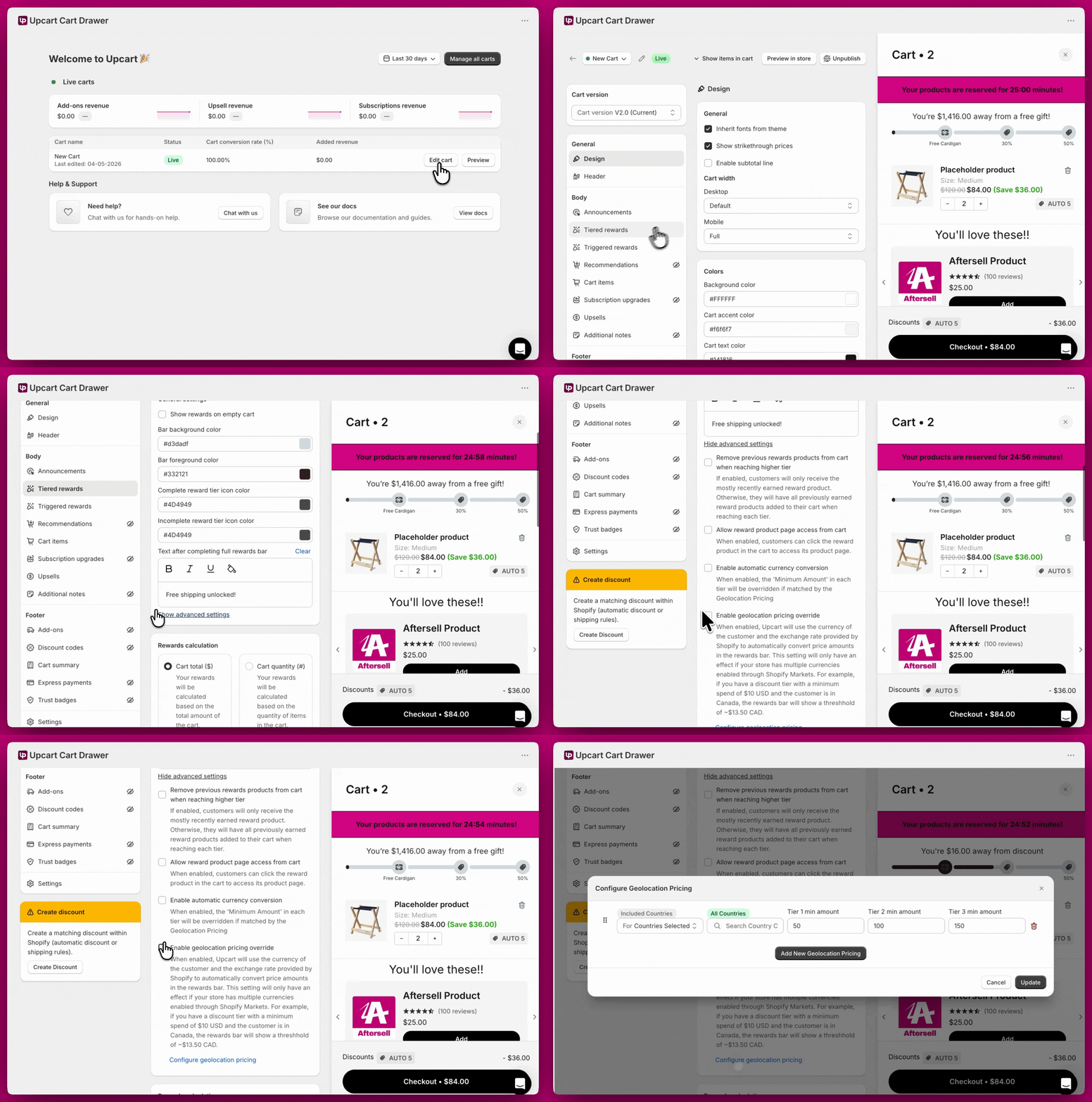
- Open Upcart
- Click Edit cart
- Open the Rewards module and stay on General settings
- Click Show advanced settings
- Tick Enable geolocation pricing override
- Click Configure geolocation pricing to open the setup window
Geolocation Pricing vs. Auto Currency Conversion
Upcart offers two ways to handle international reward thresholds:
Picking one is the simplest setup. If you do turn on both, Upcart warns you in the module and the order of operations matters: geolocation picks the threshold first, then the currency conversion is applied on top of it. Your geolocation values therefore have to be expressed in your store’s base currency, not the local one.
For example, with a base currency of USD, a reward at $10 USD, and a geolocation rule setting Canada to $20 USD, a Canadian shopper sees roughly:
$20 USD × exchange rate ≈ $27.50 CADIf you want the shopper to see exactly the number you typed, enable geolocation pricing on its own.
Configuring Rules
Each rule lets you define a target group of countries and set custom minimum amounts per reward tier. Country Targeting Each row has a For dropdown with two options:- Countries Selected - the rule applies to the countries you pick
- Countries Not Selected - the rule applies everywhere except the countries you pick
US, JP, GB) and select from the results. Your picks appear as badges above the search box, and a row with no countries selected shows an All Countries badge, meaning it matches everywhere. The codes come from the Shopify Country Code reference.
Setting Thresholds
Each row has Tier 1, Tier 2, and Tier 3 min amount fields. Only the fields for tiers you have actually created are editable — the rest are greyed out, so fill in as many as you have and leave the others alone.
To target multiple markets, click Add New Geolocation Pricing and add a separate row for each (e.g. one row for the US, another for Japan). When you’re done, click Update to save your changes.
📌 Rule order matters. Upcart processes rules from top to bottom. Place more specific rules (e.g. “Only US and JP”) above broader ones (e.g. “All Countries”) to prevent conflicts. If no rule matches a customer’s country, the default base threshold applies.