

Overview
This feature allows you to show Shopify’s Express Payment options (such as Shop Pay, Apple Pay, or Google Pay) for a faster checkout experience using the buyer’s saved payment methods. Express or accelerated checkout buttons help returning customers complete purchases faster by skipping manual entry of payment and shipping info. These buttons appear below the main Checkout button in the cart and are powered by Shopify. Upcart supports these buttons visually and structurally, but Shopify controls their behavior and visibility. 📘 Learn more in Shopify’s documentation on accelerated checkouts and Shopify’s release notes on accelerated checkout buttons.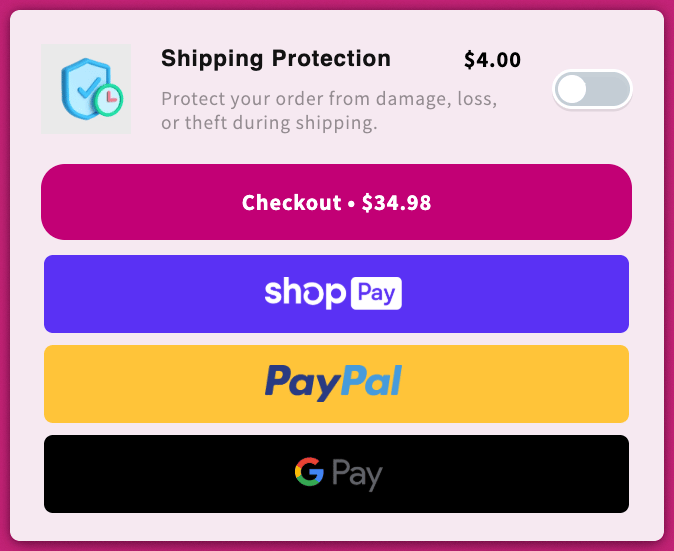
Getting Express Payments to Show
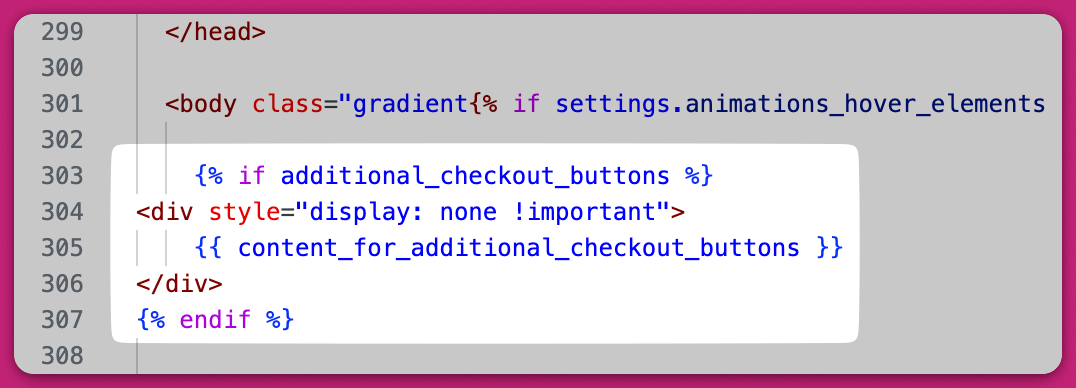
To display accelerated checkout buttons inside Upcart, your Shopify theme must already include them on the storefront. You can do this by:-
Adding a snippet to your theme code
- Go to Online Store > Themes > Edit Code
- Open the layout/theme.liquid file
-
Find the opening
<body>tag (not</body>) -
Below that tag, paste the following code:
- Save the file
Payment gateways
The Payment gateways card belongs to the legacy Express Payments module — you only see it if your store is still on the older version. It lists the express gateways Upcart can show in the cart, and lets you turn each on or off and set the order they appear in. Six gateways are listed:- Shop Pay
- PayPal
- Apple Pay
- Amazon Pay
- Meta Pay
- Google Pay — listed but marked Coming Soon and not selectable
Enabling a gateway here does not guarantee it shows. A gateway is hidden in the real cart if it is not enabled on your Shopify store, or if the shopper is not eligible for it — an Apple Pay button, for example, only shows on a supported device and browser. See Shopify’s accelerated checkouts documentation for how to enable gateways and the eligibility rules for each.
Accelerated Checkout Buttons Design
Once your buttons are set up, you can customize how they appear inside Upcart.Button Height
- Default button height and Mobile button height are set separately, each from 25 px to 55 px
- Each has a number field and a slider wired to the same value — use whichever is easier
Checkout Button Alignment
-
Choose how the express buttons are aligned:
- Left
- Right
- Center
- Space Between
Row Gap
- Set the vertical spacing between stacked buttons, from 0 px to 40 px
Advanced Display Options
Hide Buyer Consent
When enabled, this hides the buyer consent message usually displayed when a subscription product is in the cart. It can help reduce visual clutter if you already provide related information elsewhere.Render Cart in Shadow DOM
Enable this to prevent your Shopify theme’s CSS from interfering with Upcart’s styling.This ensures consistent design across all browsers and devices. Enabling this also applies the same setting from Settings > Cart settings > Advanced Settings.
Theme Compatibility Notes
- Shopify now enforces strict styling rules for Accelerated Checkout Buttons.
- Upcart’s new version fully supports these rules and will follow Shopify’s styling behavior.