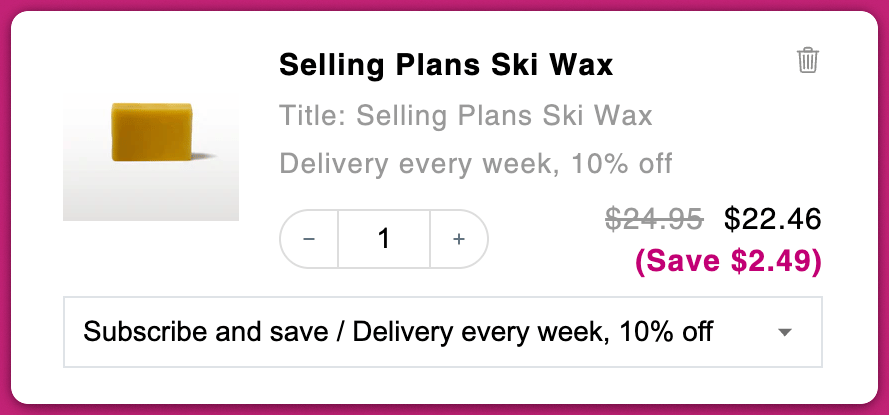
Overview
This guide walks you through how to enable and configure these options in Upcart, and includes tips for customizing button text, display labels, and subscription plan formatting. When enabled, the module adds two interactive options to qualifying cart items:- Upgrade to a Subscription
- Downgrade to a One-Time Purchase (OTP)
Upgrade to a Subscription
When a product supports subscription plans, customers will see a prompt in the cart to upgrade their purchase. If your product has multiple subscription intervals, the customer can choose between them. They can also revert to a one-time purchase if you allow it.Button Text
By default, the upgrade button displays the Selling Plan Group Name, which is pulled directly from your subscription app. You can override this by editing the button label and removing the{{selling_plan_group_name}} variable if needed.
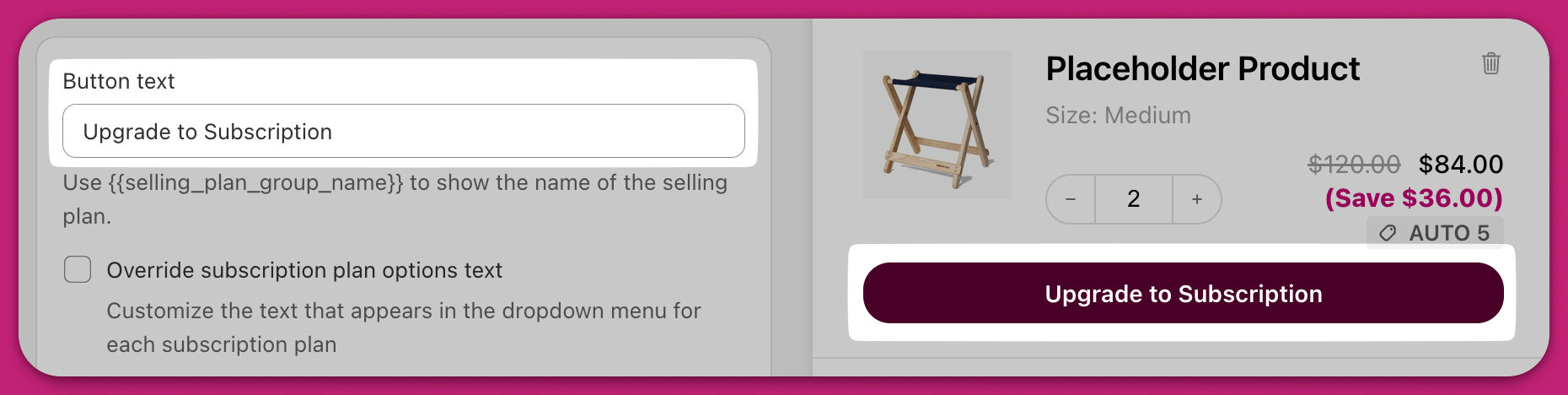
Override Subscription Plan Options Text
This setting controls how subscription intervals are shown in the dropdown. The text includes the{{selling_plan_name}} variable, which reflects the subscription frequency (e.g. “Delivered every month”). To edit this text, tick Override subscription plan options text. This unlocks a field where you can enter your custom label.
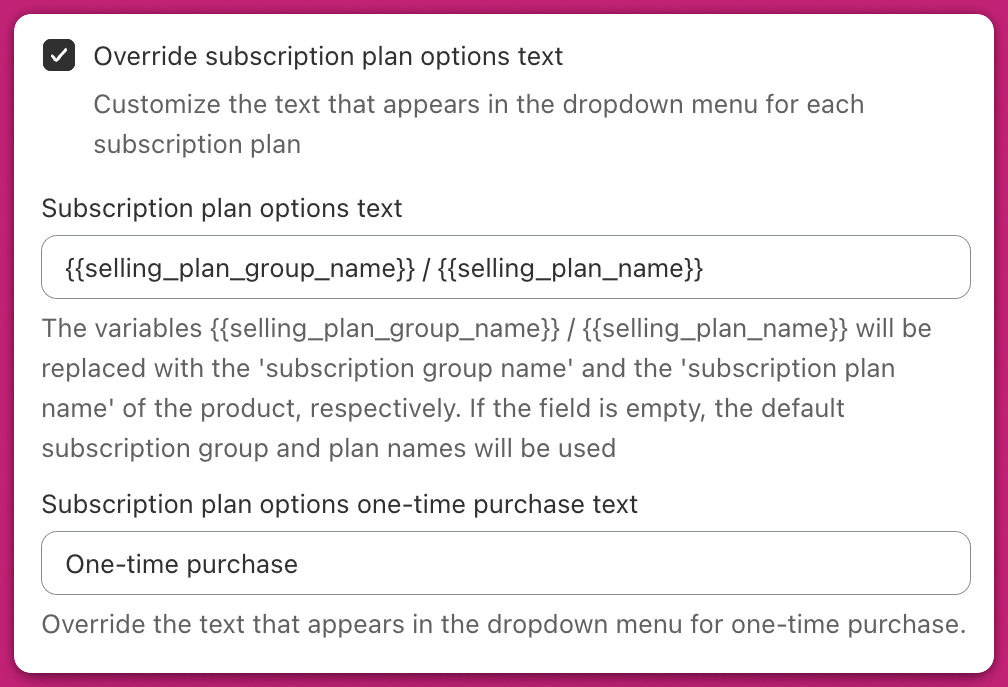
Subscription Plan Options One-Time Purchase Text
This is the label shown when a customer chooses not to subscribe. The default is “One-time purchase.” To customize this label, tick Override subscription plan options text, then use the Subscription plan options one-time purchase text field directly beneath it. The same checkbox unlocks two more fields:- Subscription plan full price text — the dropdown group heading above the one-time option. Defaults to “Full price”.
- Subscription plans heading text — the heading above the subscription plan options.
Downgrade to a One-Time Purchase
If a product supports both subscriptions and one-time purchases, customers will also see the option to switch back. This is presented in the same dropdown used to select subscription plans.