

General Settings
Shipping Protection is pre-selected when you open the Add-ons module. Click Add Shipping Protection to generate and customize the protection product for your store.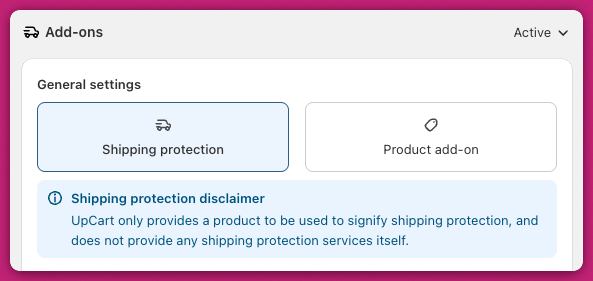
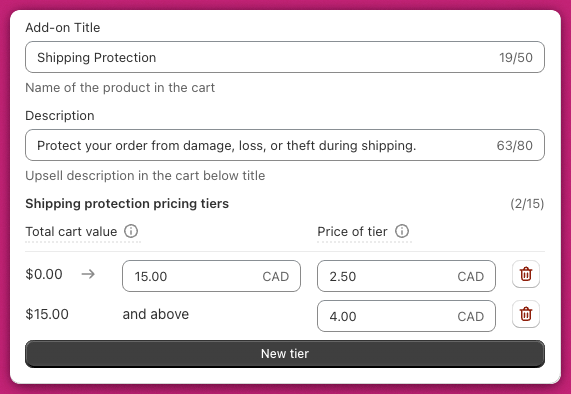
Add-on Title
This is the name displayed on the add-on in the cart drawer (e.g., “Shipping Protection”).Description
Displayed below the title, this should explain what the add-on offers (e.g., “Protect your order from damage, loss, or theft during shipping”).Shipping Protection Pricing Tiers
Set tiered pricing based on the cart’s total value. Each row defines:- Total cart value range - the upper bound is inclusive
- Protection price for that range, in your store’s currency
The first tier covers orders up to your set threshold (for example 50). Any cart value above that threshold automatically falls into the next tier. You do not need to manually define the lower bound of each subsequent tier.
Advanced Settings
These optional settings let you fine-tune how shipping protection behaves in the cart.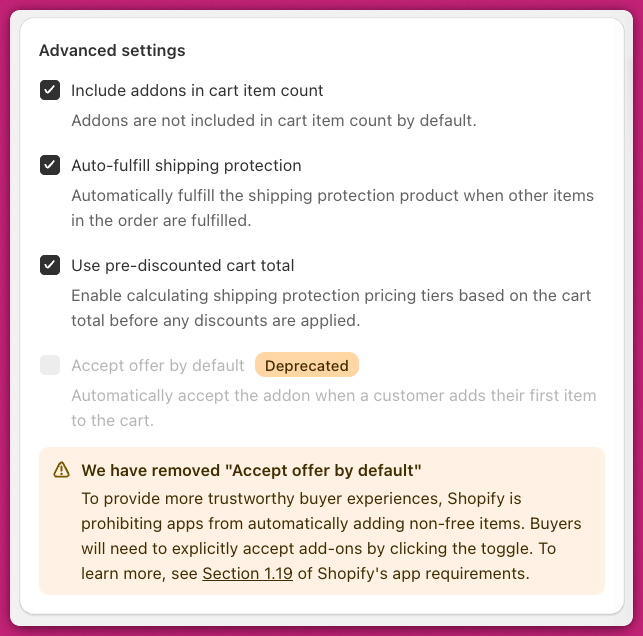
Include Add-on in Cart Item Count
When enabled, the shipping protection product will increase the cart’s item count. This is useful if your rewards or discounts are based on item count.Auto-Fulfill Shipping Protection
When enabled, the shipping protection product will be automatically fulfilled when the rest of the order is marked as fulfilled.This respects Shopify’s fulfillment settings under Shopify Admin > Settings > Checkout > Order Processing.
Use Pre-Discounted Cart Total
Enable this setting if you want shipping protection tiers to be based on the cart subtotal before discounts are applied.Deprecated Feature: Accept Offer by Default
FAQ
How do I change the Shipping Protection image?
How do I change the Shipping Protection image?
Edit the product in your Shopify Admin > Products and upload a new image just like any other product. See Shopify’s Product Media Guide for instructions.
Can I remove the grey background behind the image?
Can I remove the grey background behind the image?
Yes. Add this custom CSS in Cart Editor > Settings > CSS:
How can I make tiered pricing market-specific?
How can I make tiered pricing market-specific?
Since tiered pricing is based on product variants, you can configure market-specific prices using Shopify’s Markets features.
My add-on is not showing on my live store
My add-on is not showing on my live store
If your shipping protection add-on is not displaying or functioning as expected, work through the following steps:
- Check Sales Channel Inclusion - Ensure the shipping protection product is added to your “Online Store” sales channel. Without this, the add-on will not display.
- Verify Product Activation - Make sure the product is not in “Draft” mode and is set to “Active.” Only active products can appear in your cart.
- Inventory Settings - If the product has “Track quantity” enabled, ensure there is sufficient inventory. Alternatively, enable “Continue selling when out of stock.”
- Browser Cache - Clear your browser cache and refresh the page to rule out syncing issues.
- Review Product Type - Ensure the product is not a subscription, does not include multiple variants, and is not a bundle. These configurations can interfere with visibility.
Want to go further?
- Add-ons Module - overview of all available add-on types
- Add-ons: Product Add-on - set up a custom product add-on
- Why Can’t I See My Add-On on the Storefront? - troubleshoot add-on visibility issues