

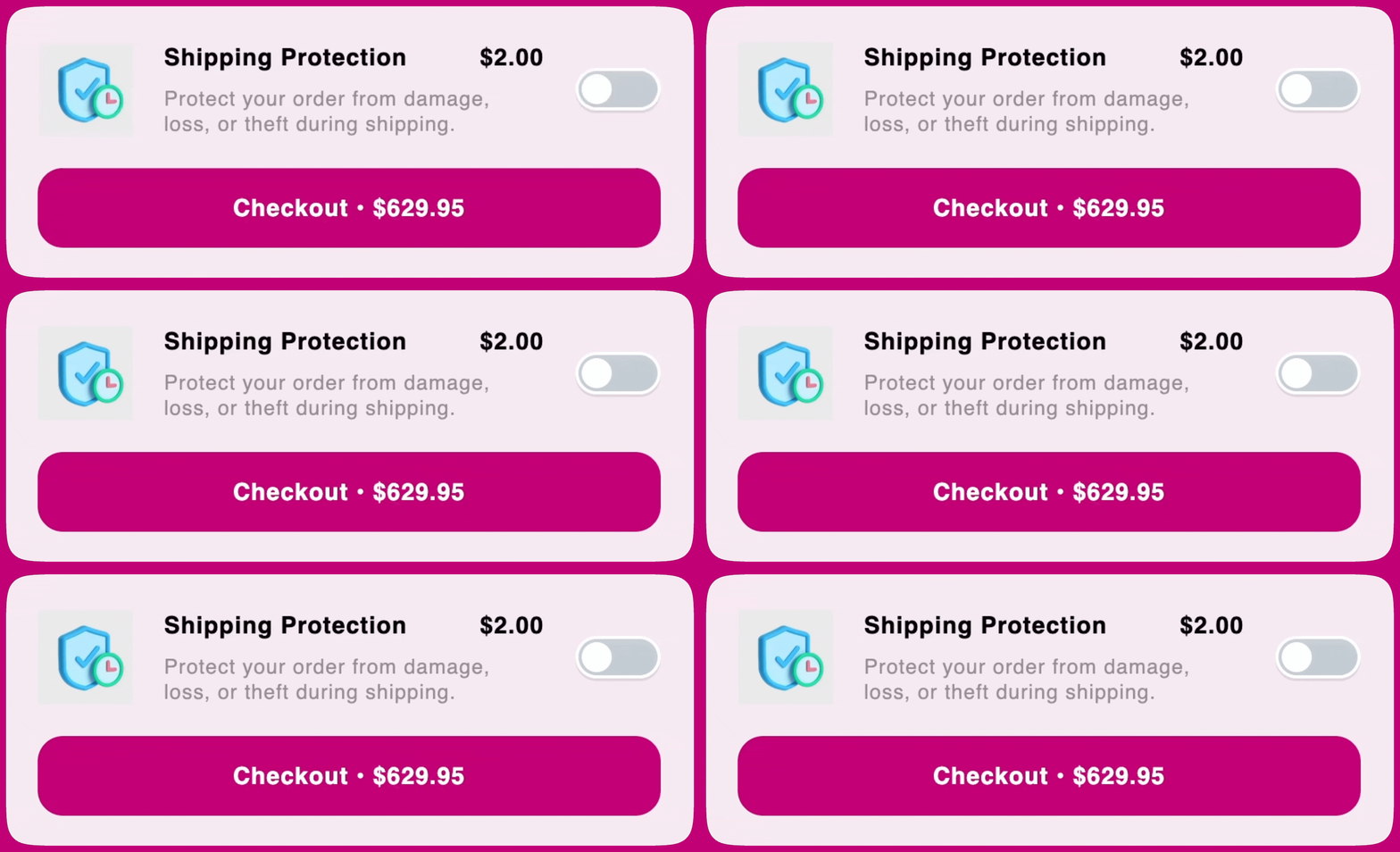
Shipping Protection
🚧 Important to Know
Upcart itself does not offer Shipping Protection services, it only creates a product for you to use in the add-ons module. If you plan to use the Shipping Protection mode, please make sure you’re aware that you will be providing the service. If one of your customers gets a lost or damaged package, they’ll need to contact you directly to process a claim.Add-on Title
This is the title of the product, you can change it to whatever you’d like! For example, some people prefer using the term “Package Insurance”.Description
This is the description of the product, you can change it to whatever you’d like! We recommend making sure the product description matches your brand’s tone of voice.Price
How much will you charge your customers for Shipping Protection services? Let us know by filling out this field, and we’ll set up the price for it! On the right side of the field you’ll see your store’s default currency code. It’s a label, not a picker — prices are entered in that currency only. However if you have Shopify Markets setup on your storefront, this price will still be converted to your customer’s local currency by Shopify!Include Add-ons in Cart Item Count
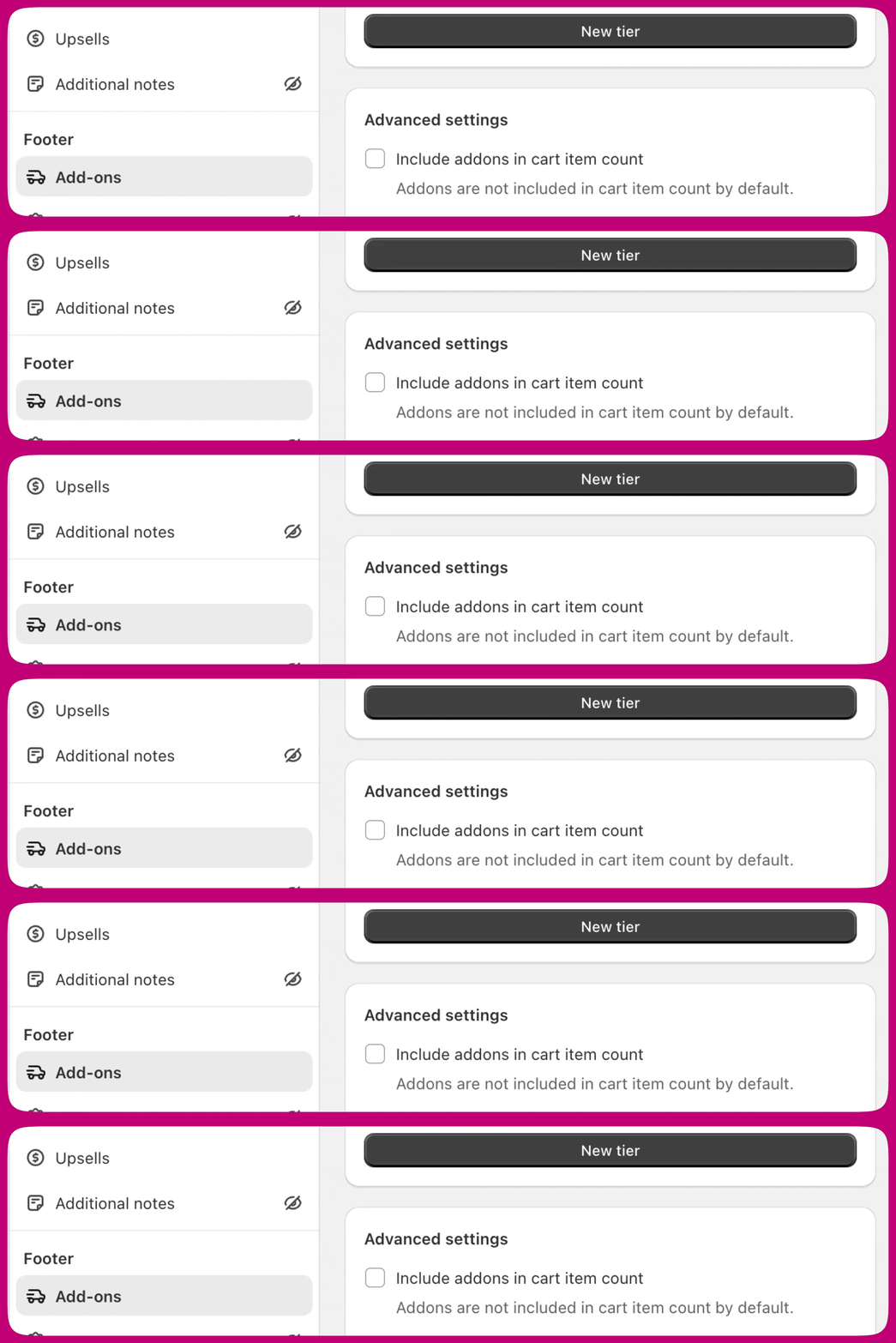
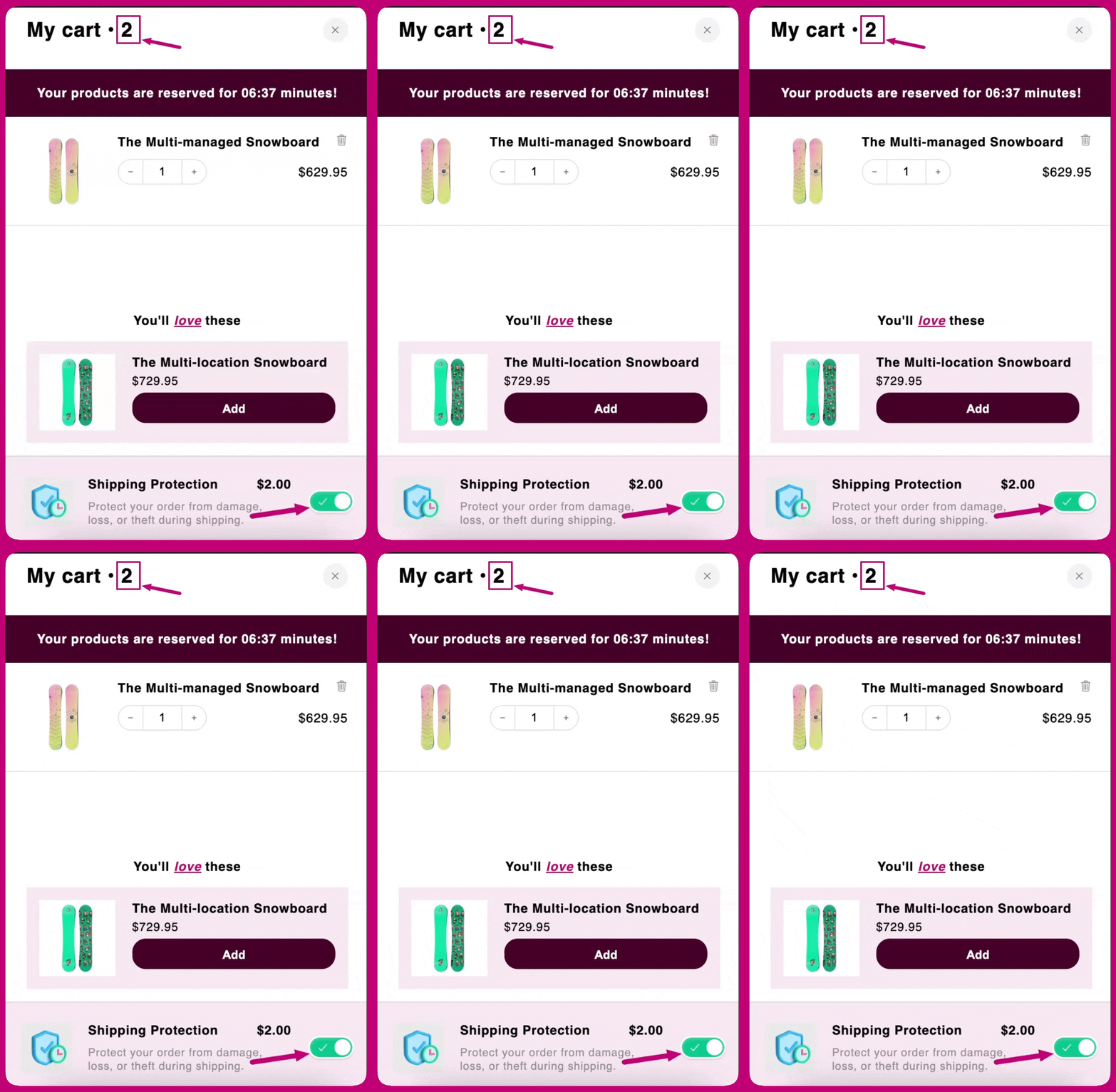
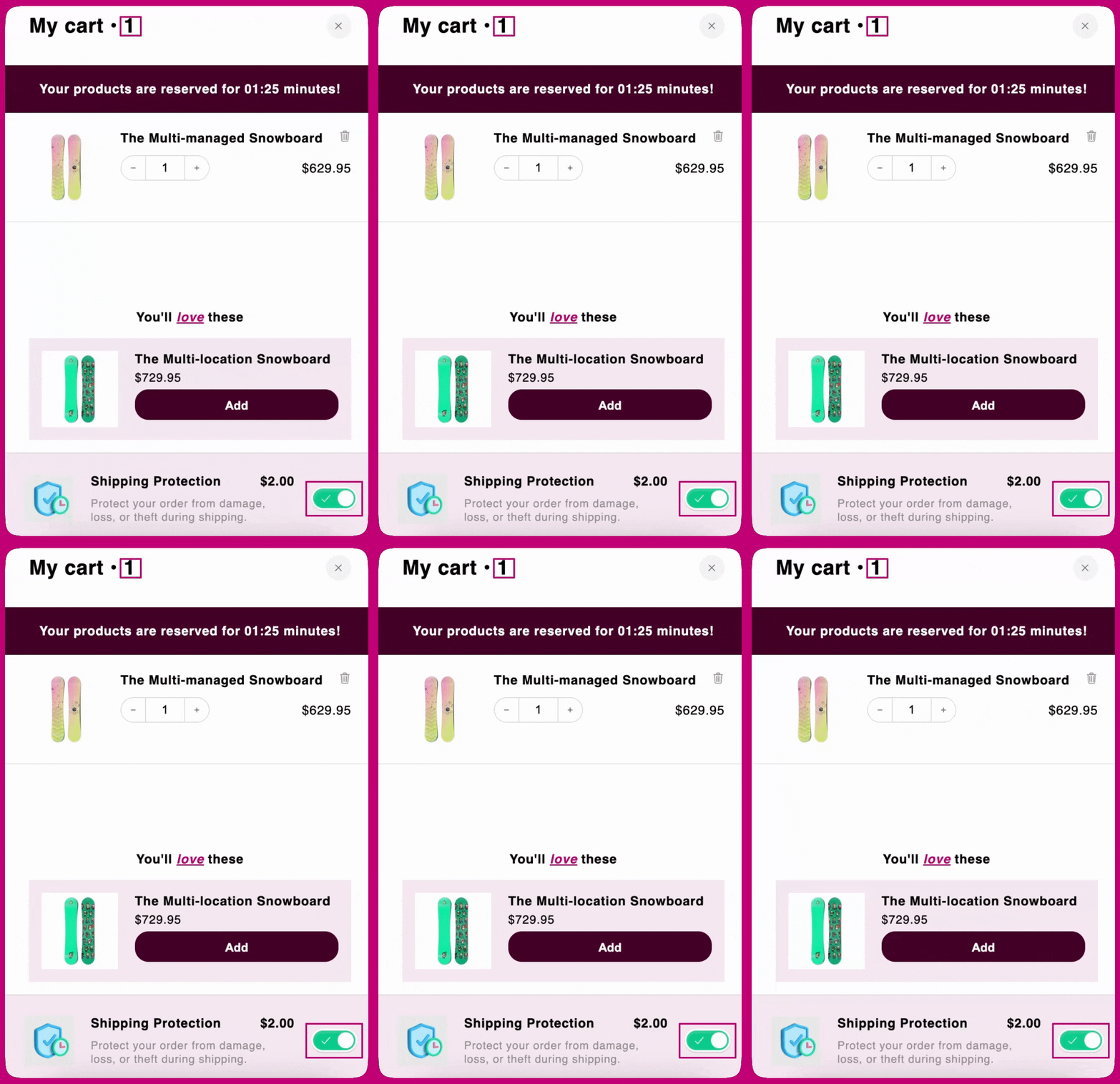
Add-ons are always opt-in: the customer has to switch the add-on toggle on themselves. The Accept offer by default setting that pre-accepted add-ons has been removed, and appears in the editor only as a disabled, deprecated field.
Product Add On
Select Product/Change Product
Depending on whether this is your first time using this mode or not, you’ll see either a “Select” or a “Change” button. In both scenarios, clicking on the button will open the product selection window. This allows you to choose which product you want offered in the add-ons module. After selecting a product, you can expand it to pick a specific variant. The chosen variant’s price and image are used in the cart preview and on the live storefront.- Since the add-ons module only has an on/off toggle, only one variant can be offered at a time.
Include Add-ons in Cart Item Count
When checked, the add-on item will add to the cart’s item count. If checked, it will be included in the item count at the top of the cart. If unchecked, it will be excluded from the item countAddon not showing?
- Is the product Out of Stock? If so, then this is why it’s not displaying.
- Is the product a subscription or a bundle? If so, it’s not displaying due to limitations on the types of products allowed for add-ons.
- Is the product in “Draft” status? If so, then it needs to be in “Active” status to display in the add-ons module.
- Is the product part of the “Online Store” sales channel? Only products in the Online Store sales channel can be displayed in the Add-ons Module.