

Product Recommendation
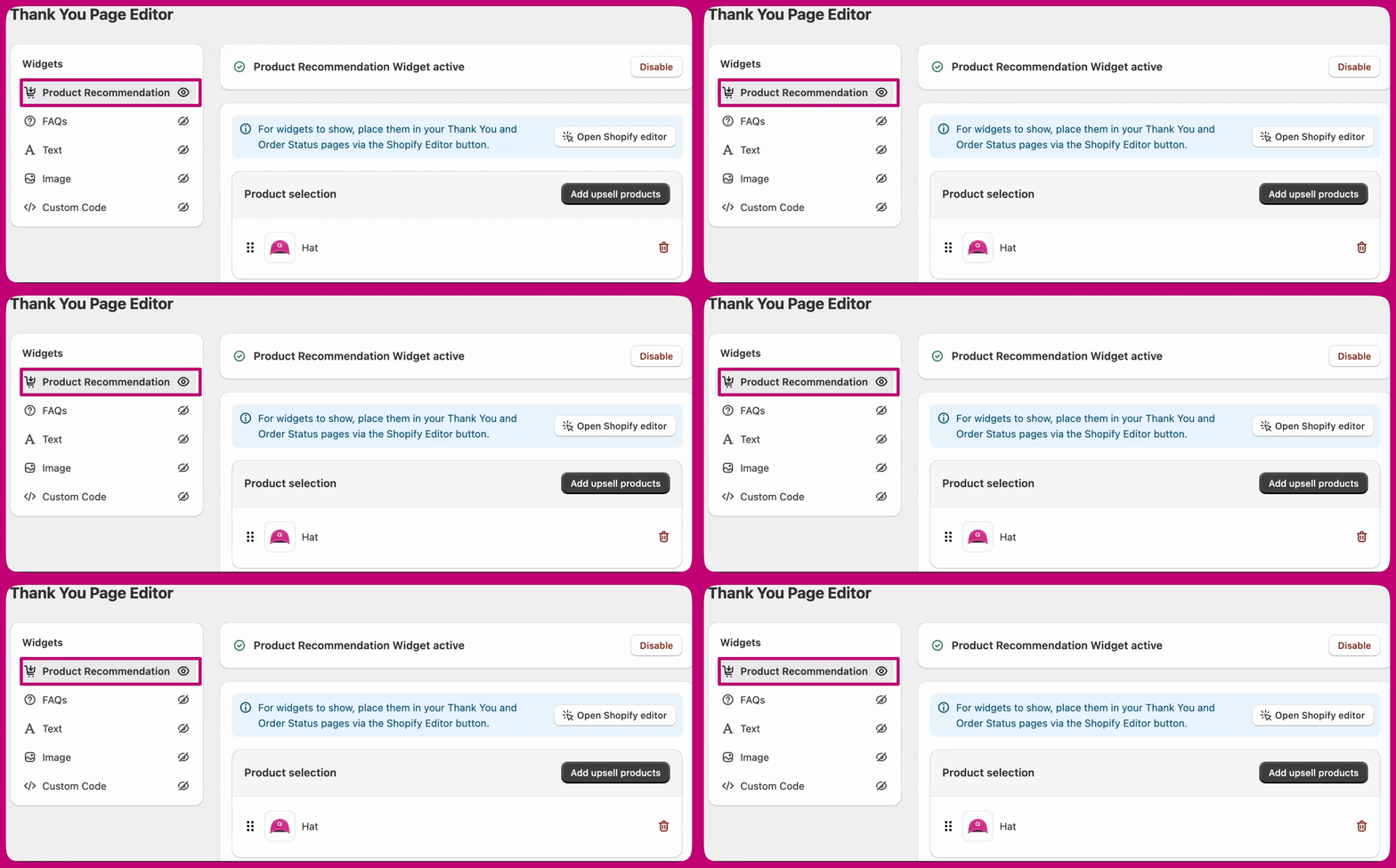
- Unlike post-purchase upsells, Thank You page product recommendations are compatible with all payment gateways and multi-currency stores. There are a few additional behaviours to be aware of.
- You can choose whether an accepted offer is added to the original order or created as a separate new order.
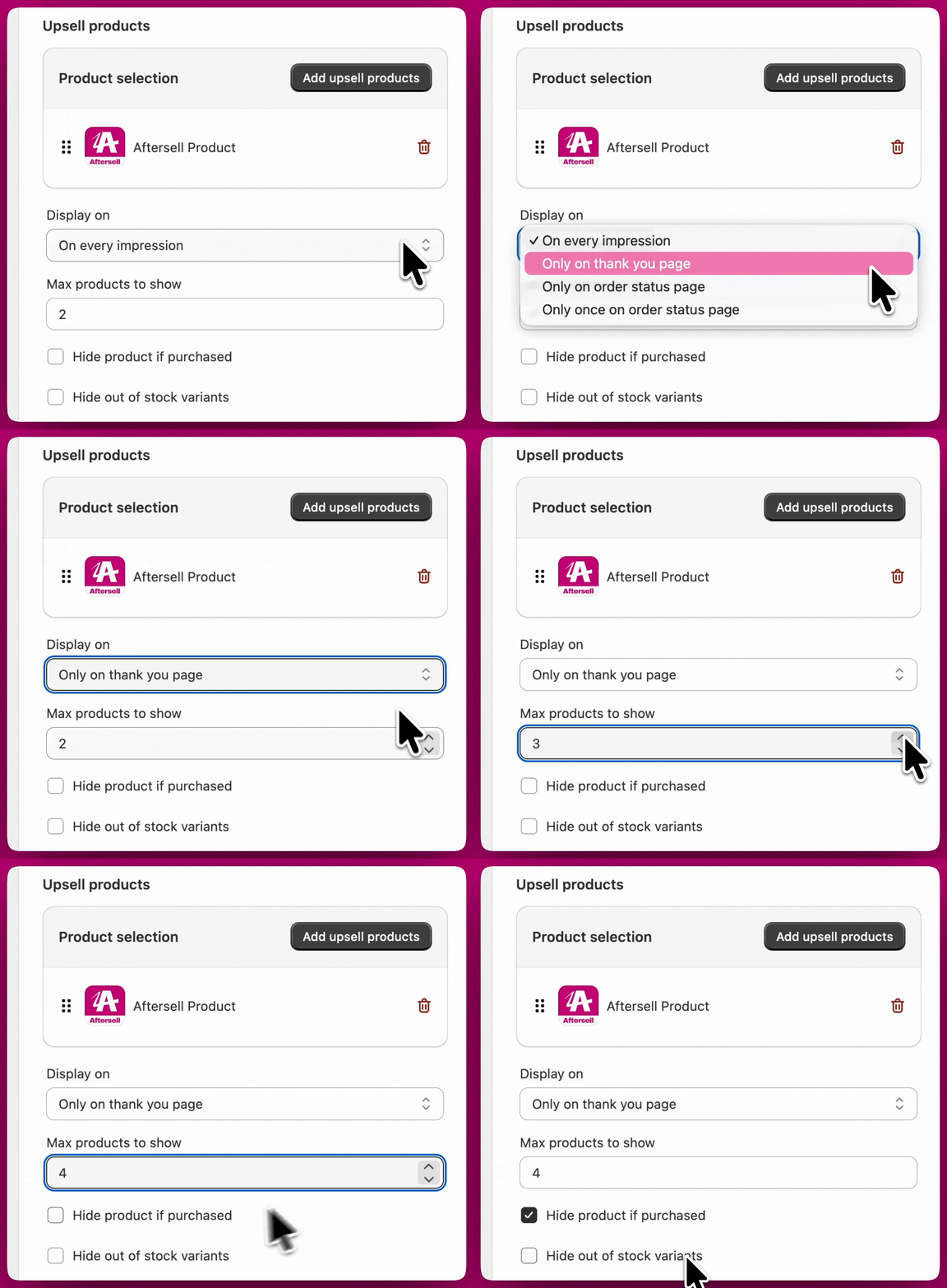
Display on
The Display on setting controls where your product recommendation widget appears after a customer completes their purchase. You can choose from four options:- On every impression - Shows the widget on both the Thank You page and the Order Status page (this is the “both” option).
- Only on thank you page - Shows the widget on the Thank You page only.
- Only on order status page - Shows the widget on the Order Status page only.
- Only once on order status page - Shows the widget on the Order Status page a single time, rather than on every visit.
Selecting and editing upsell products
To choose specific products for a widget, click Add upsell products in the widget editor. Once you have products selected, the button label changes to Edit upsell products. Opening the picker when products are already selected shows your current selection pre-checked, so you can see exactly what is configured. From there you can:- Add new products by checking them.
- Remove existing products by unchecking them.
- Clear the entire selection by unchecking all products.
- Hide product if purchased - Enabling this ensures customers won’t be shown a product they’ve already bought in the same order, keeping recommendations relevant and avoiding repetition.
- Hide out of stock variants - Enabling this automatically filters out any product variants that are unavailable, so customers only see items they can actually purchase.
Offer Design
The Offer design settings control how product recommendations are presented to customers. You can choose whether products are displayed in a horizontal or vertical layout and adjust visual elements such as borders, button styles, and spacing to better match your checkout experience. You can also include banner text to add a short description or message above the offer. This is useful for introducing the recommendation, highlighting an incentive, or providing additional context for the products being shown. Additional pricing options let you control whether the compare-at price is displayed and how sale prices appear using your selected colour scheme. The Compare, Discount, and Sale prices offer two color options: You can apply colors from your Checkout branding, with the available options being:- Accent
- Decorative
- Info
- Subdued
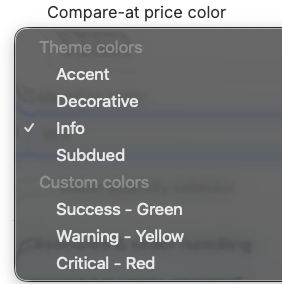
- Or, you can apply a custom preset colors:
- Success- Green
- Warning- Yellow
- Critical- Red
- Show compare at price
- Enable this option to display the “Compare at” price with a strikethrough.
- Show discount
- Enable this option to display the discount on the upsell.
Discounts & Order handling
Discounts
You can apply a discount directly to the upsell by setting a percentage or fixed amount discount. This discount is applied automatically when the customer accepts the offer. You can customize how the discount appears by setting the discount text and choosing a discount price color. Discount colors can use your checkout branding colors (Accent, Decorative, Info, or Subdued) or one of the preset options (Success, Warning, or Critical). If enabled, the discount display can include the compare-at price, which will be shown with a strikethrough to highlight the savings.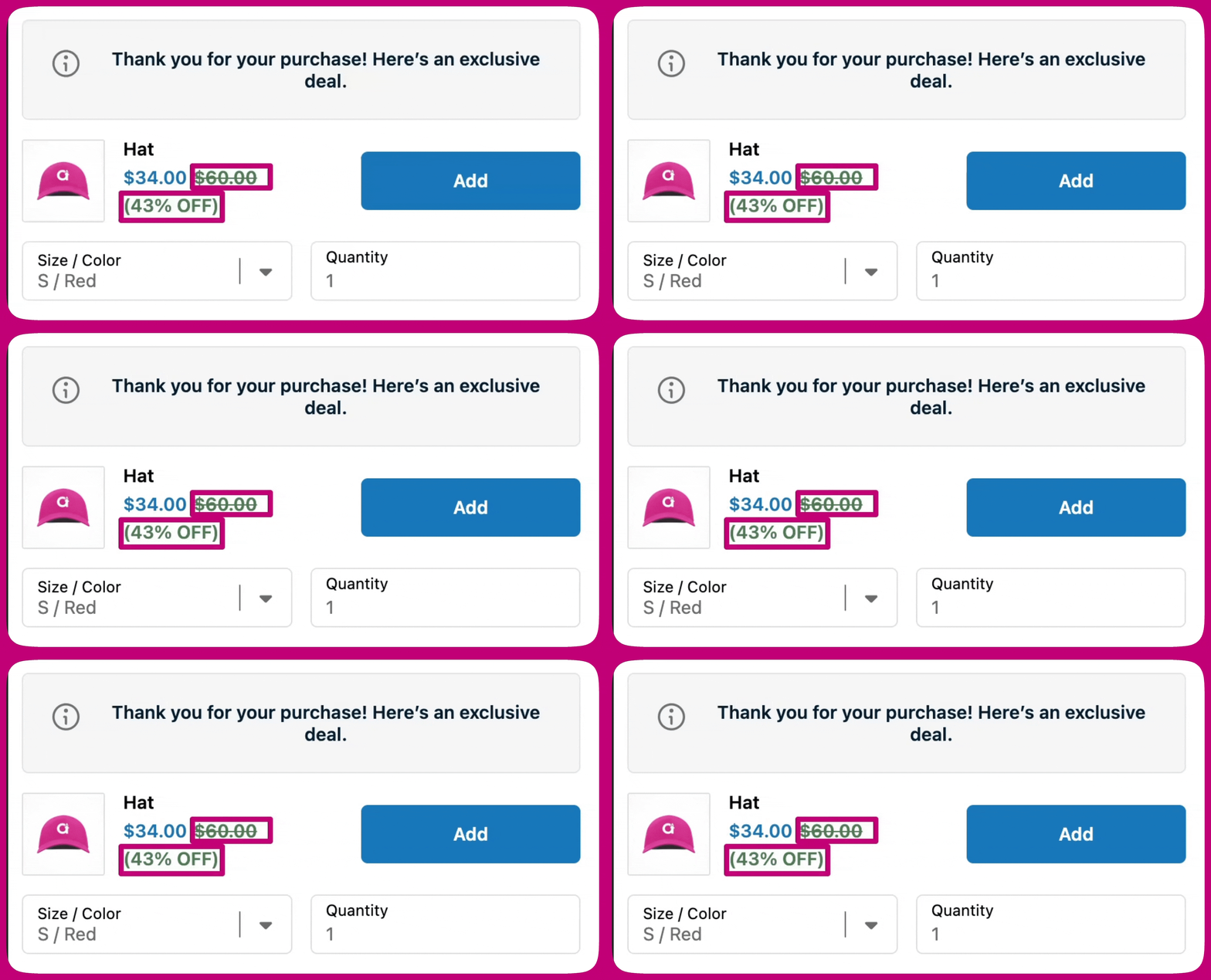
Order handling
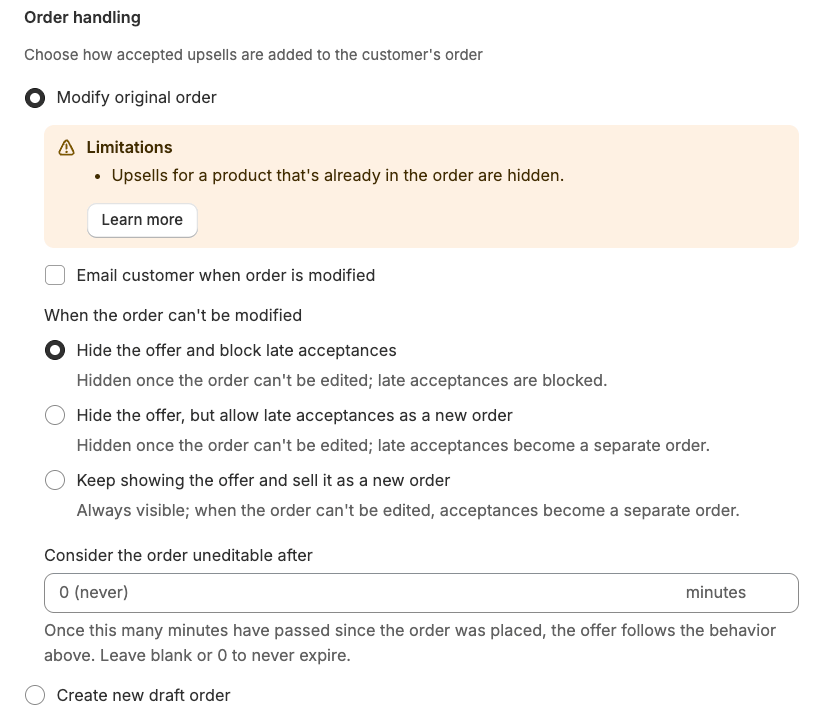
Order handling controls how an accepted upsell is added to the customer’s order. There are two options, each with different trade-offs.- Modify original order - Adds the upsell directly to the existing order. Free shipping is automatically applied. You can optionally email the customer when their order is modified.
- Create new draft order - Keeps the original order untouched and creates a separate order for the upsell.
When to choose each option
When the order can’t be modified
When Modify original order is selected, some orders can’t be edited at the time a customer accepts the upsell. There are exactly three cases: the order has been archived, it is partially paid, or it is older than the expiry window you set below. The When the order can’t be modified setting controls what happens in those cases. A fulfilled order is not one of them — it can still be edited, but only upsell products that don’t require shipping can be merged into it (see the note further down).
The two fallback options (Hide the offer, but allow late acceptances as a new order and Keep showing the offer and sell it as a new order) create a separate draft order for the upsell when the original order can’t be modified. The customer receives a payment link to complete the purchase as a new order.
Setting an expiry window
You can set a time limit on how long an order remains eligible for merging. Use the Consider the order uneditable after field (located under the behavior selector in Order handling) to enter a number of minutes. Once that many minutes have passed since the order was placed, the order is treated as ineligible and the When the order can’t be modified behavior applies. Leave the field blank or set it to 0 to never expire — the offer remains eligible for as long as the order itself is editable. This is useful when your fulfillment workflow processes orders quickly and you want to avoid attempting to merge into an order that is likely already in progress. Other things to know about “Modify original order”:- Free shipping is automatically applied and cannot be disabled.
- The original order is marked as partially paid until the customer completes payment for the added upsell. Once payment is captured, Shopify updates the order automatically.
- If the order is already fulfilled, has no shipping line, or contains only items that don’t require shipping, only upsell products that don’t require shipping can be merged into it. Products that do require shipping are dropped from the offer on those orders.
Free shipping
You can offer free shipping on accepted upsell products to help increase conversion. When enabled, customers won’t be charged shipping for the upsell, while your existing Shopify shipping settings continue to apply to the original order. How the Free shipping toggle behaves depends on your Order handling setting:- Modify original order — free shipping is automatically applied to the accepted upsell and the toggle can’t be disabled.
- Create new draft order — the Free shipping toggle applies to the separate draft order that is created for the upsell. When enabled, the draft order is created without shipping charges on the upsell line item. Leave the toggle off if you want Shopify’s normal shipping rates to apply to that new order.
Testimonials
Display customer reviews on your Thank You page to reinforce purchase confidence and build social proof after checkout. The Testimonials widget uses Flex Testimonials, which automatically pulls reviews from your connected review app. Supported apps include Judge.me, Klaviyo, Okendo, and Yotpo. Configure your review app credentials in Settings > Product Reviews before using this widget. Flex Testimonials offers two selection modes:- Manual selection - Choose specific reviews to display
- Dynamic - Automatically fetch and display reviews based on products in the customer’s order
FAQs
Adding a FAQ section to your thank you page provides immediate answers to common questions, improving the customer experience. Including a FAQ section enhances transparency, builds trust with future customers, and can help reduce post-purchase concerns. By addressing common questions, you provide clarity and reassurance, making potential buyers more confident in their decisions. A well-structured FAQ section can positively influence new visitors, leading to increased customer satisfaction and potentially higher sales.Text
You can a text widget to your thank you page to share key information with customers after their purchase. This can help improve communication, build trust, and offer helpful guidance or reassurance. A well-placed text widget can foster future engagement, boost customer satisfaction, and even drive additional sales.Important Information
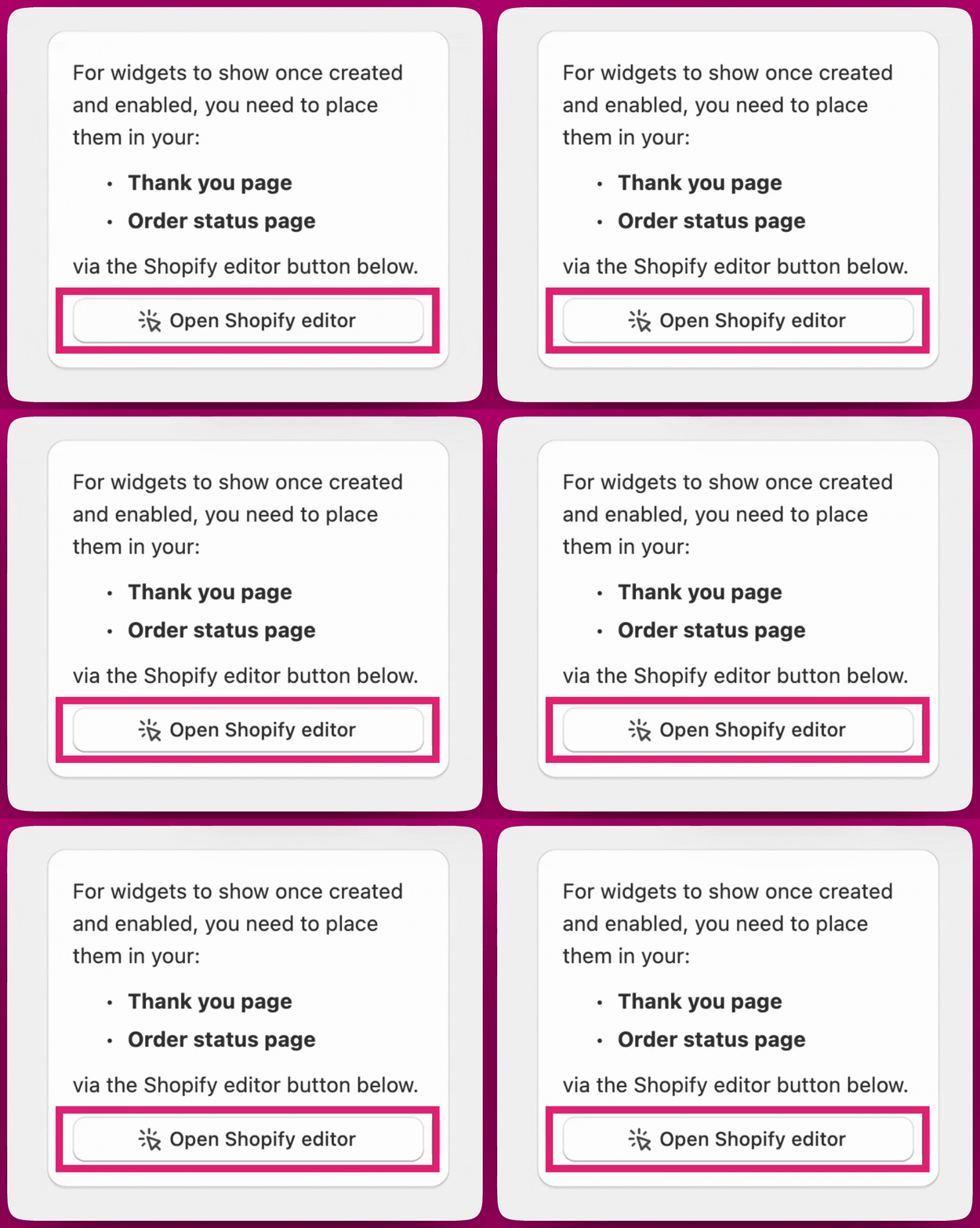
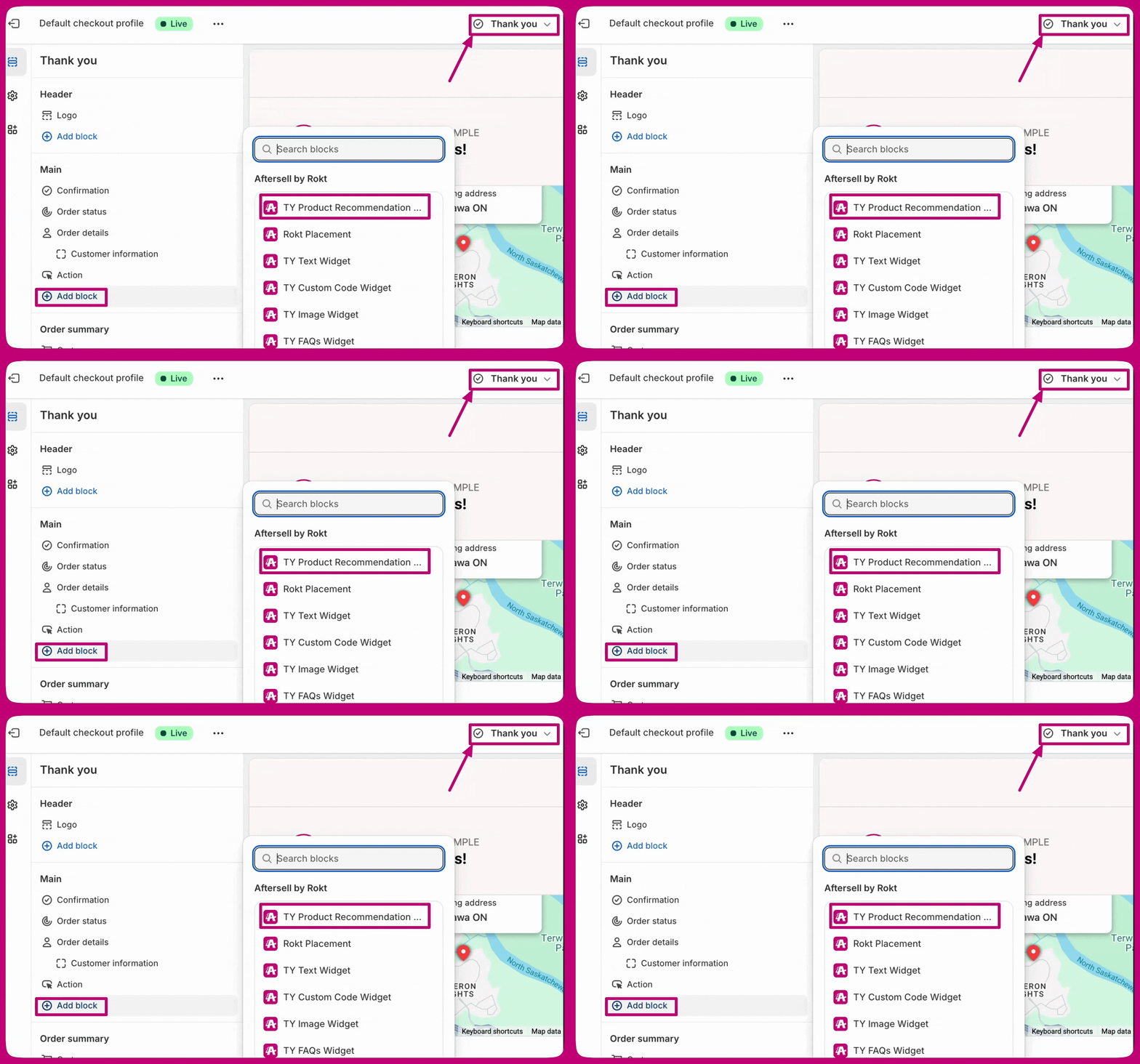
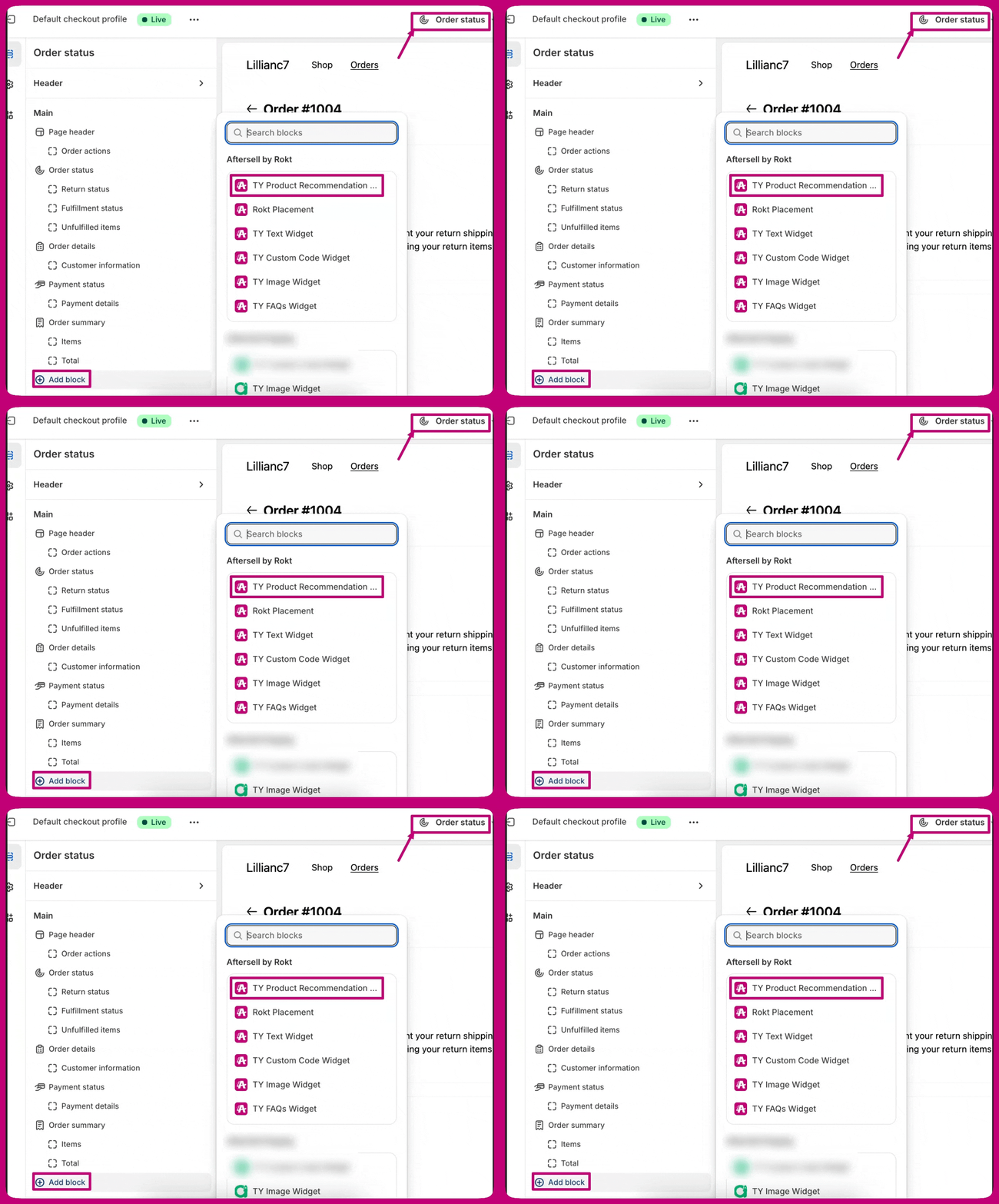
- Any widgets created in Aftersell need to be added to your Thank you page or Order status page, or they will not load/show for your customers. Here are steps to add widgets to the required pages:
- Thank you page
- Order Status
- The branding settings automatically align with your Shopify checkout branding settings and cannot be customized within the Aftersell editor.
- You can select whether these upsells are merged into the original order or created as a separate order in the widget’s Discounts & order handling settings.
- Shopify’s checkout preview may not always display the widgets. We recommend placing a test order to confirm that your offers appear correctly on a live order. While testing, verify that widgets display correctly on the Thank You Page or Order Status Page. Use test orders (such as free orders) to validate functionality and check that no errors occur during these tests.
- Note that specific triggers will not also show in the preview, you have to set your trigger to show for all customers to be able to see it in the Shopify thank you page preview.
- If you use manual payment capture in Shopify, Thank You page upsell revenue may not appear immediately in Aftersell analytics only the Modify Original Order setting is enabled.
- Upsell visits and acceptances will be recorded as usual. However, revenue will only appear after the order’s payment status is manually changed to Paid in Shopify.
Common Errors and Troubleshooting
- Widget Not Displaying: Ensure the widget is active and placed in the Shopify editor correctly. Verify that it is added to the correct sections (Thank You Page, Order Status Page or both pages) in Aftersell and Shopify.