The Order Browser gives you a centralized, order-level view of Aftersell performance. Use it to see which orders were eligible for a post-purchase offer, whether an offer was shown, how customers interacted with each offer slot, and where there are gaps in your setup.
The Order Browser currently covers Post-Purchase (PPU) and Thank You Page (TYP) experiences. Coming soon: Checkout and Rokt Thanks timeline data will be added in a future update.

Accessing the Order Browser

To access it, navigate to: Apps → Aftersell → Order Browser in your Shopify admin. Aftersell app navigation menu in Shopify admin with Order Browser selected
Summary Bar

At the top of the Order Browser, three metrics give you a quick pulse on performance for your selected date range. Order Browser summary bar showing total eligible orders, offers shown, and upsell revenue The Order Browser defaults to the Last 30 days. Use the date picker in the top-right corner to adjust the range. Data is available from February 25, 2026 onward, and the Total Orders view shows all available data across your full history. Use the Export button (also top-right) to download the current view as a CSV. The export respects any filters you have active, so filter first if you only want a subset of orders.

Order data updates every few minutes. Use the Last Updated timestamp and refresh button in the interface to check how current your data is.

Performance Panels

Below the summary bar, three panels break down your performance in more detail. Together they help you quickly spot eligibility issues, configuration gaps, and opportunities to improve coverage.

Eligible Post-Purchase Orders

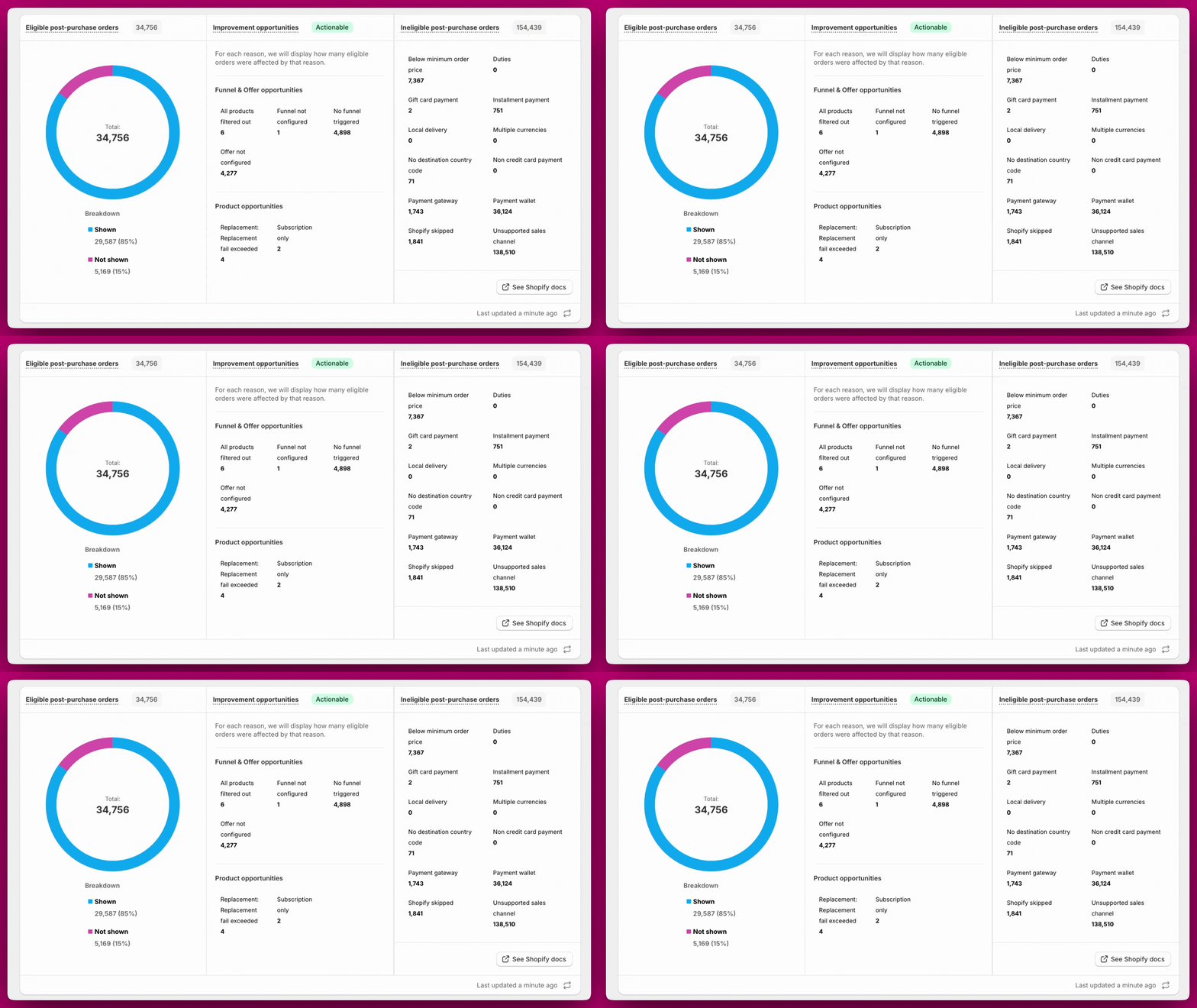
Shows the total count of eligible orders with a donut chart breaking them down by Shown vs Not shown. A high “Not shown” proportion usually points to funnel configuration gaps, product filtering, or Shopify eligibility issues. See the Order Browser Troubleshooting guide for next steps.

Improvement Opportunities

This panel highlights eligible orders where at least one offer didn’t render because of funnel, offer, or product configuration gaps. Some of these orders may have shown other offers — fixing these gaps widens overall coverage. The panel is split into two categories: Funnel & Offer opportunities and Product opportunities. For each reason, the panel shows how many eligible orders were affected. Funnel & Offer opportunities
What it means: An eligible order came through but no funnel matched its trigger conditions.What to do: Create a catch-all funnel using the Show for All Customers trigger and set it to the lowest priority so it fires whenever no other funnel matches.
What it means: A funnel ran but one or more offer slots had no offer set up.What to do: Go to the funnel and add an offer to the empty slot.
What it means: A funnel exists but hasn’t been fully set up.What to do: Open the funnel and complete the configuration.
What it means: A funnel was configured and matched the order, but every product across all offer slots was filtered out by your targeting or filter rules before anything could display.What to do: Review your funnel’s product filters and targeting rules. Broaden the filter criteria or add fallback products to ensure at least one offer has something eligible to show.
What it means: An individual offer slot ran but every product in it was filtered out before the offer could display.What to do: Review the offer’s filter settings and add more fallback products so there is always something eligible to show.
Opportunities are tagged based on the customer’s actual journey, not the funnel’s configuration. For example, if a funnel has no offer set up in slot 3 but the customer declined slot 2 and never reached slot 3, it will not be flagged. The flag only appears if the customer’s journey would have reached that step.You can click on any opportunity category to filter the order table to orders affected by that specific gap.
Product opportunities
What it means: The replacement upsell failsafe was triggered because the shop hit its replacement-failure threshold within the past 7 days. Replacement upsells are paused shop-wide until the rolling 7-day error count drops below the threshold or you reset the failsafe. Orders attributed to this reason never attempted a replacement.What to do: Go to Settings → Replacement Upsells to see the failsafe status card and your current rolling error count. Once you’ve resolved the underlying issue, click Reset failsafe to resume. If errors have stopped, the failsafe also clears automatically once the 7-day window passes. If you’re unsure of the root cause, contact support before resetting.
What it means: No line item in the order matched the replacement target’s variant ID, so the replacement was skipped.What to do: Review the replacement upsell configuration and confirm the target variant is present in the orders you expect it to match.
What it means: A recommended product is sold as a subscription only, but the customer’s checkout already included a subscription, so it couldn’t be added as a post-purchase upsell.What to do: Consider replacing subscription-only products in this offer with non-subscription alternatives, or move subscription offers to the Thank You Page where this restriction doesn’t apply.
These aren’t errors. They’re flags that something can be fixed to improve coverage.

Ineligible Post-Purchase Orders

Shows orders that couldn’t receive a post-purchase offer, broken down by the specific reason. The panel surfaces exact counts per reason so you can see where the biggest eligibility gaps are.
Shopify does not tell Aftersell exactly why an order was skipped for post-purchase. The system identifies likely reasons based on Shopify’s documented limitations. Because a single order can match multiple reasons, the individual reason counts do not add up to the total ineligible number. No percentages are shown for this section for that reason.You can click on any ineligibility reason to filter the order table to just those orders.
What it means: Order value was under $0.50 (e.g., fully discounted orders).What to do: Shopify restriction — no fix. Set up Thank You Page upsells to capture these orders.
What it means: Order included duties or landed costs.What to do: Shopify restriction — no fix. TYP upsells are not affected.
What it means: Order was paid entirely with a gift card.What to do: Shopify restriction — no fix. TYP upsells are not affected.
What it means: Order used a BNPL method (Klarna, Afterpay, Shop Pay Installments).What to do: Shopify restriction — no fix. TYP upsells are not affected.
What it means: Order used a local delivery method not supported for post-purchase.What to do: Shopify restriction — no fix. TYP upsells are not affected.
What it means: Order was placed in a currency other than the store’s default.What to do: Shopify restriction — no fix. TYP upsells support multi-currency and will show to these customers.
What it means: Shipping address was missing a country code.What to do: Typically a data issue on the order. No fix available for past orders.
What it means: Order used a non-credit-card payment method not supported by Shopify.What to do: Shopify restriction — no fix. TYP upsells are not affected.
What it means: Order used a third-party payment gateway that doesn’t support post-purchase.What to do: Check if your gateway supports Shopify’s post-purchase API. See Payment Methods for the full supported gateway list.
What it means: Order used a digital wallet (Apple Pay, Google Pay, PayPal).What to do: Shopify restriction — no fix. Set up Thank You Page upsells to capture wallet orders — TYP is not affected.
What it means: Shopify bypassed post-purchase for this order. Aftersell has no visibility into why — the error code shown in the order detail is no_activity.What to do: Contact Shopify support directly. Aftersell cannot investigate or resolve this — it is entirely within Shopify’s platform.
What it means: Order came through a channel that doesn’t support post-purchase (e.g., draft orders, POS). Post-purchase offers are only supported on orders placed through the Online Store sales channel.What to do: No fix available. These orders bypass the Online Store checkout entirely, so neither post-purchase nor Thank You Page upsells can reach them.
Order Browser panels with a shown-versus-not-shown donut chart and ineligibility reason breakdown Payment wallet and Unsupported sales channel tend to be the largest contributors for most stores. For payment method restrictions, Thank You Page upsells are the best way to recover that traffic since TYP is not subject to Shopify’s post-purchase restrictions. For a full breakdown of supported and unsupported payment methods, see Payment Methods

The Order Table

Below the performance panels is a detailed, order-level table. Each row is a single order. This is where you can search, filter, and drill into exactly what happened for any order.

Columns

PPU stands for Post-Purchase Upsell. TYP stands for Thank You Page. Each post-purchase funnel can have up to three offer slots (PPU offer 1, 2, and 3), each shown or resolved independently.

Offer Status Definitions

PPU offer statuses (columns PPU offer 1, 2, 3) TYP widget statuses (TYP widget column) The interaction outcome for the offer shown on the Thank You Page. The Post Purchase funnel and Thank You Page funnel for an order can be the same or different. Rokt Thanks statuses (Rokt Thanks column) This column is only visible if your store has Rokt Thanks enabled. Funnel column statuses (PPU Funnel, TYP Funnel columns)
Statuses that are frequently confused:
  • Customer skipped = the offer never loaded (the customer left before the page could show)
  • No interaction = the offer loaded and was visible, but the customer didn’t click anything
  • Timer expired = the session timed out while the offer was on screen
  • Ineligible = Shopify blocked post-purchase from running at all for this order
  • No funnel triggered = the order was eligible but no funnel matched its trigger rules
  • Funnel not set up = a funnel matched but has no offer slots configured
  • All offers filtered out = a funnel matched and had offers configured, but every product was filtered out by targeting or filter rules
  • Subscription upgrade issue = the offer was accepted and the item added to the order, but the subscription upgrade at your provider failed — open the order for the specific cause and fix

Searching and Filtering Orders

Use the search bar at the top to find a specific order by name.

Filters

Click Add filter + to filter the order table. Multiple filters can be combined to narrow down results. Click Clear all to remove active filters.

Viewing an Individual Order

Viewing an Individual Order

Click any order number to open the order detail view. This is a complete record of Aftersell activity for that order. Use View in Shopify in the top right to open the order directly in Shopify.
The detailed timeline view is only available for orders placed after the Order Browser launch. Orders placed before that date will show limited timeline data.
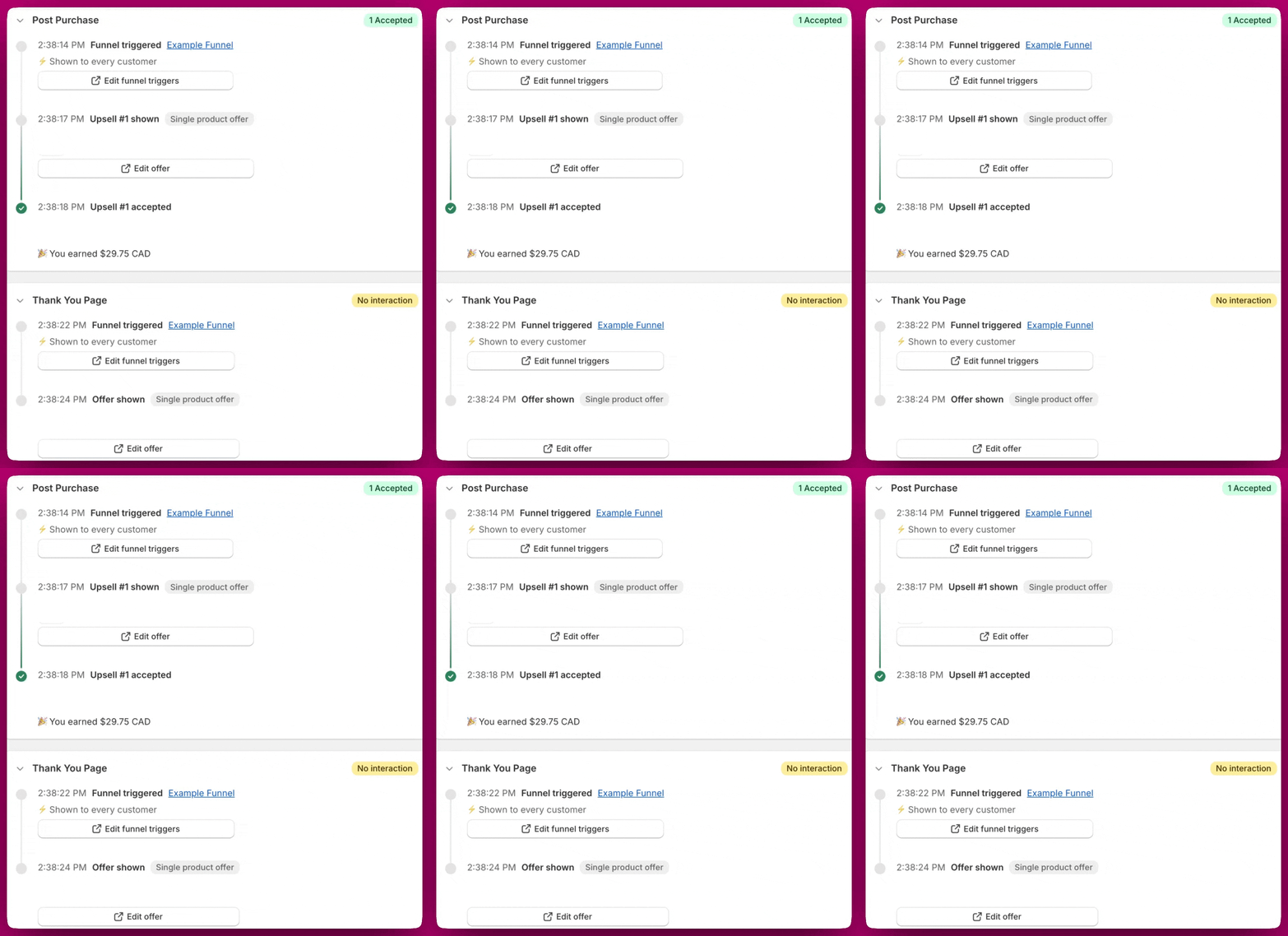
The detail view has two collapsible sections: Post Purchase and Thank You Page. Click the section header (the chevron on the left) to expand or collapse each one. Each section displays a status badge at a glance, for example 1 Accepted or No interaction, so you can understand the outcome without expanding the section. The right sidebar shows order info, customer details, payment method, tags, and discounts. Individual order detail view with Post Purchase and Thank You Page event timelines

Order Summary (right sidebar)

Shows all products in the order including any accepted upsells, quantities, pricing, shipping address, customer tags, payment method, order tags, and discount codes. This sidebar pulls from Shopify directly and requires no additional configuration.

Post Purchase (PPU tab)

A step-by-step milestone timeline of the post-purchase experience for this order. If products were excluded from an offer, you’ll see a Products excluded warning beneath the milestone with the specific reason. Possible reasons include:
What caused it: Shopify blocked the order at a platform level.
What caused it: No funnel matched this order’s trigger conditions.
What caused it: Every product in the offer was filtered out by your settings.
What caused it: The offer slot exists but no offer has been set up.
What caused it: The offer product was already in the customer’s original order.
What caused it: The offer product was out of stock at the time of the order.
What caused it: The offer product was unpublished or inactive in Shopify.
What caused it: The offer product was out of stock at the locations required by the offer’s per-location inventory filter. Restock at those locations, or adjust the filter on the offer strategy.
What caused it: The offer product was excluded by a product-tag filter on the offer strategy. Review the filter or widen the product pool in your offer strategy.
What caused it: The offer product was excluded by a product-metafield filter on the offer strategy. Review the filter or widen the product pool in your offer strategy.
What caused it: The offer product was excluded by a product filter on the offer strategy. Review the filter or widen the product pool in your offer strategy.
What caused it: The post-purchase session timer ran out before the offer had a chance to load.
If you placed a test order and the PPU timeline shows no events or incomplete data, it may be because the order ID wasn’t available when the earliest events fired. This resolves automatically as the order completes.

Thank You Page (TYP tab)

Shows the same milestone structure as the PPU tab, filtered to Thank You Page events. A Technical issue badge means there was a problem loading the TYP experience for this order.
Something not looking right? See the Order Browser Troubleshooting guide, or reach out via chat or email us at support@aftersell.app.