

Introduction to Product Page Upsells
The Product Page Upsells feature enables you to display relevant, complementary, or related product offers directly on the product page of your store. This functionality helps boost conversions by encouraging customers to purchase additional items.- Customers do not need to make a purchase before seeing Product Page Upsells. These appear based on triggers you set, such as specific products or page conditions.
Setting Up Product Page Upsells
Step 1: Create an Upsell Offer
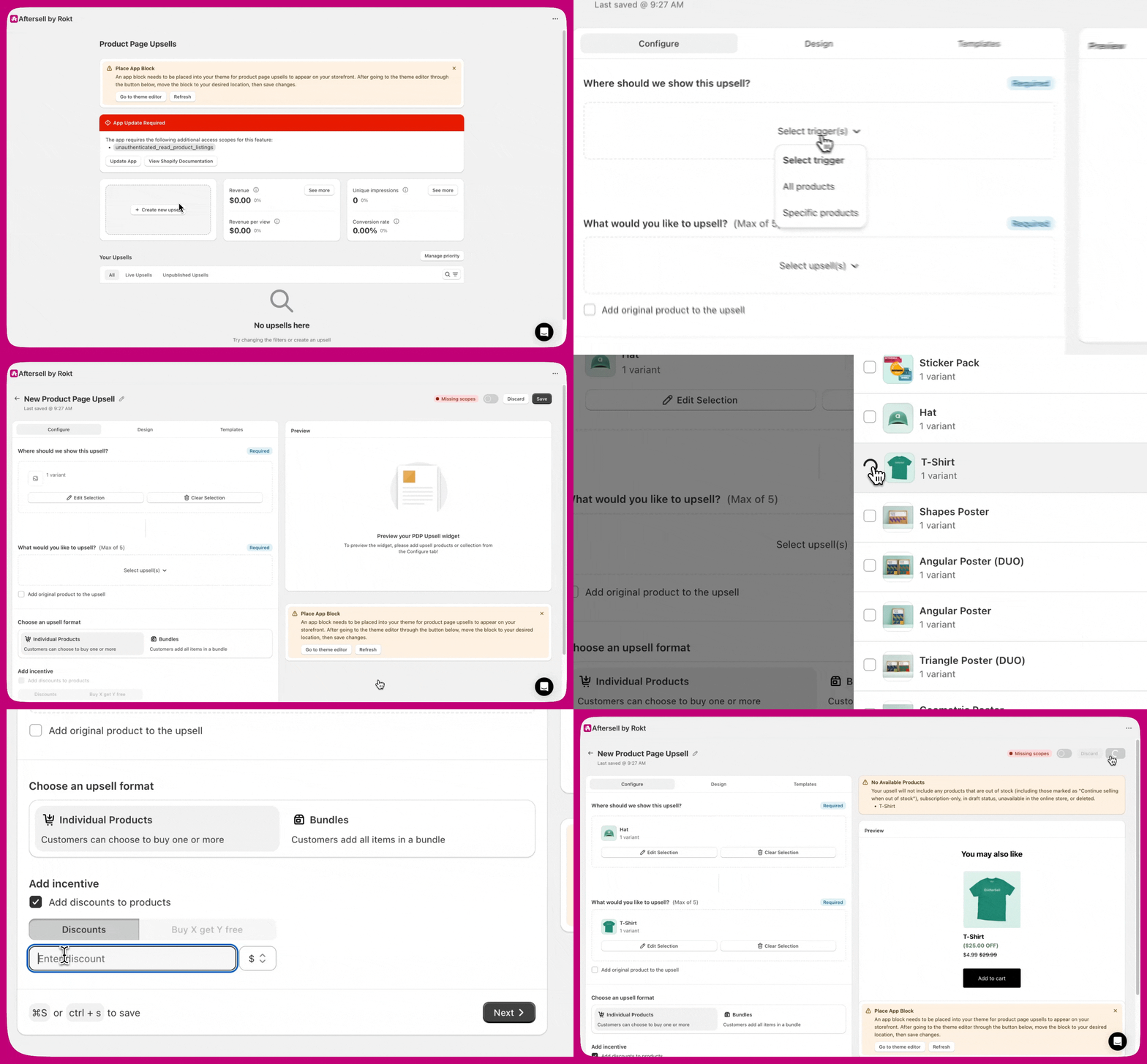
- Open the Aftersell Product Page Upsells dashboard and click Create New Upsell.
- Choose which product(s) or collection(s) will trigger the upsell.
- Select up to five products to display as upsell offers.
- (Optional) Add a discount to make your offer more enticing. When a discount is applied, a value tag is shown to customers on the upsell widget, in parentheses — for example, ($100 OFF) or (CA$130 OFF) for fixed-amount discounts, and (22% OFF) for percentage discounts. The label uses the customer’s presentment currency, so it always matches the actual discount applied at checkout. The wording comes from the Discount Text field under Design → Pricing, which defaults to
{{DISCOUNT_AMOUNT}} OFF— edit it there to change the label. - Save your setup when complete.
Step 2: Add the app block to the product page
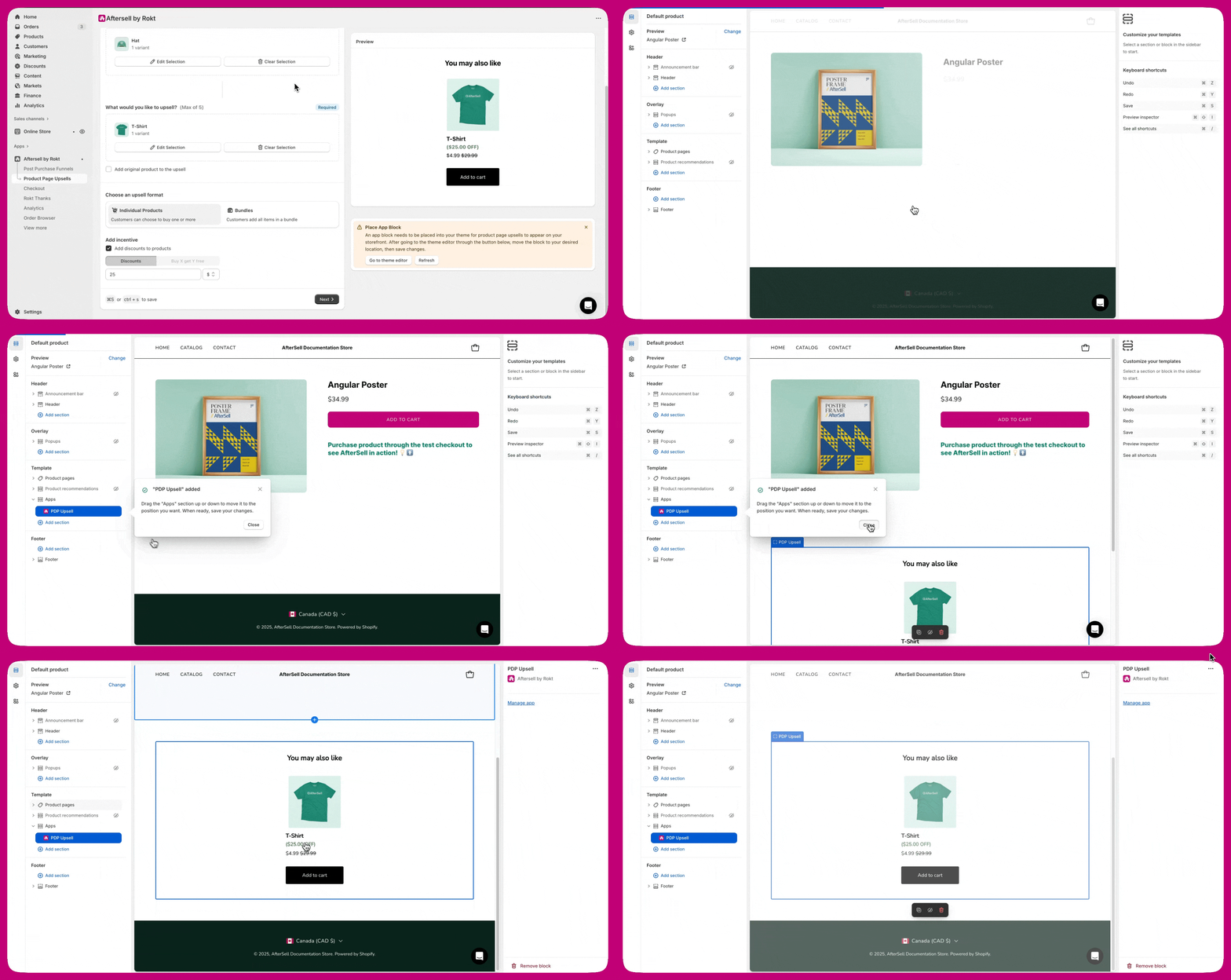
To display upsells on your product pages:- Open the Shopify Theme Editor from your Aftersell dashboard.
- Select Add block, then the Apps tab, then PDP Upsell. The block is not added for you — the link opens the product template so you can place it yourself.
- Drag it to your preferred position on the page.
- Save your setup when complete.
Translating Product Page Upsells
Only two sections within the Product Page Upsell widget require translation.1. Header Text
The “You may also like” text displayed above the upsell products can be updated. To edit this: Go to Design → Header → Heading Text Replace the text with your preferred language.2. Add to Cart Button
The “Add to cart” button text can also be translated. To edit this: Go to Design → Button → Text Update the button text to match your store’s language.Individual Products vs Bundles
- Individual Products: Customers can add upsell items separately
- Bundles: Customers can add multiple products at once with a single discount or a Buy X, Get Y Free offer.
Compatibility with Shopify Themes
Product Page Upsells requires a Shopify theme that supports adding app blocks.Most modern themes (2021 and later) are compatible. If you’re using an older “vintage” theme, please upgrade to a newer Shopify theme to enable app blocks and unlock this feature. Most modern themes (2021 and later) are compatible. If you’re using an older “vintage” theme, please upgrade to a newer Shopify theme to enable app blocks and unlock this feature.
Discounts and strategy pricing
When you configure a discount on a product page upsell widget, the discount applies to all products the widget returns. If you also assign a strategy to the widget, and that strategy includes per-rule price adjustments, the two discount sources work together on a per-product basis:- Products targeted by a strategy rule discount — the strategy’s rule discount applies to those products.
- Products returned by the strategy but not targeted by a rule discount — the widget’s configured discount applies as a fallback.
- The two sources never stack. Each product receives exactly one discount — either the strategy rule’s adjustment or the widget discount, never both.
“This strategy applies its own discount to the products it targets. The discount below is the fallback for products it doesn’t discount.”The discount section remains fully editable. You can configure the widget discount as the baseline for any products the strategy returns but doesn’t specifically discount.
Note: Strategy price adjustments apply to Product Page Upsells V2, a newer version of this feature that is not yet generally available — V1 upsells have no strategy field at all. Stores are moved to V2 by the Aftersell team, and only stores already using Strategies are eligible.
Limitations
- Subscription-only products can’t be used as upsells.
- Bundles won’t appear if an included product is out of stock, this ensures accurate pricing and protects margins.
Translating product page upsells
Only two sections within the Product Page Upsell widget require translation.1. Header Text
The “You may also like” text displayed above the upsell products can be updated. To edit this: Go to Design → Header → Heading Text Replace the text with your preferred language.2. Add to Cart Button
The “Add to cart” button text can also be translated. To edit this: Go to Design → Button → Text Update the button text to match your store’s language.Final Steps
Once you’ve added the app block and created your offer, activate your upsell to start increasing conversions.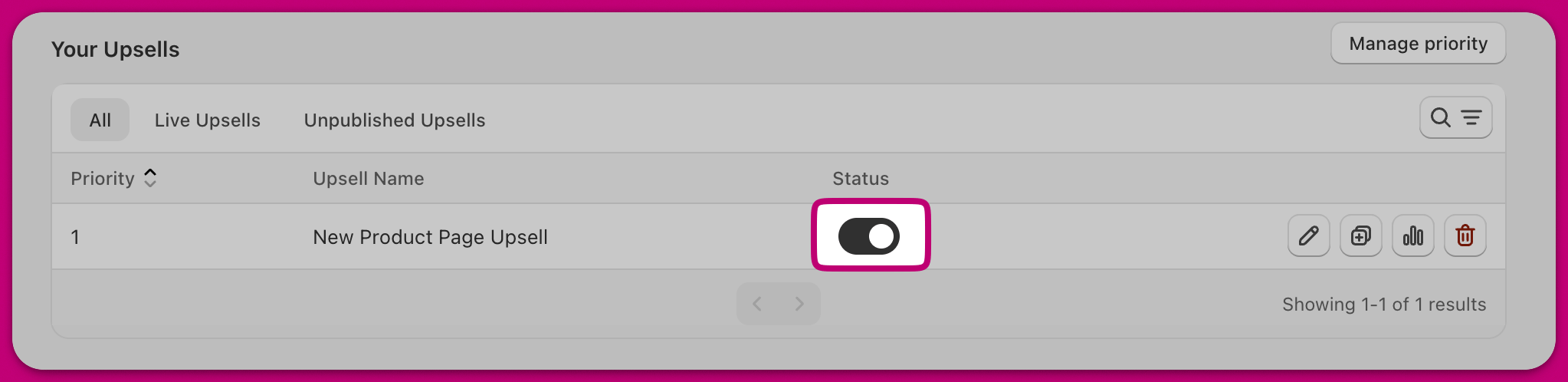
By following these instructions, you can implement the Product Page Upsells feature to enhance your store’s sales potential. For help setting up or troubleshooting, please contact the Aftersell Support Team directly from the app.