

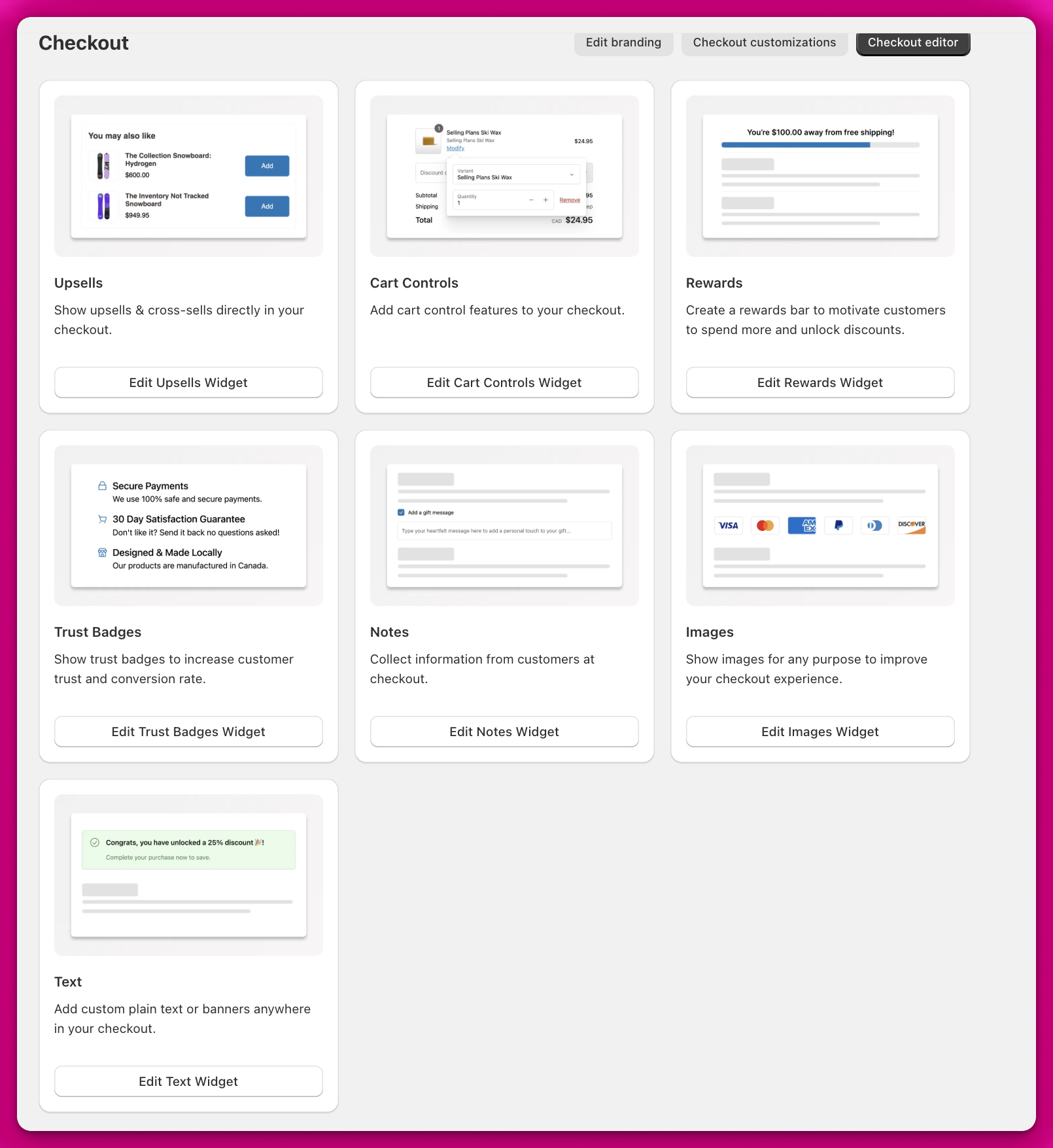
Upsells
Offer products to your customers during checkout to help increase your AOV.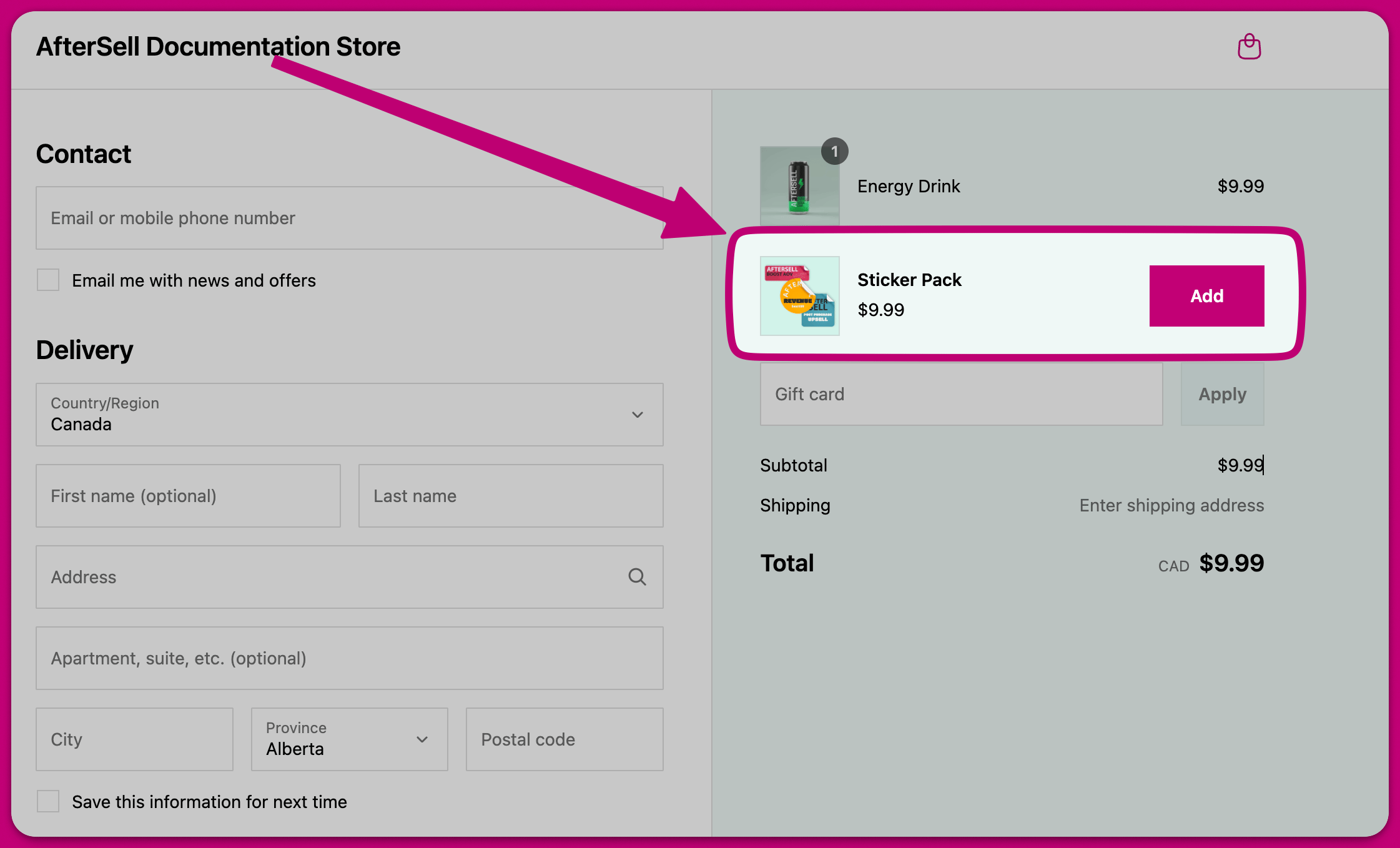
- Single Product Upsell: Offer one product to your customer.
- Multi-Product Upsell: Show multiple products in either a stack or carousel layout. Allow customers to accept multiple offers.
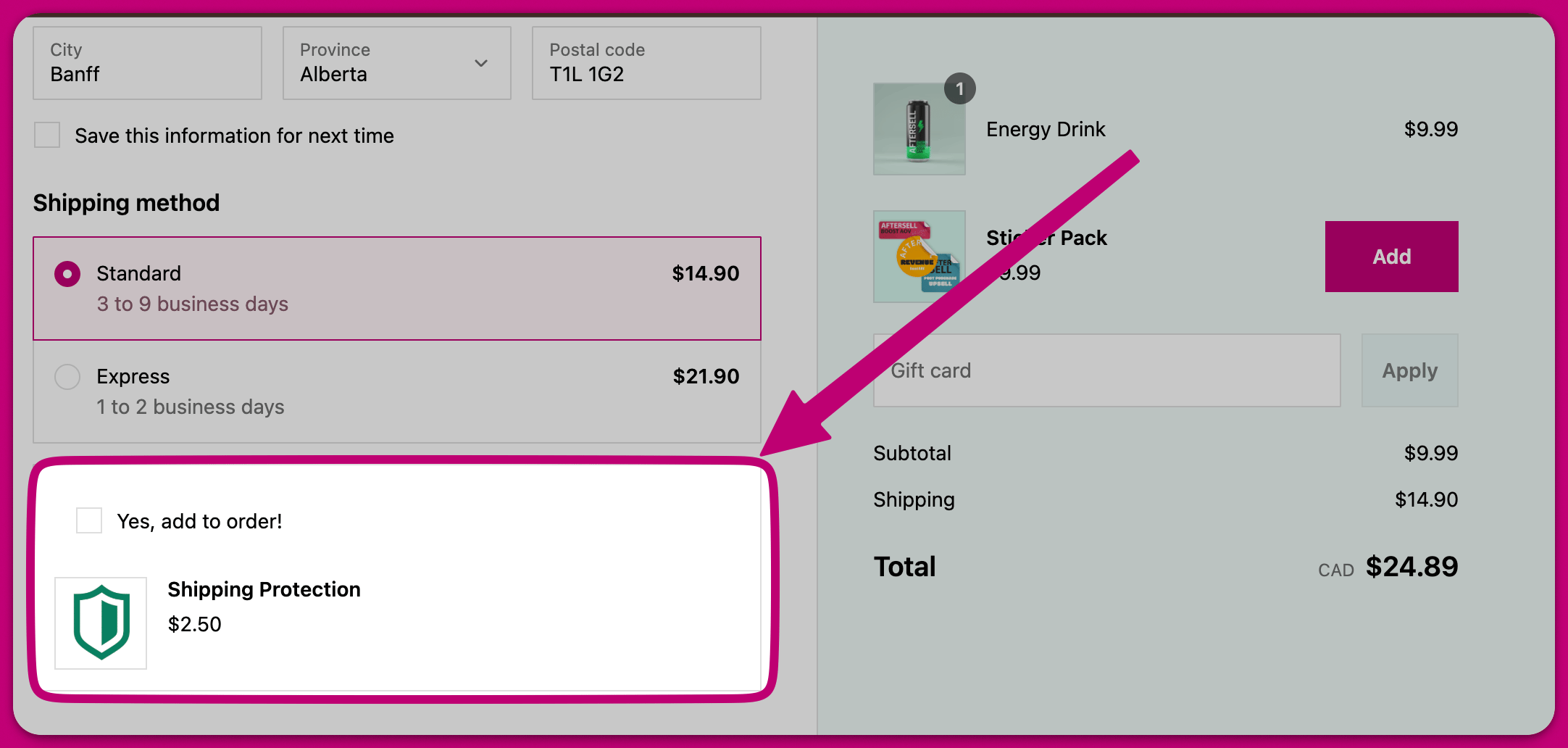
- Checkmark Upsell: Upsell a single product with a checkbox instead of an Add to Cart button. This is commonly used for cheaper add-ons such as shipping protection or first in line shipping.
Product selection options
When creating upsell offers, you can choose how products are selected:- Specific Products: Manually select individual products to upsell.
- Collection: Select a collection and choose up to 5 random products from that collection to display. Products already in the cart are automatically excluded.
- AI Recommendations: Let Aftersell automatically recommend products based on the customer’s cart contents.
- Most Expensive Product: Automatically upsell the most expensive product from the customer’s cart.
Product types
When adding products to your upsell widget, you can choose from several product types:- Specific product - Select a particular product from your store to display
- Automatic upsell - Recommends complementary products based on cart contents, using the recommendation provider set under Settings > Automatic upsells (Shopify by default, or Nosto or Constructor if you’ve connected one)
- Most expensive product - Shows the most expensive item from the customer’s cart
- Spend threshold - Intelligently recommends products to help customers reach reward thresholds (requires rewards bar to be enabled)
- Collection - Display products from a specific collection
- Strategy - Dynamically select a product using rule-based targeting. Only shown on stores that have Strategies enabled
Variant name display
When a customer selects a variant for a checkout upsell product, the variant name appears as small subdued text below the product title. This helps customers confirm they are adding the correct variant to their order. The variant name only appears when the product has multiple variants — it is hidden for single-variant products (those with only a “Default Title” variant).Subscription plan locking
- When you hide a variant option, customers won’t see it in the checkout upsell.
- The default value you select is automatically applied to the product.
- Only variants matching your selected default values will be available to customers.
- If you hide multiple options, only variants matching all selected defaults will be shown. When creating upsells for subscription products, you can lock the upsell to a specific subscription plan. This prevents customers from changing the subscription plan at checkout, ensuring they receive the exact subscription option you’ve configured.
- Open your upsell widget in the Checkout editor.
- Set the Purchase option to Subscription.
- In the Subscription plan dropdown, select a specific plan instead of “Any plan (customer chooses)”.
- The plan is now locked - customers will see this plan at checkout but cannot change it.
- Hide the Color option and set the default to “Black”
- Keep the Size option visible
- Customers will only see size options for the black t-shirt
- Show subscription option on checkout - Toggle whether the subscription option row (label + plan name) appears at checkout. Enabled by default.
- Subscription option label - Customize the label shown above the plan name (default: “Subscription”). For example, you might change this to “Subscribe”, “Delivery”, or another term that fits your brand.
- Plan name - Override the plan name displayed at checkout. By default, the plan name from Shopify is used.
- Product image corner radius - Apply rounded corners to product images. Choose from:
- None - Square corners
- Base - Slightly rounded corners
- Large - More rounded corners (default)
- Fully Rounded - Maximum rounding
- Product image size - Control image dimensions:
- Default - Standard size (64px for vertical layouts)
- Small - Smaller images (48px for vertical, taller aspect ratio for horizontal)
- Medium - Medium images (72px for vertical, square aspect ratio for horizontal) (default)
- Large - Larger images (96px for vertical, shorter aspect ratio for horizontal)
- Product image display - Choose how images fill their container:
- Fill - Image stretches edge-to-edge (default)
- Bordered - Adds a visible border around the image
- Card padding - Set inner spacing between the card edge and content:
- None - No padding
- Tight - Minimal spacing
- Base - Standard spacing
- Loose - Maximum spacing (default)
- Button width style - Control how the add-to-cart button width is displayed across upsells. Choose from:
- Auto (default) - Button width varies based on whether variant selectors are present
- Compact (uniform small) - All buttons use compact width for consistent sizing
- Full width (uniform large) - All buttons use full width for consistent sizing
Button width style is shown for every upsell type except Checkmark, and is not behind Try new look.
- You select a specific subscription plan (as described above)
- The product has only one subscription plan available
Upsell button text
For non-checkmark upsell widgets, you can customize the text displayed on the upsell buttons. These fields are available when the feature is enabled for your account — contact support to request access. By default, the buttons show:- Add for standard upsells
- Upgrade • $X savings for replacement upsells where the customer saves money
- Upgrade • $X for replacement upsells where the product costs more
Upsell button text
You can customize the text on the add button for standard and replacement upsells. When you enter custom text, the savings or cost suffix is still appended automatically for replacement offers (e.g.Buy Now • $5 savings).
Replacement button text
You can set a separate custom prefix for the button on replacement offers. This overrides both the default “Upgrade” prefix and any text entered in the Add button text field for replacement offers. The price suffix (e.g.• $5.00 savings) is always appended automatically.
For example, entering Trade up produces Trade up • $5.00 savings on a replacement offer where the customer saves $5.
💡 Tip: The{Amount}placeholder is not substituted in the replacement button text field — it is treated as literal text. Use the Upsell button text field with{Amount}if you need full control over the label format.
Using the {Amount} placeholder
You can include {Amount} in the Upsell button text field to embed the price or savings amount directly in your label. When {Amount} is present, your text becomes the entire button label — the automatic suffix is not appended.
The placeholder is case-insensitive —
{Amount}, {amount}, and {AMOUNT} all work.
⚠️ Note: If you use{Amount}in a standard (non-replacement) upsell, the product price is substituted. The placeholder is always replaced with a formatted amount, so a free product renders the formatted zero (for example\$0.00) rather than dropping the placeholder.
Max accepted offers
For Single Product Upsell and Multi-Product Upsell widgets, you can set a limit on how many offers a customer can accept from a single widget during a checkout session. Once a customer has accepted the configured number of offers, the widget stops showing additional offers for the remainder of that checkout session.- Leave blank — No limit is applied. The widget continues to show offers regardless of how many the customer has accepted.
- Set a positive number — The widget stops displaying offers once the customer has accepted that many from this widget.
💡 Tip: This setting is not available for Checkmark Upsell widgets.
Discounts
Discounts can be configured directly within the upsell widget. This discount automatically gets applied when the customer selects to add the upsell product to their order.Adding a discount to your upsell
When configuring an upsell widget, you can add a discount by clicking the “Add discount” button. You’ll see two options:- Pick existing - Select from discounts you’ve already created. You can search through your existing discounts to find the one you want to apply.
- Create new - Create a new discount directly in the editor by setting:
- Title - The discount code text shown to customers in checkout (e.g., “SAVE”)
- Amount - Choose between a percentage discount or a fixed amount discount, then enter the value
Hiding the discount amount text
When a discount is applied to your upsell, a savings suffix (e.g. “(20% OFF)” or ”($6 OFF)”) appears next to the product title by default. You can hide this suffix by enabling Hide discount amount text in the Show additional settings section of the upsell editor.- When enabled, the savings suffix is hidden. The discounted price itself still displays normally.
- When disabled (default), the savings suffix appears next to the product title.
💡 Tip: This setting is per-widget. If you have multiple upsell widgets, you can configure each one independently.
Customizing the discount suffix label
The “OFF” text in the savings suffix (e.g. “20% OFF”) can be customized in Settings > Translations. Look for the Discount suffix row and enter your preferred label (e.g. “saved”, “off”, or a translated equivalent). The default value is “OFF”.Showing the discounted price when the Aftersell discount is skipped
When Skip upsell discount if a non-Aftersell discount is already applied? is enabled, the widget hides the configured upsell discount from the preview price by default. If your cart-level discount already matches your upsell discount (so the customer pays the same discounted price regardless), you can enable Show the discounted price in the widget even when the AfterSell discount is skipped? to keep the preview price in sync with what the customer will actually be charged.⚠️ Important: This setting changes the displayed price in the widget for both preview and live customers, but does not apply an Aftersell discount. Only enable this if your cart-level discount matches your upsell discount exactly — otherwise customers may see an incorrect price.This checkbox is only visible when Skip upsell discount if a non-Aftersell discount is already applied? is already turned on.
Limiting how many units get the discount
By default, a discount applies to every unit of an accepted upsell product — including any additional units a customer adds using the quantity selector or Cart Controls. You can cap this with the Limit how many units get the discount toggle. When enabled, a Maximum discounted quantity field appears where you set the cap. Units up to the cap receive the discount; any additional units are charged at full price. Example: You offer a product with a 100% discount and set the cap to 1. If a customer raises the quantity to 3, only 1 unit is free — the other 2 are charged at full price.- Toggle off (default): Every unit of the accepted upsell product is discounted.
- Toggle on: Only the number of units you specify receive the discount. Extra units are charged full price.
💡 Tip: This setting is useful when you want to offer a strong discount (such as a free item) without allowing customers to multiply the savings by increasing the quantity.
How discounts work
- Aftersell discounts follow the same rules as any other Shopify discount. For two discounts to combine, both must be explicitly set to combine in Shopify Admin. For example, if Aftersell creates a discount code and you also have a separate discount like “10% off”, both need combination enabled. If either one is not set to combine, they will not combine. Shopify’s standard discounting rules apply throughout:
- Shopify only allows one line-item discount per product at a time. If a product already has a discount applied, an additional upsell discount will not stack on the same line item
- Order-level and line-item discounts can combine if both are set to “combinable” in Shopify Admin For full details on Shopify’s combination rules, refer to Shopify’s discount combination documentation. Important limitations There are a few scenarios where discounts may fail to apply:
- Multiple discounts on the same product: If an Aftersell upsell discount is configured for a product that already has a discount applied, the Aftersell discount will not stack
- Incorrect collection setup: If discounts target collections, ensure all relevant products belong to the correct collection. Hidden collections can be used to include specific products without making them visible to customers
- Third-party app conflicts: Checkout discount functionality is not currently supported when another app is dynamically modifying your checkout. If you are running an app that does this, discounts added by Aftersell may not apply as expected. For example, if an app adds pricing or add-ons at checkout and recalculates the order total, this can interfere with how Aftersell applies discounts.
Upsell Review Stars
Checkout upsells can display star ratings on offer products to help increase conversions. Ratings are pulled from your product review app’s metafields and only appear when valid review data exists for the product.- Please note that this is currently available on Aftersell’s Checkout version 2 and not version 1, due to api limitations.
- Open Checkout and edit the upsell.
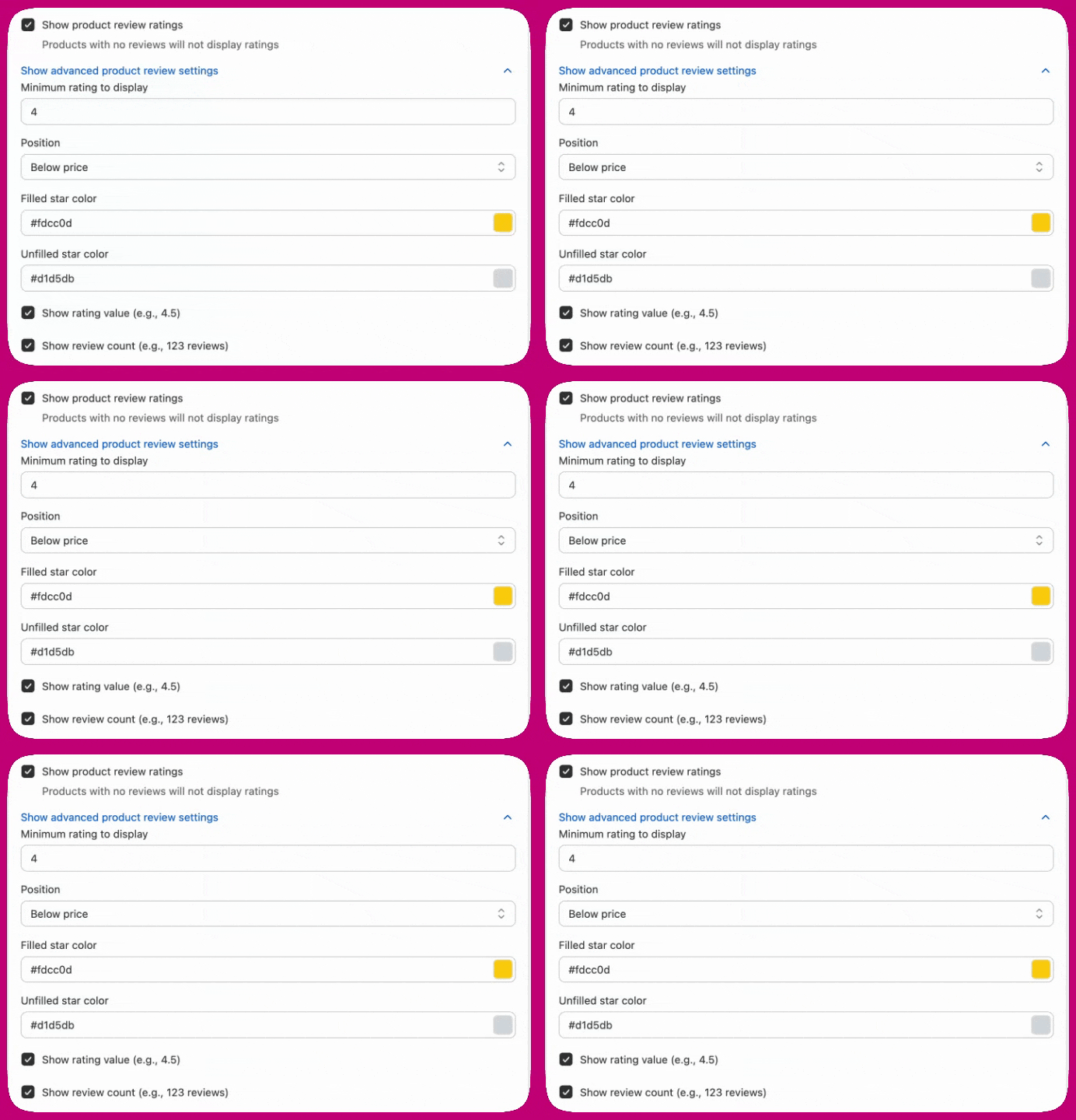
- Enable Show product review ratings.
- (Optional) Open Advanced product review settings to customize the display.
- Set a minimum rating to display (0-5, default 4.0).
- Choose where stars appear (below title or below price).
- Customize filled and unfilled star colors.
- Show or hide the numeric rating and review count.
We support review apps that store ratings in product metafields, including:
- Shopify Product Reviews
- Junip
- Okendo
- Growave
- Fera
- Stamped
- Loox
- REVIEWS.io
- Automizely Reviews
- Judge.me
- Ali Reviews
- Trustoo
- Rivo
- Rivyo
- Vitals
Troubleshooting: reviews show in editor but not on live checkout
If you enable Show product review ratings and see stars in the editor preview but not on your live checkout, your review app’s metafields may not have Storefront API access enabled. The editor reads product data through the Admin API (which can access all metafields), while live checkout reads through the Storefront API (which only accesses metafields that have been explicitly granted storefront access). When this mismatch is detected, a warning banner appears in the editor listing the affected products. To fix this:- Go to Settings → Custom data → Products → Metafields in your Shopify Admin.
- Find the
reviews.ratingandreviews.rating_countmetafield definitions. - Enable Storefront API access for each definition.
Cart Controls
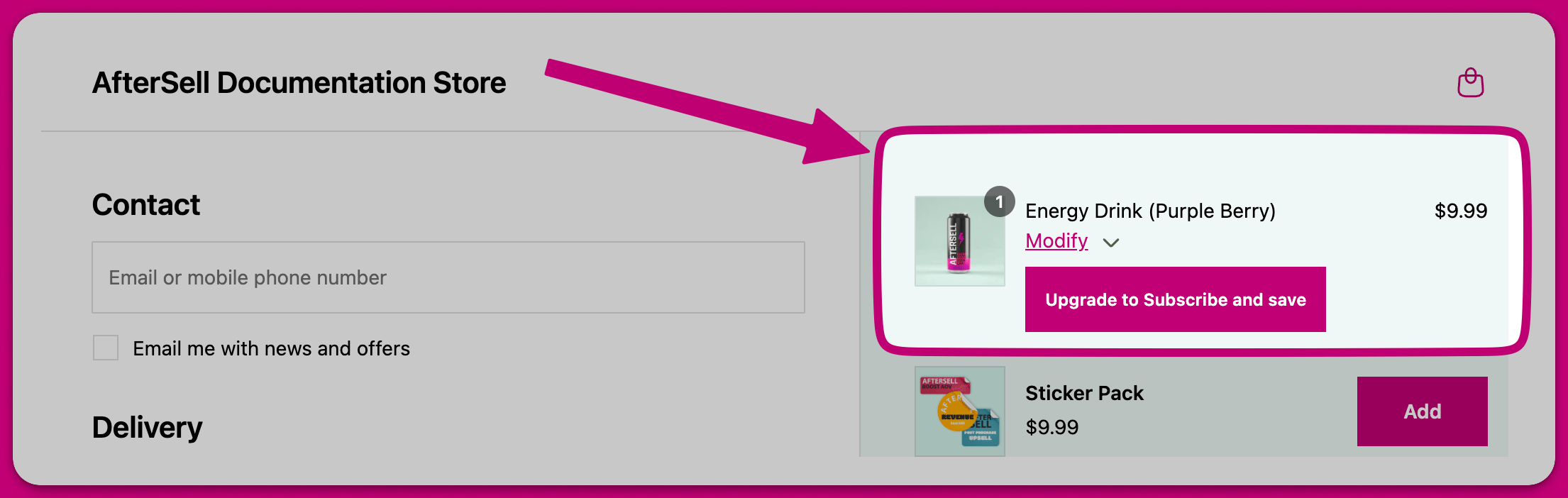
Surface a modify link below every product line item to allow editing directly on the checkout page. You can customize the text of the modify link in the Content section of the cart controls editor. Enter your preferred label in the Modify Text field (for example, “Quantity”). Leave it blank to use the per-language text from Settings > Translations. The following functionality is supported for cart controls:- Variant selector: Allow customers to change to another in-stock variant.
- Quantity selector: Allow customers to change the quantity of a product.
- Remove item: Allow customers to remove upsell products. Turning on Show Remove Item Button reveals Allow Removal of Non-Upsell Products, which extends removal to the items the customer originally added.
- Subscription selector: Allow customers to change the currently selected subscription option (e.g. from every 60 days to every 30 days).
- Subscription upgrade: Allow customers to upgrade a one time purchase to a subscription.
- Custom text: Add custom text below each line item.
Product review ratings
Cart controls can display star ratings for in-cart products to help build trust and increase conversions. Ratings are pulled from your product review app’s metafields and only appear when valid review data exists for the product. How to enable- Open Checkout and edit the cart controls widget.
- Navigate to the Product review ratings section.
- Enable Show product review ratings.
- (Optional) Customize the display settings.
- Set a minimum rating to display (0-5, default 4.0). Products below this rating won’t show stars.
- Choose where stars appear (below product title or below cart controls).
- Customize filled star color (default: #fdcc0d) and unfilled star color (default: #d1d5db).
- Show or hide the rating value (e.g., 4.5) and review count (e.g., 123 reviews).
We support review apps that store ratings in product metafields, including:
- Shopify Product Reviews
- Junip
- Okendo
- Growave
- Fera
- Stamped
- Loox
- REVIEWS.io
- Automizely Reviews
- Judge.me
- Ali Reviews
- Trustoo
- Rivo
- Rivyo
- Vitals
Subscription products
The Subscription products section inside Subscription management lets you control which subscription plans are available to shoppers for specific products in the cart controls widget. By default, the subscription selector and upgrade button use whichever plans Shopify returns for a product. With per-product subscription plan controls, you can narrow the selectable plans and set a default plan for each product. How to configure subscription plan controls:- Open your cart controls widget in the Checkout editor.
- Expand the Subscription management section.
- Under Subscription products, select Add product and pick a product that has selling plans configured in Shopify.
- Open the product’s row and use Plans customers can choose — select Select plans to open the picker, then tick the plans shoppers may select. Chosen plans appear as removable tags, and there’s a Select all action.
- Use the Default plan dropdown to set which plan the subscription upgrade applies for that product. Its own default is First available plan.
- Save your changes.
Subscription products is a heading, not a collapsible panel — the section that expands is Subscription management. Until you add a product it reads “No products added yet”, and the per-product controls in steps 4 and 5 only appear once a product row exists.
- Plans customers can choose — Narrows the subscription selector to only the plans you tick. If a product variant supports none of them, all of that variant’s own plans are shown instead, so shoppers are never left without a subscription option.
- Default plan — Sets the plan the subscription upgrade applies for that product. If it isn’t compatible with the variant in the cart, the first selectable plan is used instead.
- Unconfigured products — Products without a row here keep all their plans and use Shopify’s default ordering.
Upgrade to {{subscription_group}} — the variable is replaced with the first subscription group available for the product.
💡 Tip: If you select all available plans for a product, the configuration normalises back to “every plan.” This means any new plans you add in Shopify later are automatically included, rather than being silently excluded.
Product targeting
You can control which products display cart controls using the Visibility settings in the cart controls widget editor:- All products in cart: Cart controls appear for every product (default).
- Only selected products: Cart controls appear only for products you select. Click Select products to choose which products should display cart controls.
- All products except selected: Cart controls appear for all products except those you select. Click Select products to choose which products should not display cart controls.
- Open your cart controls widget in the Checkout editor.
- Navigate to the Visibility section.
- Select your preferred targeting mode from the Apply cart controls to dropdown.
- If you selected Only selected products or All products except selected, click the Select products button to choose your products.
- Save your changes.
Rewards
Show a reward bar (spend X get Y) in your checkout to incentive adding more products. This goal can either be based on Order Value or Item Count. Rewards work well alongside the upsell widget. Make it easy for a customer to add an extra product to their order to achieve the reward. You can use the spend threshold product type in your upsell widget to automatically recommend products that help customers reach the reward threshold.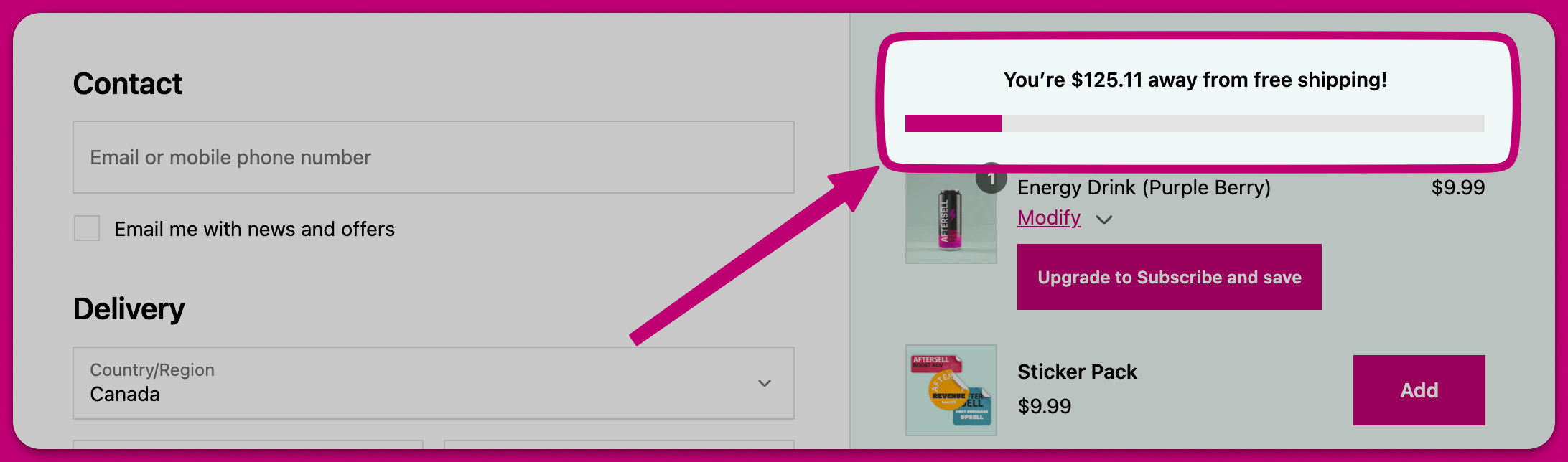
Amount basis
When configuring a reward based on Order Value, you can choose how the cart total is calculated using the Amount basis setting:- Order total — Uses the full order total, including shipping and taxes.
- Subtotal — Uses the pre-discount merchandise subtotal (before any discount codes are applied).
- Subtotal after discounts (excludes tax and shipping) — Uses the cart total after discounts, shipping, and taxes are subtracted. This matches how Shopify evaluates free-shipping thresholds, so the reward bar accurately reflects whether the customer has truly reached the threshold when a discount code is applied.
💡 Tip: If you offer free shipping as a reward, use Subtotal after discounts (excludes tax and shipping) to ensure the bar matches Shopify’s own free-shipping evaluation. With other bases, a discount code can cause the bar to show “unlocked” while Shopify still charges shipping.
Trust Badges
Build trust badges with custom icons and text in order to increase checkout conversion rate. The badges can be stacked vertically, or displayed horizontally.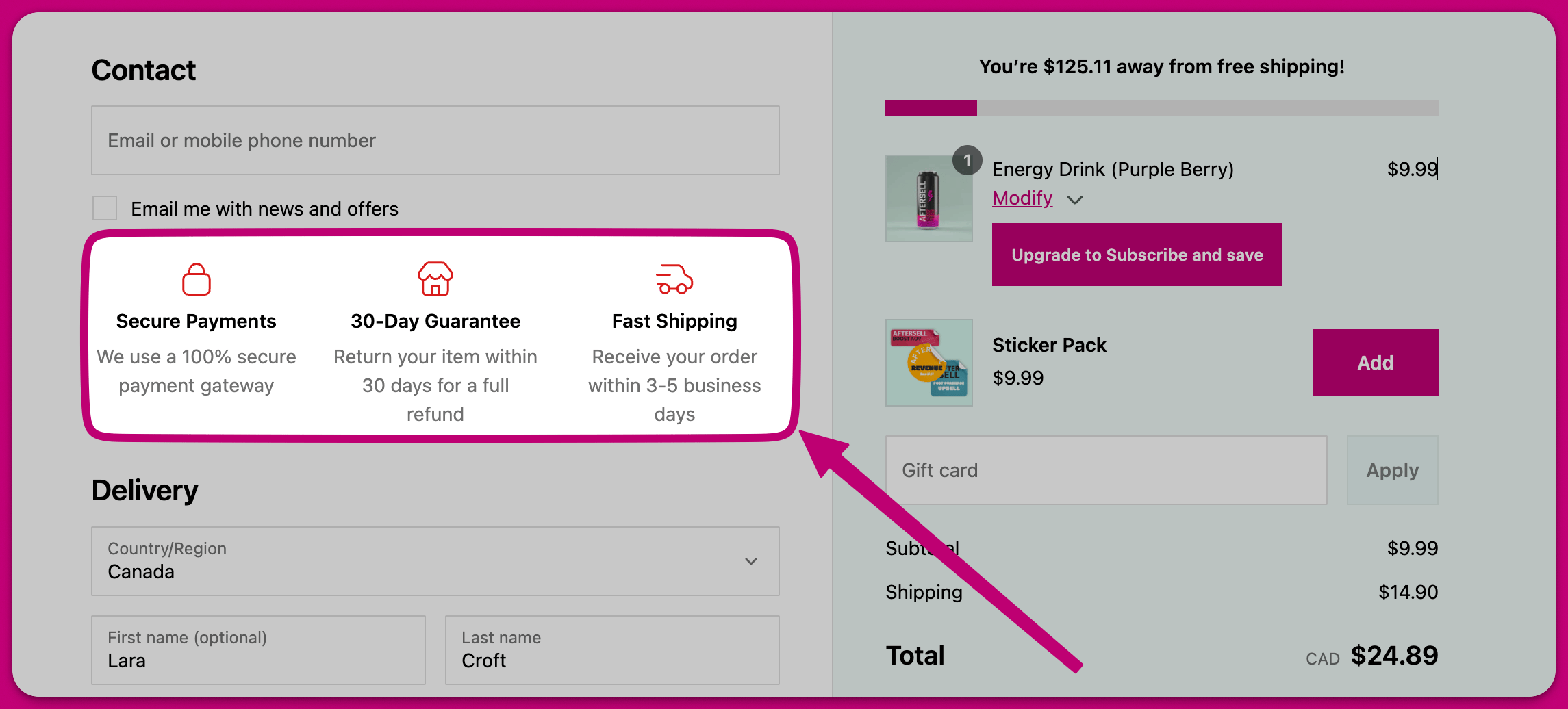
Testimonials
Display real customer reviews directly on checkout to build trust and lower your abandoned checkout rate. The testimonials widget pulls reviews from your connected review app, so shoppers see genuine reviews rather than text you write by hand.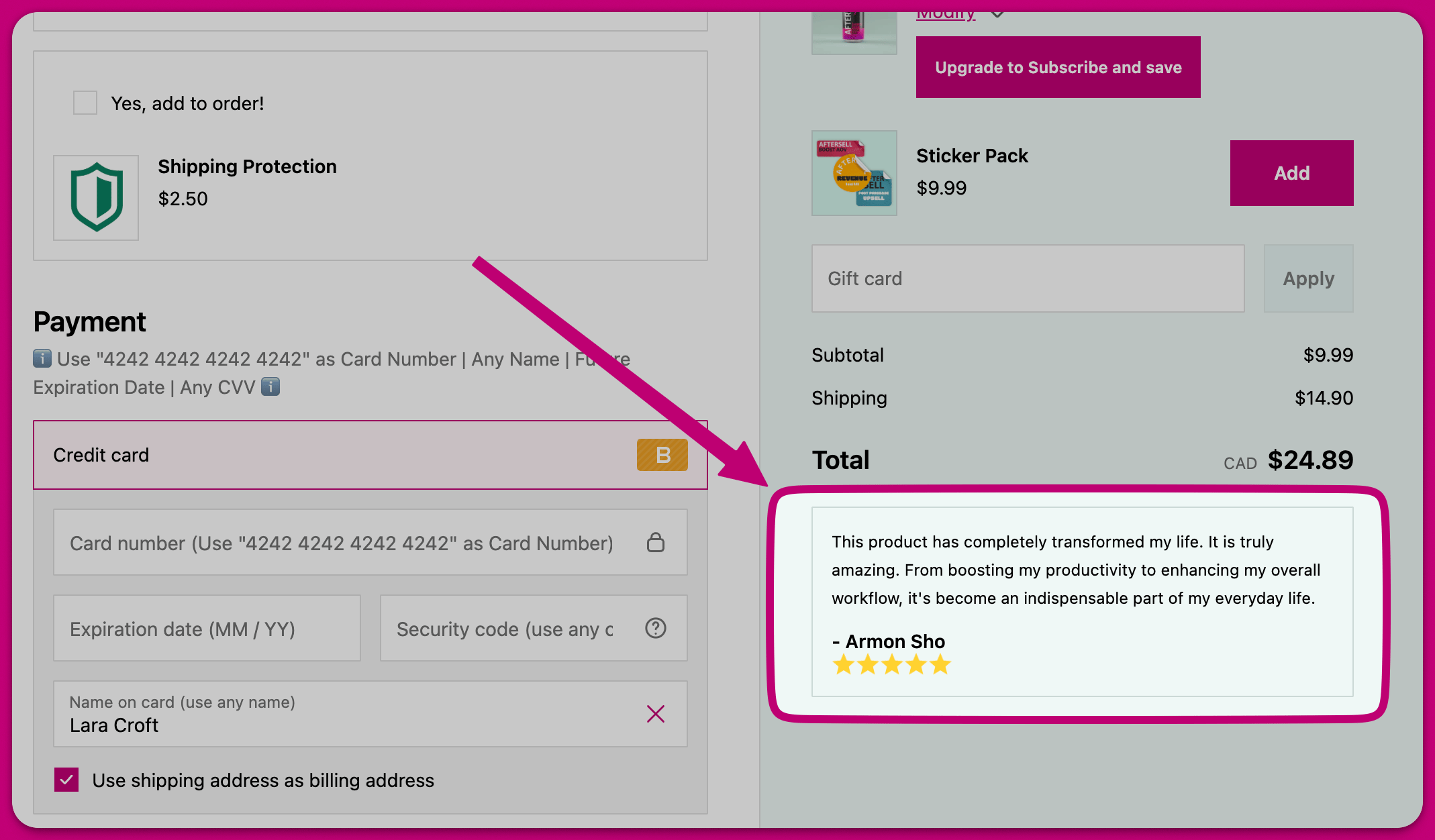
Choose a review provider
Open the testimonials widget and, under Source settings, pick your Review provider. Aftersell supports Judge.me, Klaviyo, Okendo, and Yotpo. Each provider needs credentials connected in Settings > Product Reviews before the widget can pull reviews. Until the selected provider is connected, the editor shows a “provider is not configured” warning with a Go to product reviews settings link. Once the provider is connected, the rest of the widget’s settings appear. See Review app integrations for the credential each provider needs and links to the setup guides.Choose which reviews to show
After a provider is connected, pick a Selection mode:- Manual selection - Choose the specific reviews to display in the widget.
- Dynamic - Automatically fetch and display reviews based on the products in the shopper’s cart.
Dynamic mode
In dynamic mode, Aftersell imports reviews from your review app and stores them so they can be displayed in the checkout widget. The first import happens automatically within 24 hours, and then once a week after that. To import reviews immediately, go to Settings > Product Reviews and click Sync now for your review app. In dynamic mode you can also set a Minimum rating (1 to 5 stars) so only reviews at or above that rating appear.Display settings
- Max reviews to show - Control how many reviews appear, from 1 to 3.
- Display type - Choose between a vertical list or a carousel.
- Widget title - Set the heading shown above the reviews, with its own alignment.
- Truncate review text after (optional) - Set a maximum character length for review text. When a review exceeds this limit, it’s clipped with an ellipsis and a “Read more” button appears. Clicking “Read more” opens a popover with the full review. Leave blank for no limit (default).
- Show verified buyer badge - Add a verified-buyer badge to each review, with a configurable badge color.
- Filled star color and Unfilled star color - Set the colors used for the star rating.
Review app integrations
To show reviews on checkout, connect your review app credentials in Settings > Product Reviews. Aftersell supports:- Judge.me - Requires your Private API token
- Klaviyo - Requires your private API key
- Okendo - Requires your User ID
- Yotpo - Requires your App Key
Notes
Allows your customer to add notes to their order. These notes can either be written manually by the customer, or be pre-written notes. Pre-written notes are excellent when your store offers gift wrapping or eco packaging, and you want to give your customers an easy way to opt-in.Images
Upload a custom image which can be inserted in the checkout.Text
Insert a banner in your checkout with the text of your choice. Choose between four different styles for the text widget.- Information: A blue background with a blue information icon.
- Success: A green background with a green checkmark icon.
- Critical: A red background with a red exclamation point icon.
- Warning: A yellow background with a yellow warning triangle icon.
FAQ
Display an accordion of questions and answers in your checkout to reduce friction and build confidence before purchase. When you add a new FAQ widget, it comes pre-loaded with five sample questions covering common topics like shipping, returns, and order changes (default title: “Frequently asked questions”). Replace the sample questions and answers with your own store policies before publishing. Configuration options:- Title, Title size (Base or Small), and title alignment (left, center, or right)
- Divider between questions: Yes or No
- Question alignment: A single alignment that applies to every question, answer, and divider in the widget
- Add question: Opens an edit modal where you set the question text, answer text, and Answer size (Base or Small) for that row
- Open the FAQ widget in the Checkout editor.
- Click Add question.
- Enter your question and answer text, and choose the answer size.
- Click Confirm to save the row, then repeat for additional questions. Confirm stays disabled until both the question and the answer are filled in.
- Drag a row by its handle to reorder the questions.
💡 Tip: Small title size renders the title unbolded. Use it when you want the FAQ heading to feel lighter than the surrounding checkout content.Recommended placement: Payment step, below the pay button.