

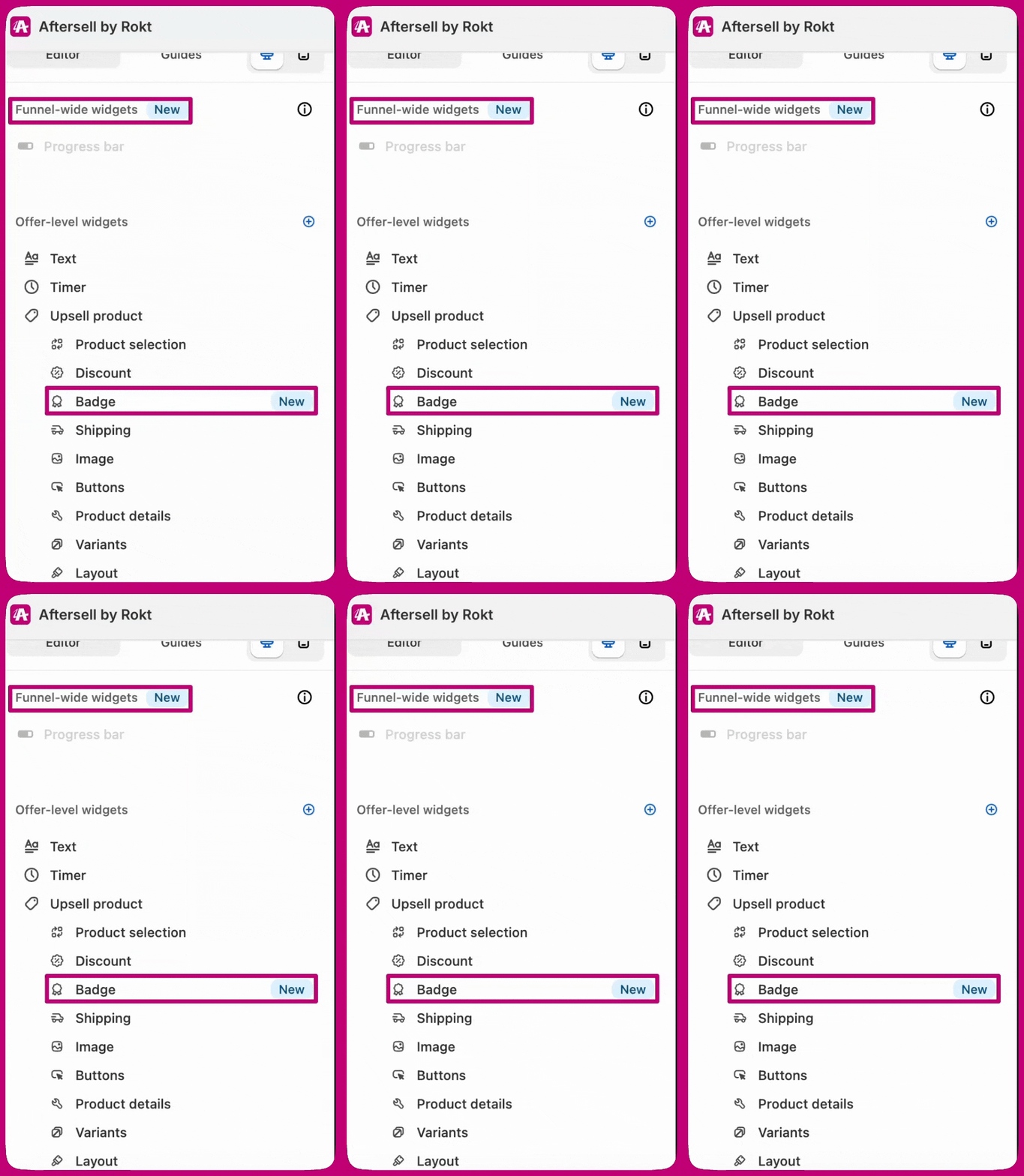
Progress bars
The Funnel-Level widget allows you to add a progress bar to one upsell and have it automatically applied to all upsells within the same funnel. This ensures a consistent experience across offers while reducing manual setup for merchants.- The widget is always available but marked as hidden for existing offers and funnels.
- It is enabled by default for newly created funnels.
-
Merchants can still upload a custom progress bar using the Image widget if they prefer a custom design etc.
- You currently cannot translate these widgets and therefore have to upload custom images with the personalized translations you require. Translations and more options will be available soon!
Settings
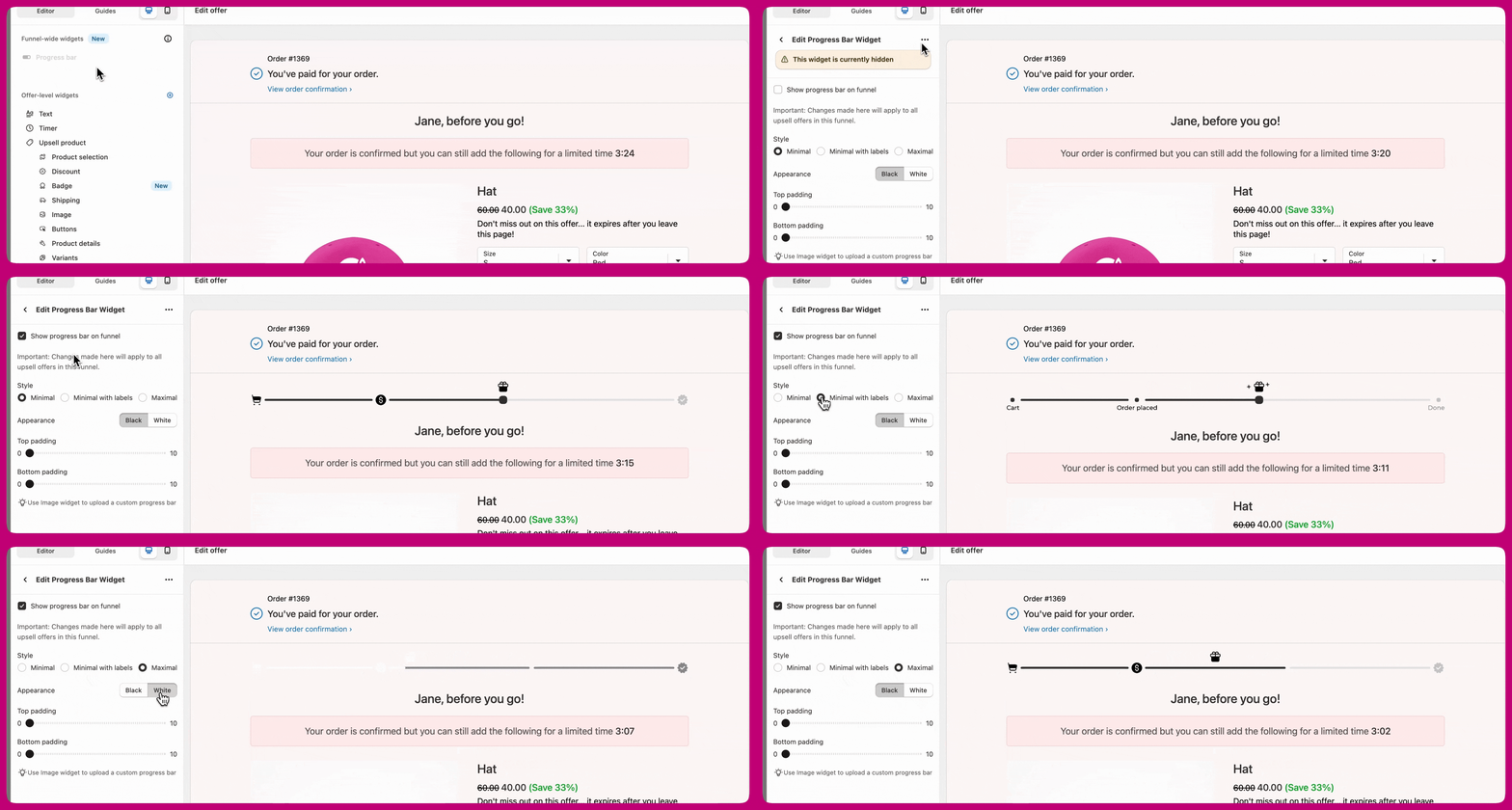
Style
Minimal


Appearance
Black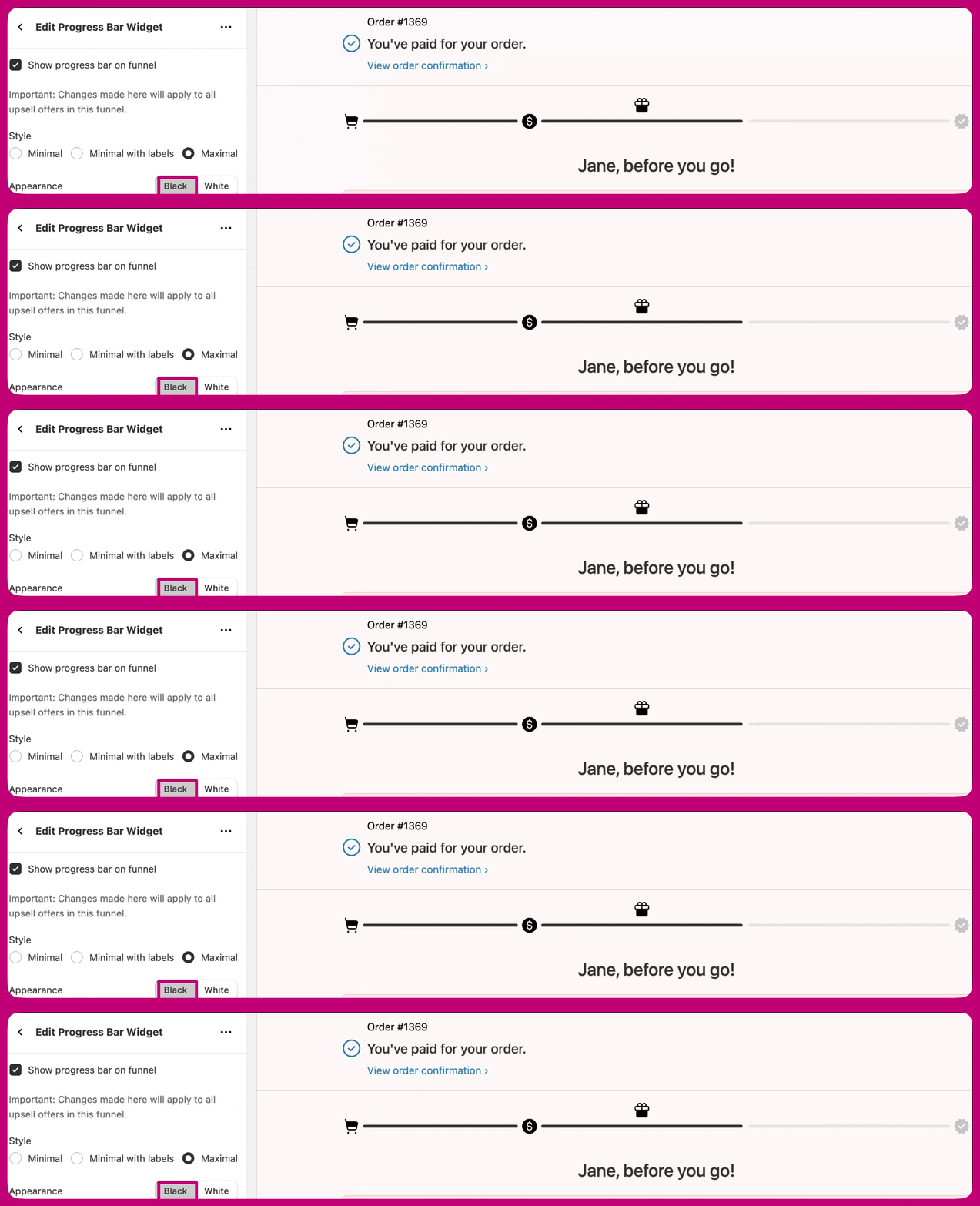
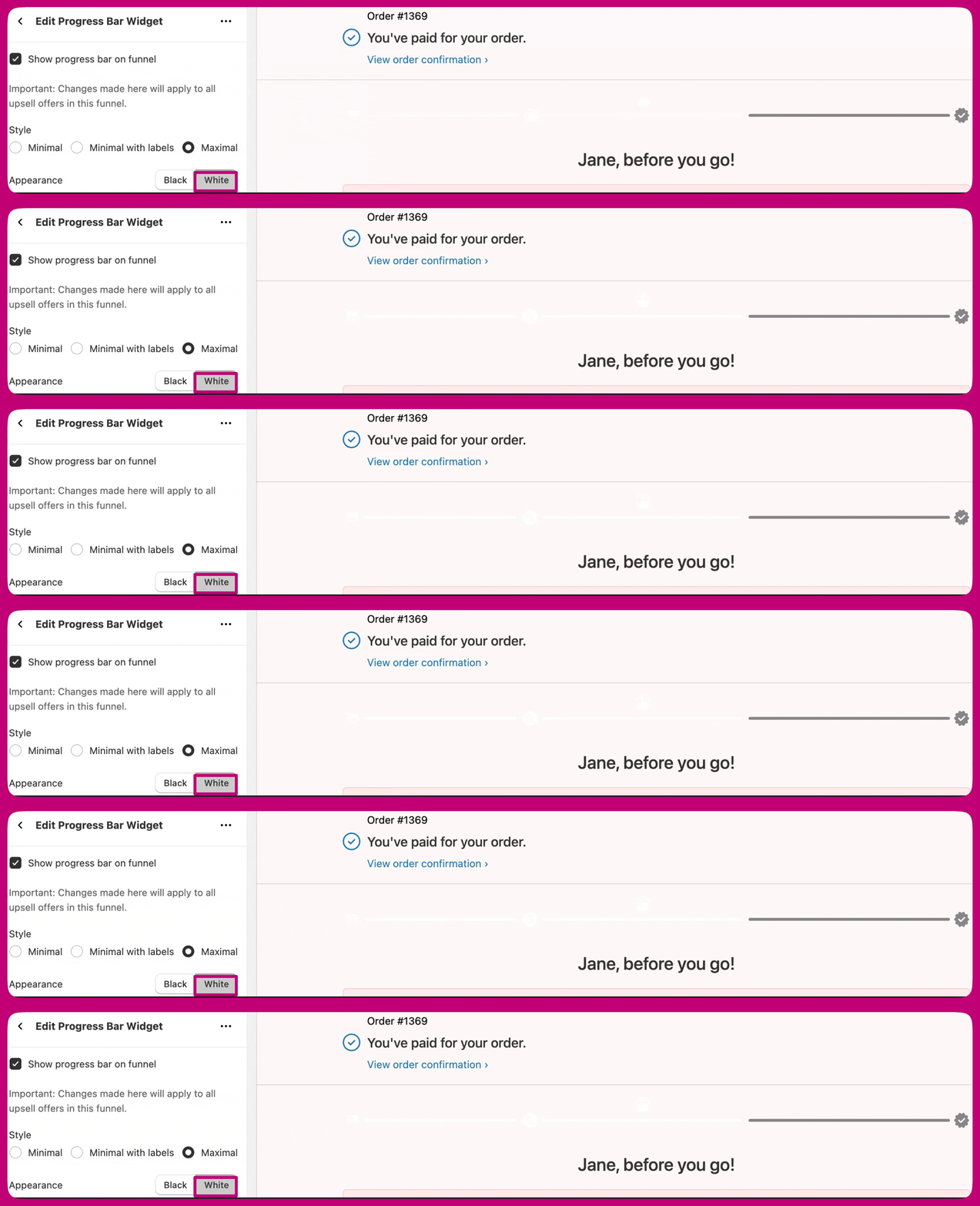
Product Badges
Product Badges let merchants highlight key product details directly on the offer. These badges help draw attention to important features or offers, increasing visibility and buyer confidence.- Available as an option on each product.
- Merchants can upload their own custom badges.
- Colors, text, and icons cannot currently be edited, but customizable templates will be available soon.
Settings
Badge labels Options:
- Bestseller - Ideal for highlighting products with the highest sales or strongest performance to boost trust and social proof.
- Trending - Great for showcasing products that are currently gaining traction or experiencing high engagement.
- New - Best for drawing attention to newly launched products or offers.
- Lowest Price - Useful for promoting discounted or best-value items to encourage quick conversions.
- Ships Free - Perfect for emphasizing free shipping offers, helping reduce purchase hesitation.
Appearance Options
Badges come in four appearance styles to match different funnel designs and brand aesthetics:- Vibrant - Bright and eye-catching, ideal for drawing immediate attention to key offers.
- Vibrant Inverse - A variation of Vibrant with inverted colors for a bolder contrast.
- Classic Dark - Clean and professional, best for lighter backgrounds.
- Classic Light - Subtle and minimal, designed for darker backgrounds or a softer look.
Position in offer
Badges can be placed in different positions within the offer layout to best fit your design and draw attention where it’s most effective. New badges default to Above product title.- Above Product Title - Great for immediate visibility before the shopper reads product details.
- Adjacent to Product Price - Ideal for reinforcing urgency or value near the price point.
- Below Product Price - Best for subtle messaging that supports the purchase decision without distraction.