

Steps to set up a multi-step post-purchase upsell:
- Create a Multi Product upsell
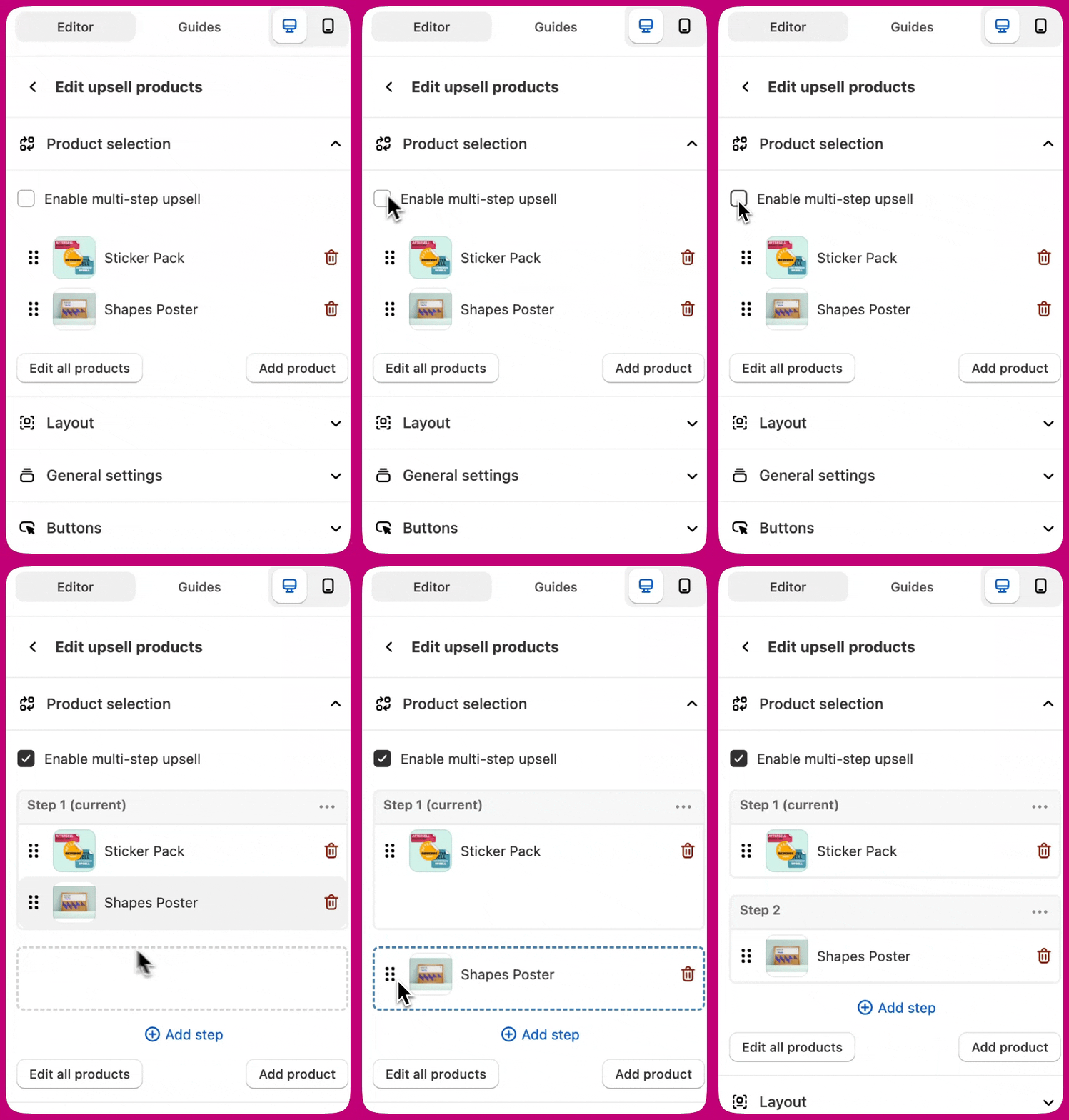
- Click Edit offer > Upsell products > Enable multi-step upsell
- Click Add step
Accepting or declining a step
A customer begins on the first step of a page. If they decline, they move to the next step. If they decline the final step, they are taken to the next page. If they accept a step, they are directed to the next page where they can consider additional offers. This sequential approach allows customers to potentially accept products across different upsell pages.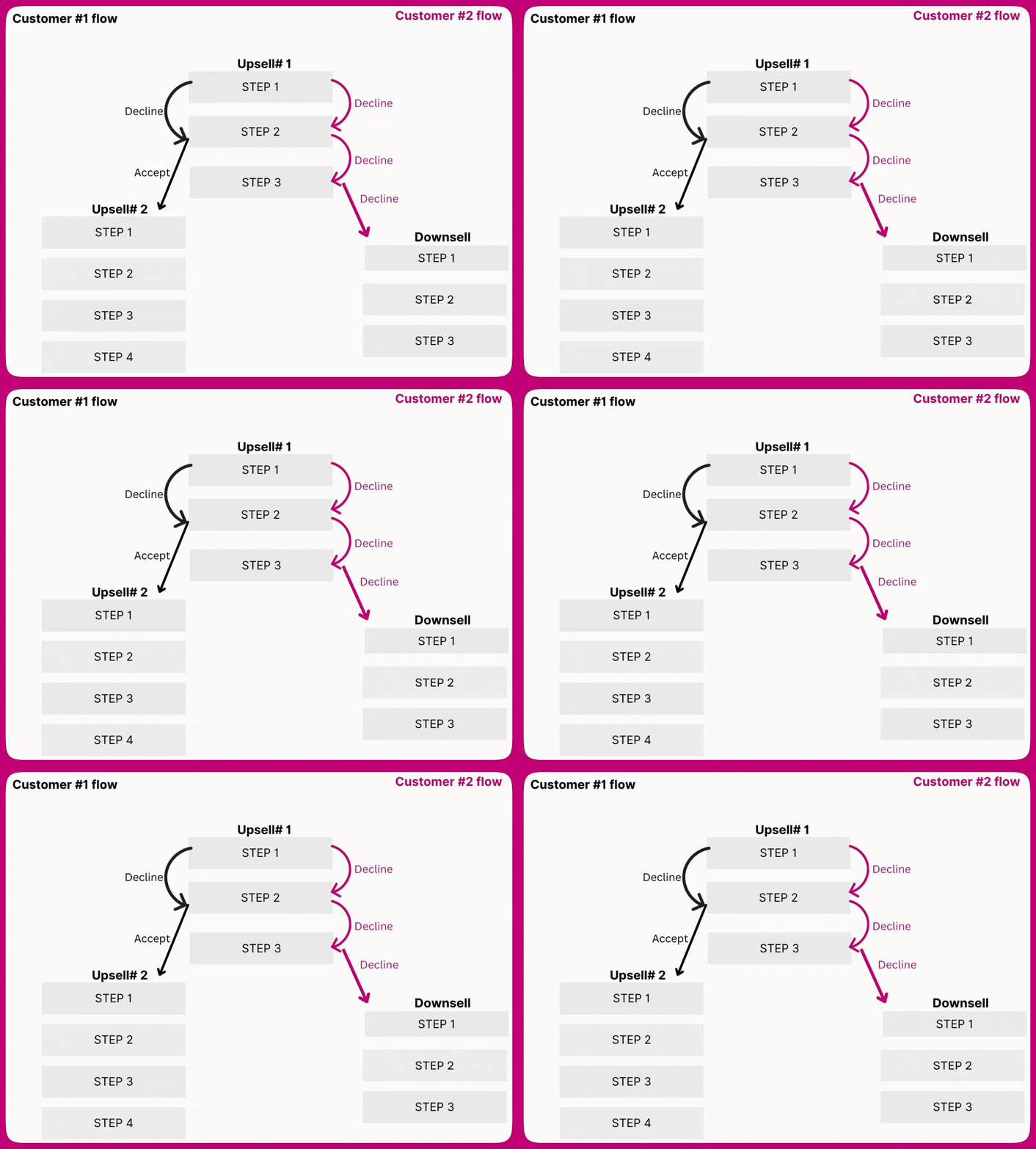
Analytics
You can use product-specific analytics to measure the performance of multi-step post-purchase upsells. These can be found under Top performing products on the Aftersell analytics page or in the Product breakdown for an A/B test. An impression for a product in a multi-step upsell is only tracked once that product is shown. For example, if a Green Shirt is in Step 3 but the customer accepts Step 2 and never sees Step 3 then there will be no impression tracked for the Green Shirt. The overall page (e.g., Upsell #1) will track exactly 1 impression even if there are multiple steps.Design
How to add custom text on each step:
To show different text for each step, you can use the step text variables. These variables provide text that can be used in other widgets that will automatically update when the step changes.- Click Step 1 > … > Show text and write “
`{first-name}`, grab this deal in the next`{timer}`minutes!” in Variable`{step-header-A}` - Repeat for Step 2 and write “No worries, how about this one instead? (
`{timer}`)” - In the Timer widget, replace the text with “
`{step-header-A}`”. This will automatically show the text from the current step in the timer and change when the customer goes to the next step.
Steps with only one product each:
To create nice-looking steps with only one product each, you can enable Edit offer > Upsell products > Layout settings > Spotlight first product. We recommend also enabling the price breakdown, product reviews, and adding custom text for each product.Best practices
- Any page, including Upsell #1, Upsell #2, or Downsell, can utilize multi-step sequences. You can also combine different formats, such as having a multi-step Upsell #1 and a single-step Upsell #2. However, multi-step functionality is only available for Multi-Product upsells and is not supported for Single Product upsells.
- We recommend keeping the number of steps minimal to provide a smooth customer experience.
- While Aftersell does not limit the number of steps you can create, there is a cap of 12 products per page. This allows flexibility, such as creating a page with up to 12 steps, each featuring one product, or 4 steps with 3 products each, and so on.- Consider using sequential offer displays to guide customers through a logical progression of complementary products.
- Customize your flow design to optimize customer engagement based on your specific product relationships.