Step 1: Selecting your widget
First things first, select the widget that aligns with your needs. Whether it’s an upsell or testimonial widget, Aftersell offers a range of choices to cater to your preferences. In this tutorial, we are going to select the upsell widget.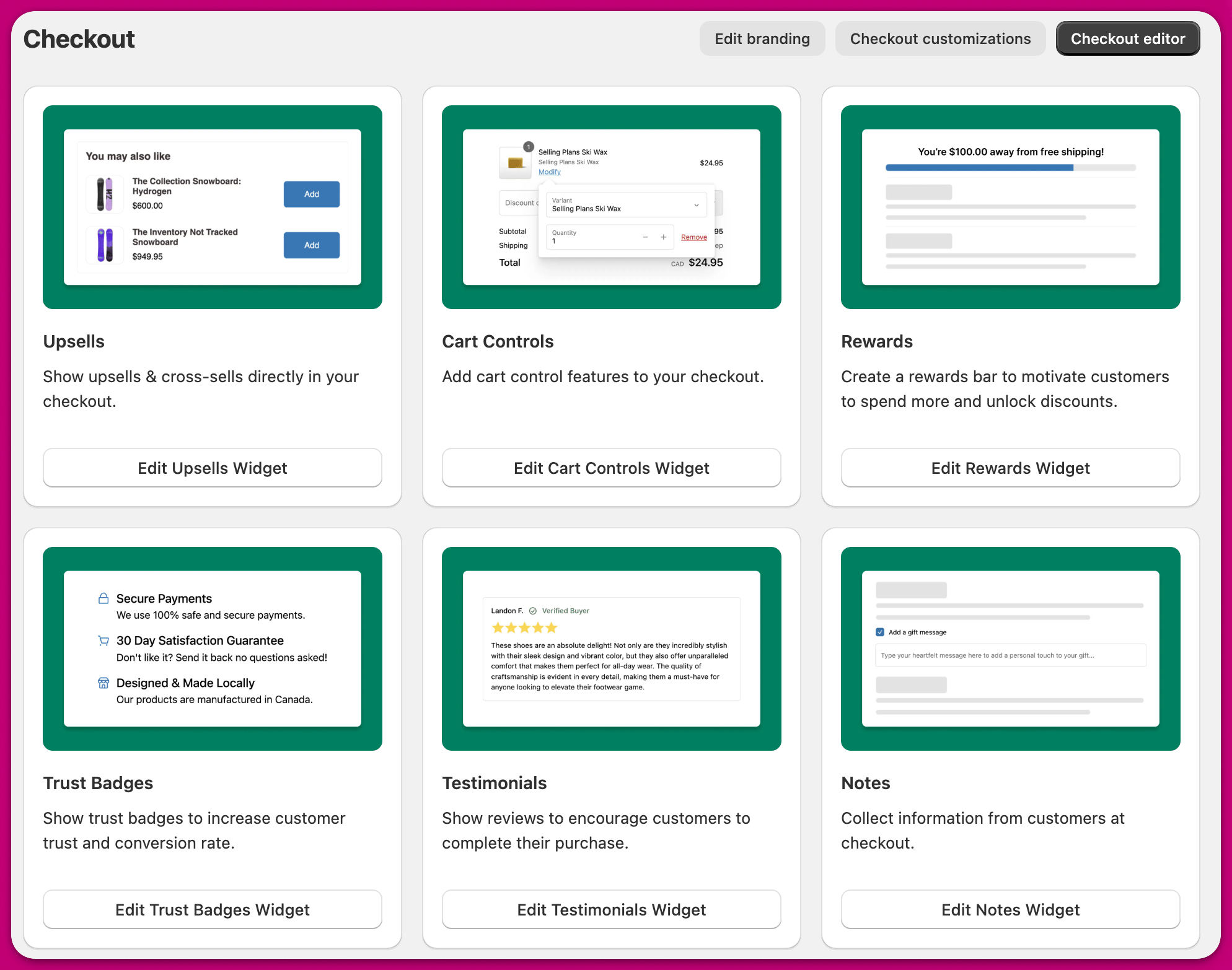
Step 2: Creating your widget
Click “Create Upsell” to start building out your upsell widget.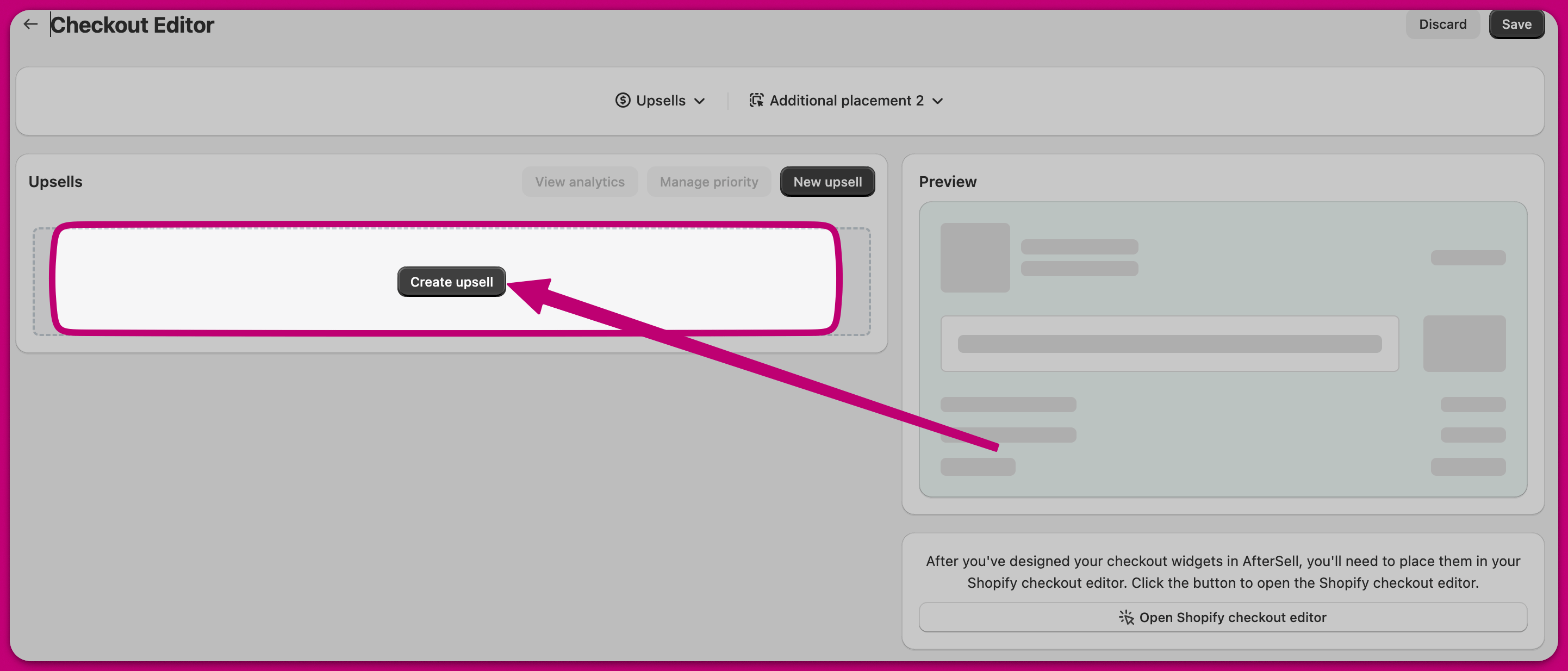
Step 3: Selecting a preset
Choose from a list of optimized widget presets or opt to start from scratch.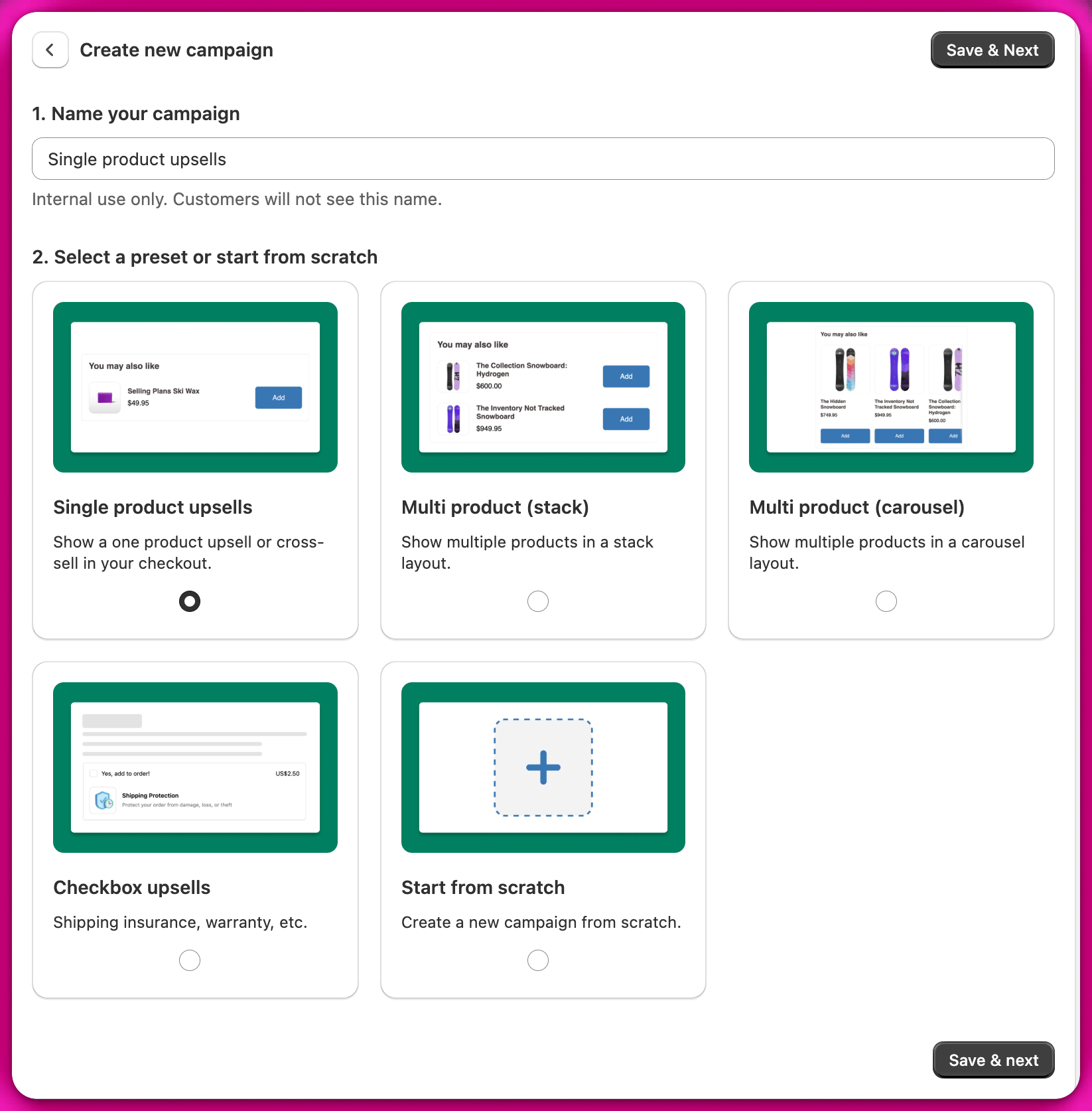
Step 4: Edit styling and behaviour
It’s time to fine-tune the details. Adjust the styling and behavior of your widget to perfection. Tweak the triggering logic, refine the product selection, or add that final touch of polish to the design.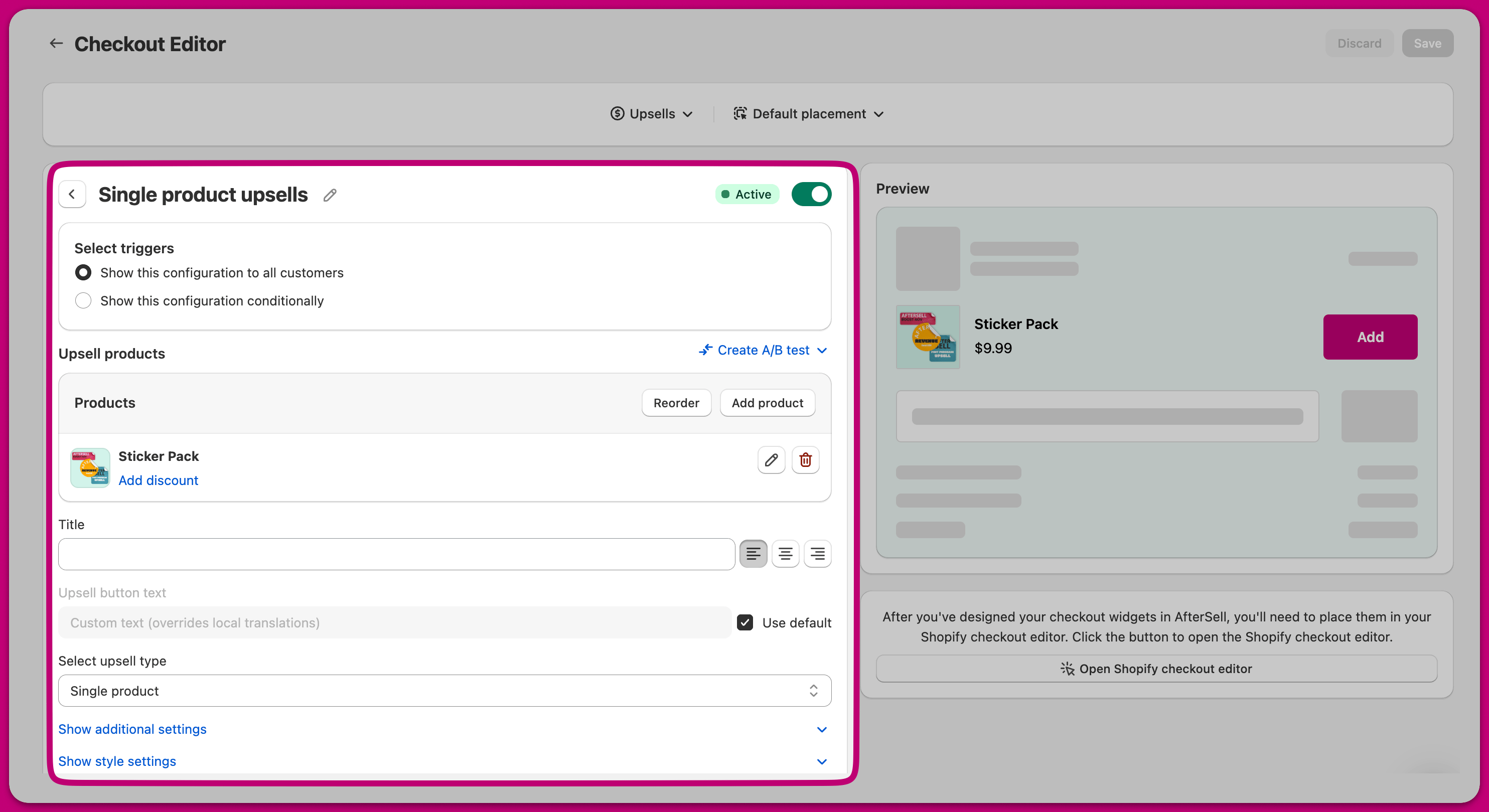
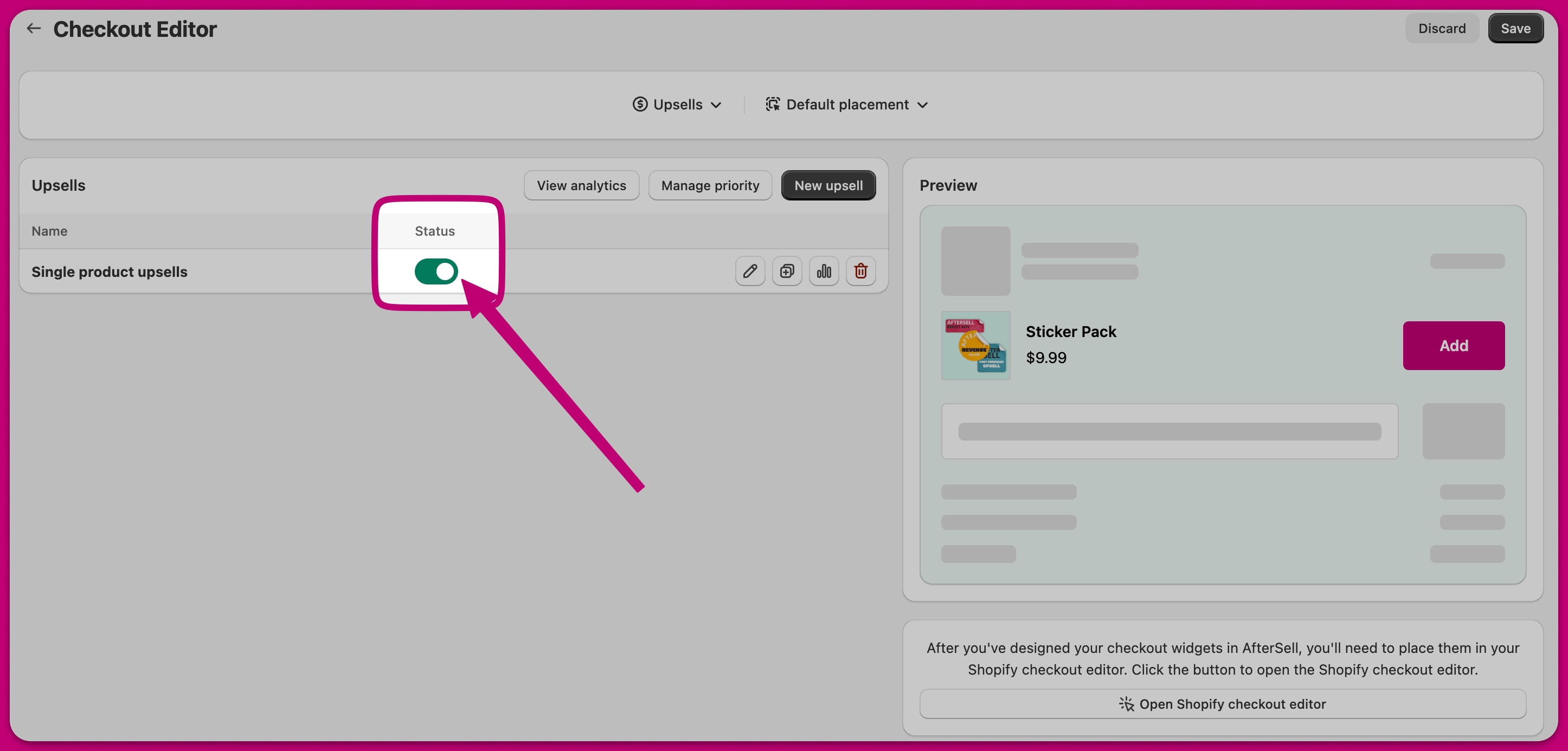
Step 5: Enable widget status
Ensure your widget status is set to active.