

Step 1: Enable your widget in Aftersell
Before adding widgets to your checkout, you need to enable them in the Aftersell admin.- Navigate to the Checkout tab in your Aftersell admin
- Select the widget type you want to configure (Upsells, Cart Controls, Rewards, Trust Badges, Testimonials, Notes, Images, or Text)
- Click Create to build a new widget or select an existing widget to edit
- Configure your widget settings (see Widget types and configuration below)
- Click the Enable toggle in the top right corner of the widget settings
- For restricted or advanced upsells, make sure you enable custom triggers before proceeding
Step 2: Open the Shopify Checkout Editor
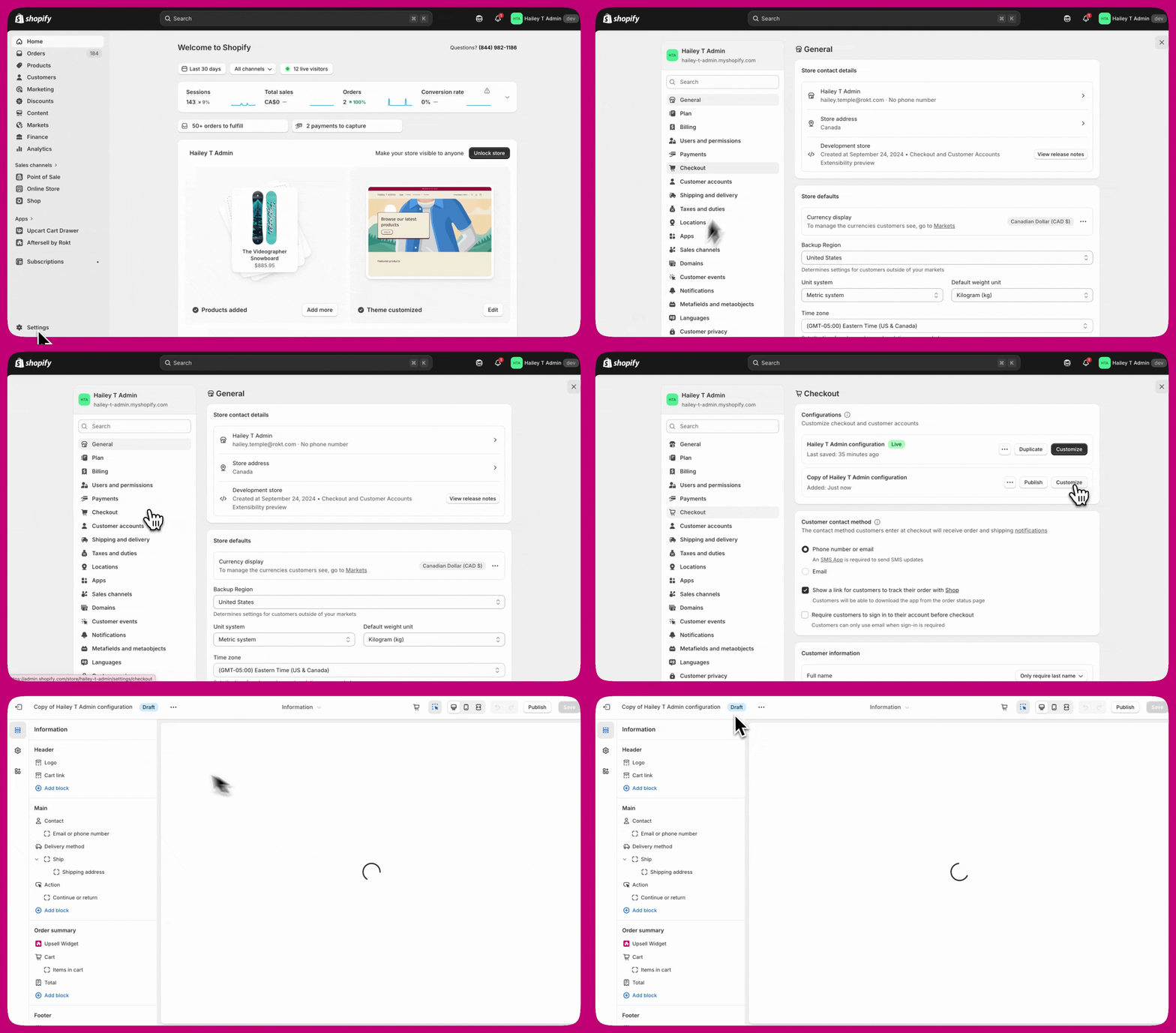
There are two ways to access the Shopify Checkout Editor: Option 1: From Shopify Admin- Go to Settings in your Shopify Admin
- Click Checkout in the left navigation
- Click Customize next to your desired checkout profile
- Click the Open Shopify Checkout Editor button in the bottom right of the Aftersell Checkout editor page
Step 3: Add the app block to your checkout
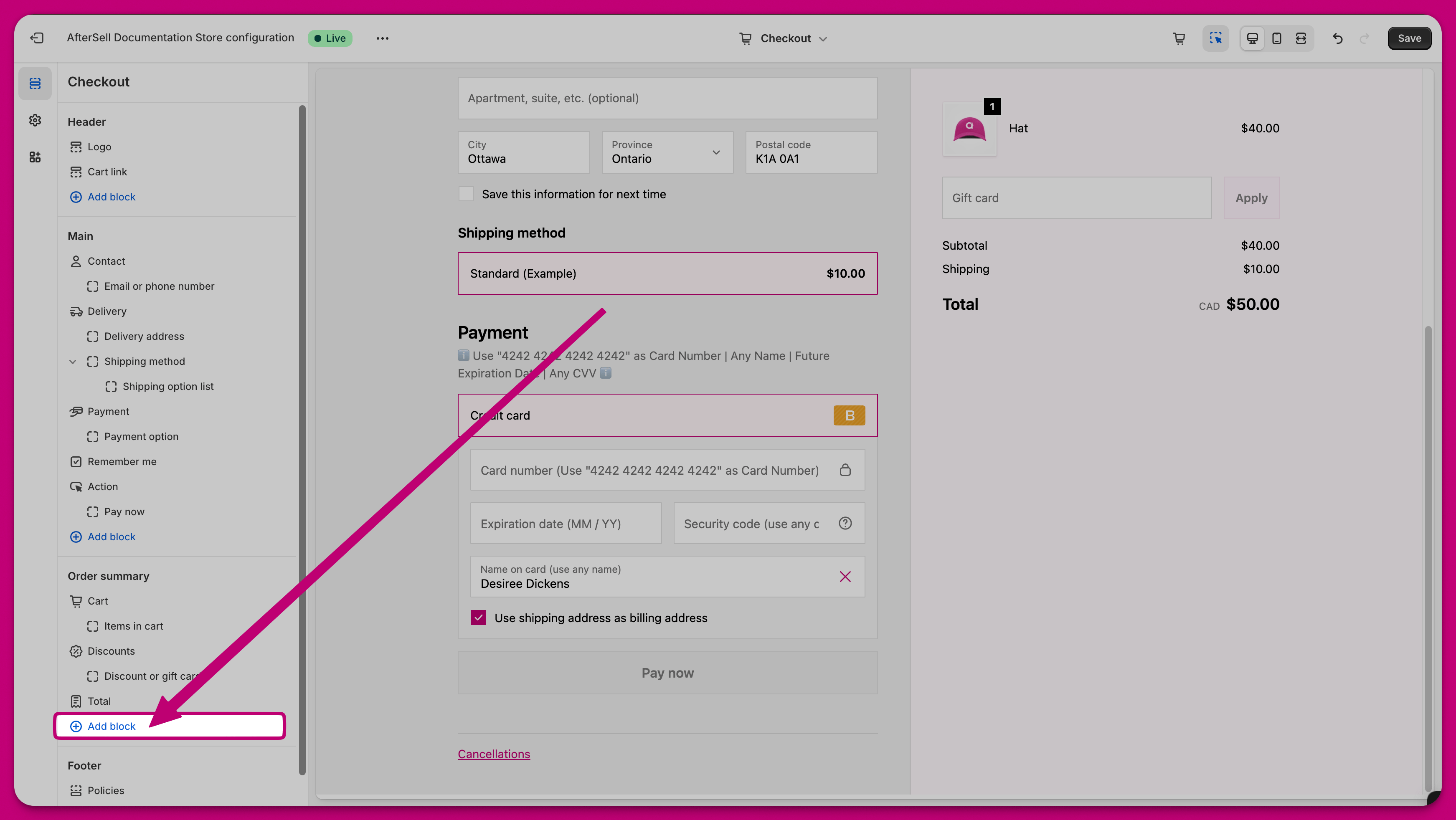
- In the Shopify Checkout Editor, click Add app block
- Select your desired Aftersell widget from the list of available widgets
- Choose the correct placement for your widget (see Available placements below)
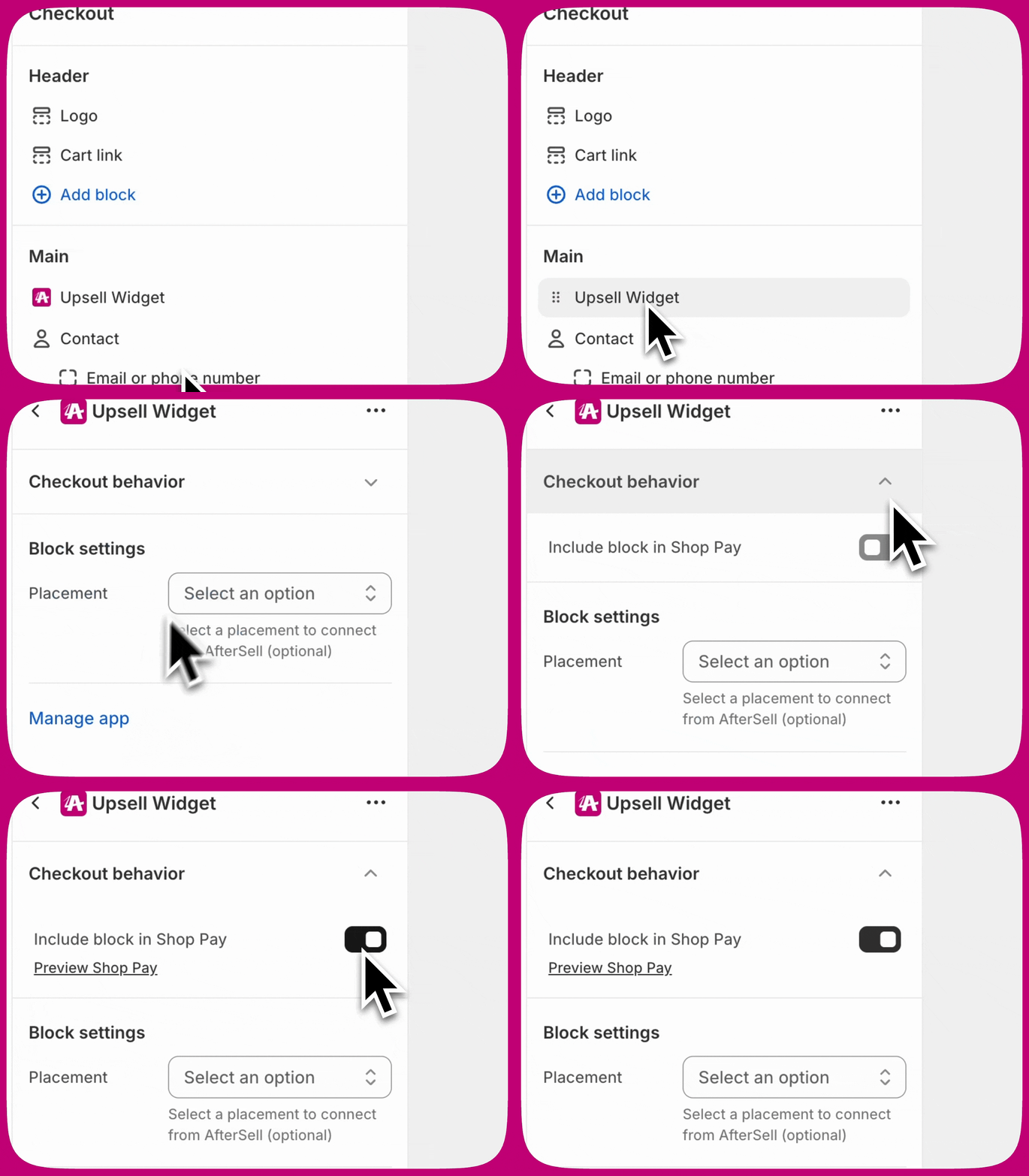
- If you want your widgets to display in Shop Pay checkout, check the Include app block in Shop Pay option
- Click Save in the top right corner
Step 4: Position your widget
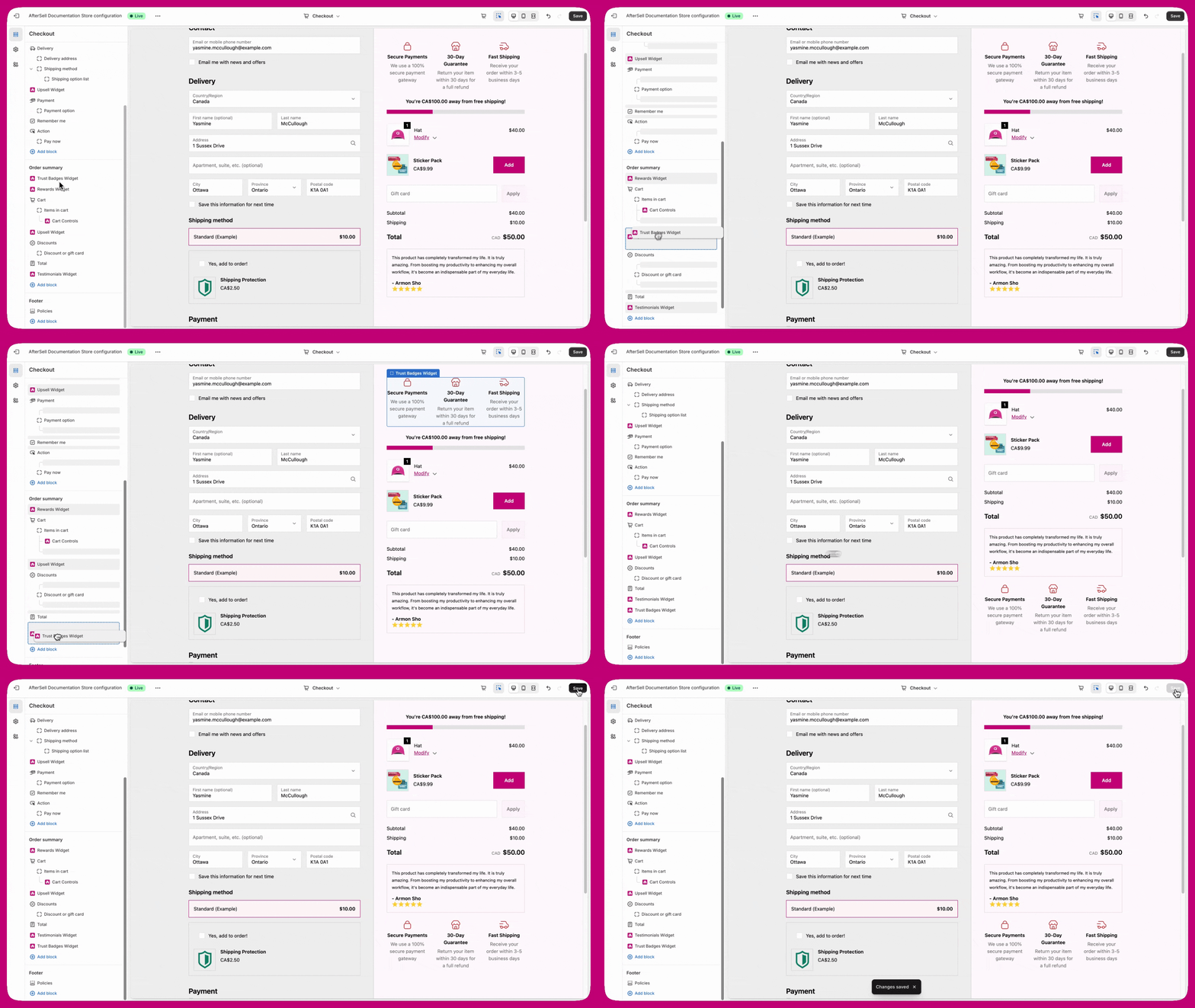
- Drag and drop the app block to your desired location within the selected placement area
- Click Save in the top right corner
Widget types and configuration
Placements
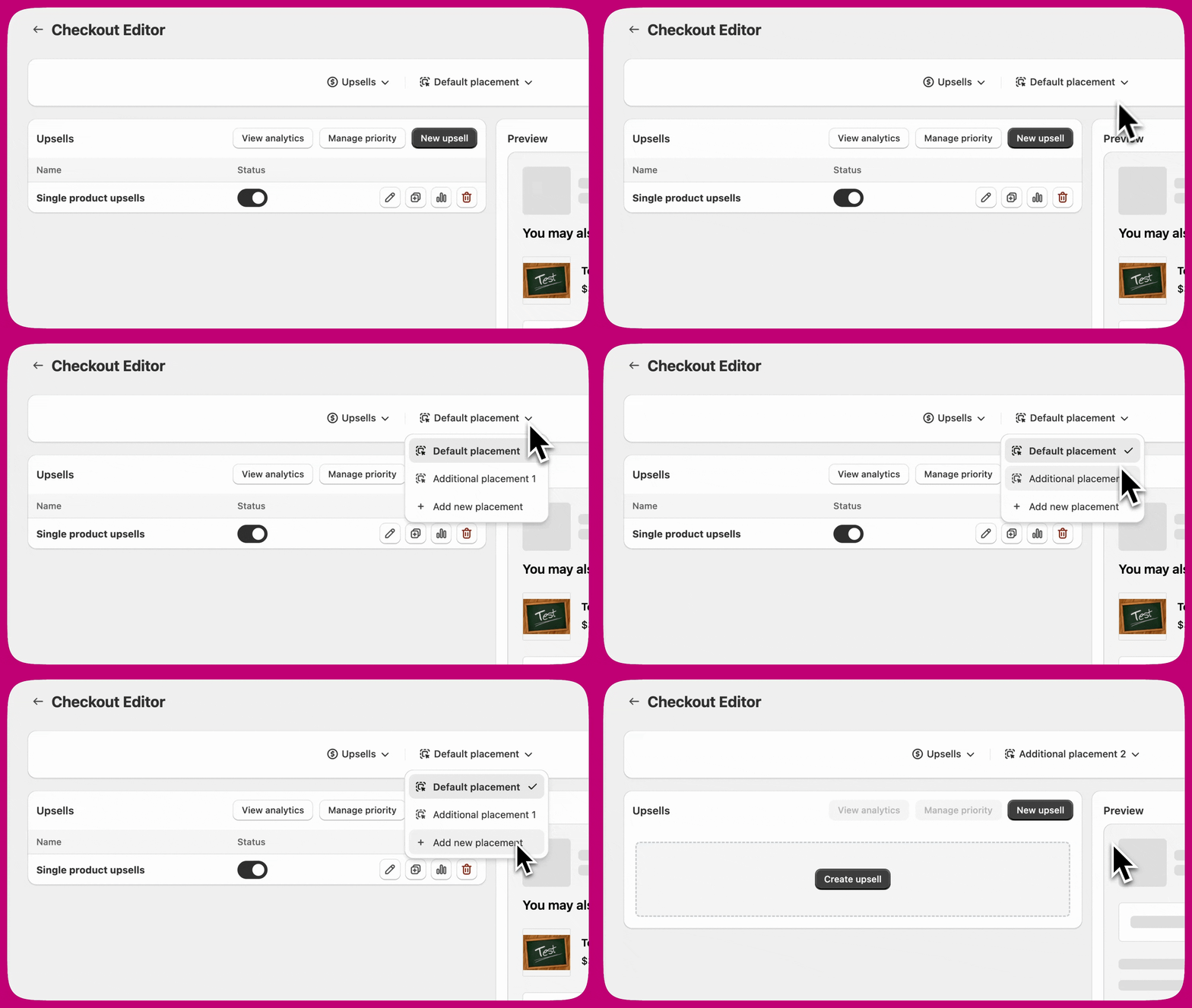
Placements are created in the Aftersell Checkout editor and allow you to run multiple widgets of the same type on the same checkout page. For example, if you want to display two upsell offers on the same page, each must be assigned to a different placement.Available placements
- Default placement: The primary placement. Every widget type starts here.
- Additional placement 1: A second placement slot for displaying another widget of the same type on the same page.
- Additional placement 2: A third placement slot for further separation.
When to use multiple placements
Use multiple placements when you want to:- Display more than one widget of the same type on a single checkout page
- Show widgets in different sections of the page
- Target different audiences with different offers
- Run widgets with similar or overlapping triggers
Matching placements in the Shopify Checkout Editor
Each placement in Aftersell corresponds to a separate app block in the Shopify Checkout Editor. The placement selected in Shopify must match the placement set in Aftersell. For example, if a widget is assigned to Additional placement 1 in Aftersell, the app block in Shopify must also be set to Additional placement 1. If placements do not match, the widget may not appear or may display in the wrong location. Important: A placement mismatch is one of the most common reasons a widget fails to display. If a widget is not appearing, confirm the placement matches in both Aftersell and Shopify before troubleshooting further.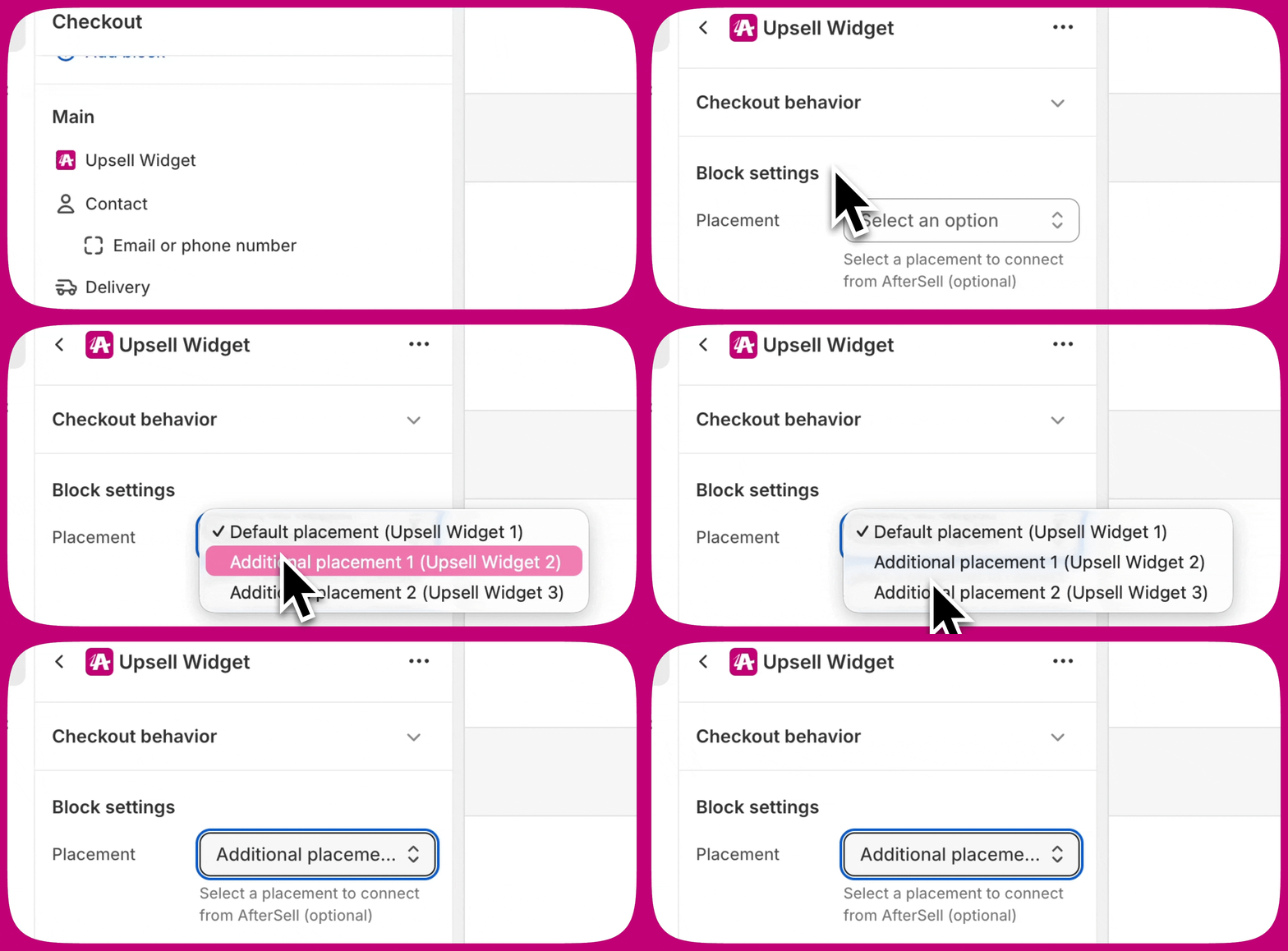
Upsells
Offer products to customers during checkout to increase your average order value (AOV). Configuration options: Widget modes:- Single Product Upsell: Display one product with an Add to Cart button
- Multi-Product Upsell: Show multiple products in a stack or carousel layout, allowing customers to accept multiple offers
- Checkmark Upsell: Display a single product with a checkbox instead of an Add to Cart button (ideal for low-cost add-ons like shipping protection)
- Specific Products: Manually select individual products to upsell
- Collection: Select a collection and display up to 5 random products (products already in cart are automatically excluded)
- Automatic upsell(s): Automatically recommend products based on cart contents
- Most Expensive Product: Automatically upsell the most expensive product from the cart
- Spend threshold: Recommend products that help customers reach reward thresholds (only selectable once Show rewards bar is enabled on the same upsell widget)
- Strategy: Dynamically select a product using rule-based targeting. Only shown on stores with Strategies enabled
- Add discounts directly within the widget
- Lock subscription plans to specific options
- Display product review stars (requires compatible review app)
- Set a maximum number of accepted offers per widget (Single and Multi upsell types only)
Cart Controls
Allow customers to modify their cart directly on the checkout page. Available controls:- Variant selector: Change to another in-stock variant
- Quantity selector: Adjust product quantities
- Remove item: Show Remove Item Button removes upsell products from the cart. A paired setting, Allow Removal of Non-Upsell Products (off by default), extends removal to everything in the cart
- Subscription selector: Change subscription frequency
- Subscription upgrade: Upgrade one-time purchases to subscriptions
- Custom text: Add custom text below line items
- Apply to all products in cart
- Apply only to selected products
- Apply to all products except selected ones
- Display product review stars for in-cart products
Rewards
Display a progress bar showing customers how close they are to earning a reward. Configuration options:- Reward basis: Cart total or Item count
- Amount basis (for Cart total): Order total (includes shipping and tax), Subtotal (before discounts), or Subtotal after discounts (excludes tax and shipping)
- Reward message and styling
- Progress bar colors and design
- Pair with upsell widgets to help customers reach reward thresholds
- Use spend threshold product type in upsells to automatically recommend products that close the gap
- Create rewards in Shopify using Automatic Discounts (for discount rewards) or Shipping Rules (for free shipping)
- Use Subtotal after discounts (excludes tax and shipping) as the amount basis when offering free shipping, so the bar matches Shopify’s own threshold evaluation when discount codes are applied
Trust Badges
Build trust with custom icons and text to increase checkout conversion rates. Configuration options:- Badge layout: Vertical stack or horizontal display
- Custom icons and text for each badge
- Styling and spacing options
- Highlight security features (secure checkout, SSL encryption)
- Showcase guarantees (money-back guarantee, free returns)
- Display shipping benefits (free shipping, fast delivery)
Testimonials
Display customer reviews directly on checkout to build trust. Configuration options:- Flex Testimonials (recommended): Automatically pulls real reviews from your review app (Judge.me, Klaviyo, Okendo, or Yotpo)
- Selection mode: Manual (choose specific reviews) or Dynamic (automatically fetch reviews based on cart contents)
- Display type: Horizontal carousel or vertical stack
- Minimum rating filter
- Configure review app credentials in Settings > Product Reviews
- Reviews sync automatically within 24 hours, then weekly
Notes
Allow customers to add notes to their order. Configuration options:- Manual notes: Free-text field for customer input
- Pre-written notes: Checkboxes for options like gift wrapping or eco-packaging
Images
Upload and display custom images in your checkout. Configuration options:- Image upload
- Width adjustment slider
- No minimum size requirement
Text
Insert a banner with custom text in your checkout. Configuration options:- Container Style: Plain Text (the default) or Badge. The banner colors below only appear once you choose Badge
- Banner Type (Badge only):
- Info (Blue): Blue background with information icon
- Success (Green): Green background with checkmark icon
- Warning (Yellow): Yellow background with warning triangle icon
- Critical (Red): Red background with exclamation point icon
- Text size on the Body field (Small or Base) — the Heading field has no size control
- Alignment on both the Heading and Body fields
- Spacing: None, Extra Tight, Tight, Base, Loose, or Extra Loose
Troubleshooting
Widgets not displaying
If your widgets aren’t showing after setup:- Verify widget is enabled in Aftersell admin
- Check app block is added in Shopify Checkout Editor
- Confirm app block is saved in Shopify Checkout Editor
- Verify the correct placement is selected. When adding an app block in the Shopify Checkout Editor, you must choose the matching placement, such as Default placement, Additional placement 1, or Additional placement 2. If the wrong placement is selected, the widget may not appear or may display in the wrong location. Remove the app block and re-add it, ensuring the intended placement is selected.
- For Shop Pay: Verify “Include app block in Shop Pay” is checked
- Clear browser cache or try incognito mode
- Wait a few minutes for changes to propagate
Shop Pay widgets not showing
To display widgets in Shop Pay checkout:- Open the widget in Shopify Checkout Editor
- Check the Include app block in Shop Pay option under Checkout behaviour
- Save your changes
Next steps
- Learn about checkout triggers to show widgets conditionally
- Set up checkout A/B testing to optimize placements
- Configure checkout branding to match your store design
- Explore advanced upsell strategies to maximize AOV