Creating a Subscription Upgrade offer
To set up a Subscription Upgrade, you will use the post-purchase funnel editor. The setup wizard walks you through four steps: connecting your subscription provider, picking the trigger product, configuring the upgrade itself, and choosing the offer product the customer sees on their order. To open the wizard:- In your Aftersell dashboard, go to Post-purchase funnels.
- Click Add Funnel.
- Select the Subscription Upgrade template.
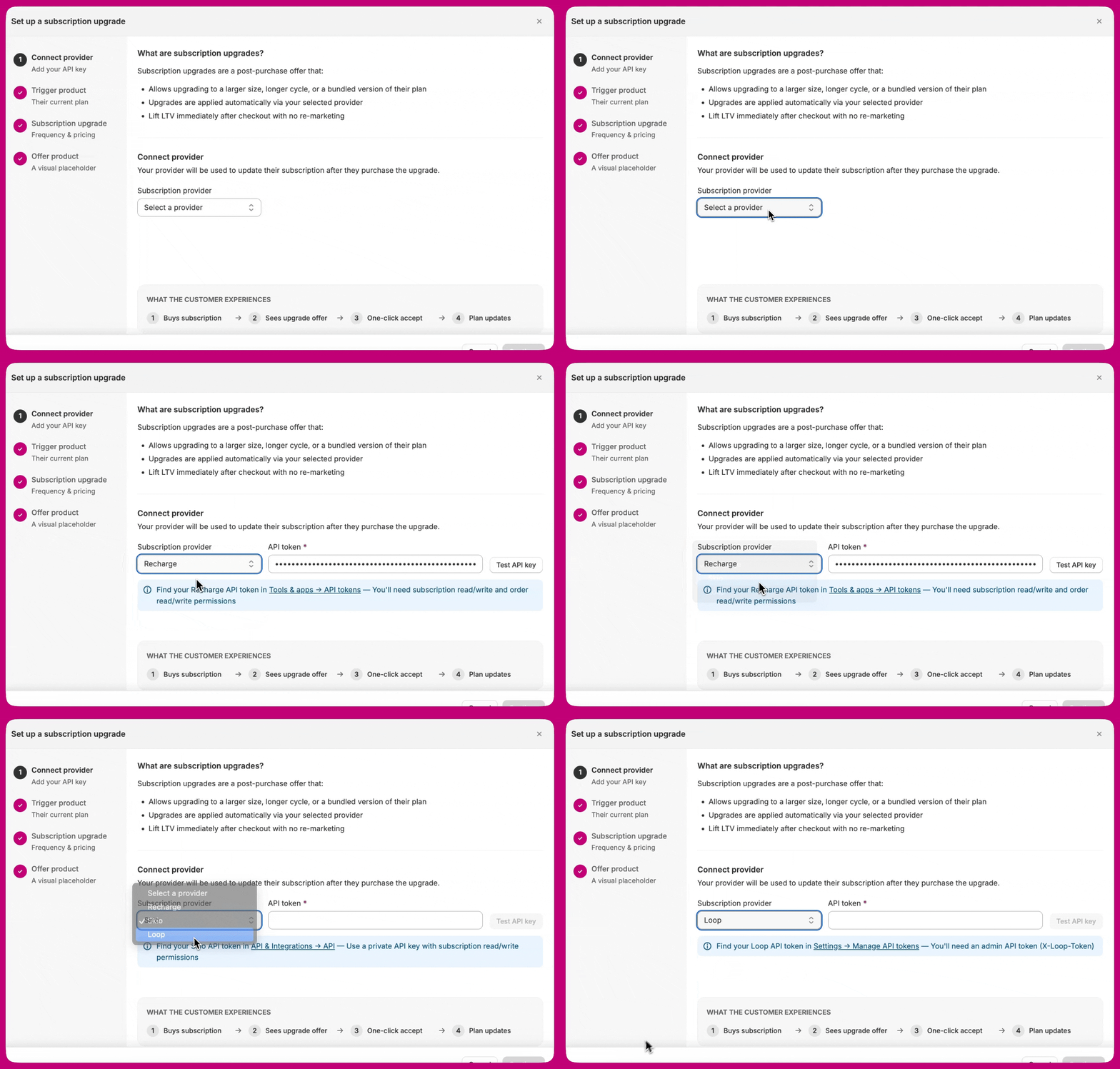
Step 1: Connect provider
Add your API key.
Pick your provider
From the Subscription provider dropdown, select Recharge, Skio, or Loop. The API token field and its helper text update to match the provider you picked.Generate your API token
If you do not already have a token, generate one in your subscription platform. Each provider has different scopes and steps — see the dedicated guide for your provider:Loop prerequisite. Loop does not support prepaid subscriptions through this integration — the billing frequency is locked to match delivery frequency. When using Use an existing selling plan, the plan must already exist in your Loop dashboard. When setting the frequency manually, no selling plan is required. See Subscription upgrades with Loop for full details.
Paste, test, and save
Back in the Step 1 panel:- Paste your API token into the API token field.
- Click Test API key. Aftersell validates the token against your provider, checking that it authenticates correctly, holds all required scopes, and belongs to your store.
- Once the test passes (green check), click Continue to move to Step 2.
- Green tick — “API key verified”. The token authenticated, all required scopes are present, and the token belongs to your store. Continue is now enabled.
- Red cancel icon. The check did not come back clean. The message beside the icon says which of two things happened: your provider rejected the token (revoked, or missing required scopes — the message names the specific problem), or Aftersell could not complete the check (“Could not verify the API key. Please try again.”), which is a failed call rather than a bad token. Fix the token if it was rejected; otherwise just test again.
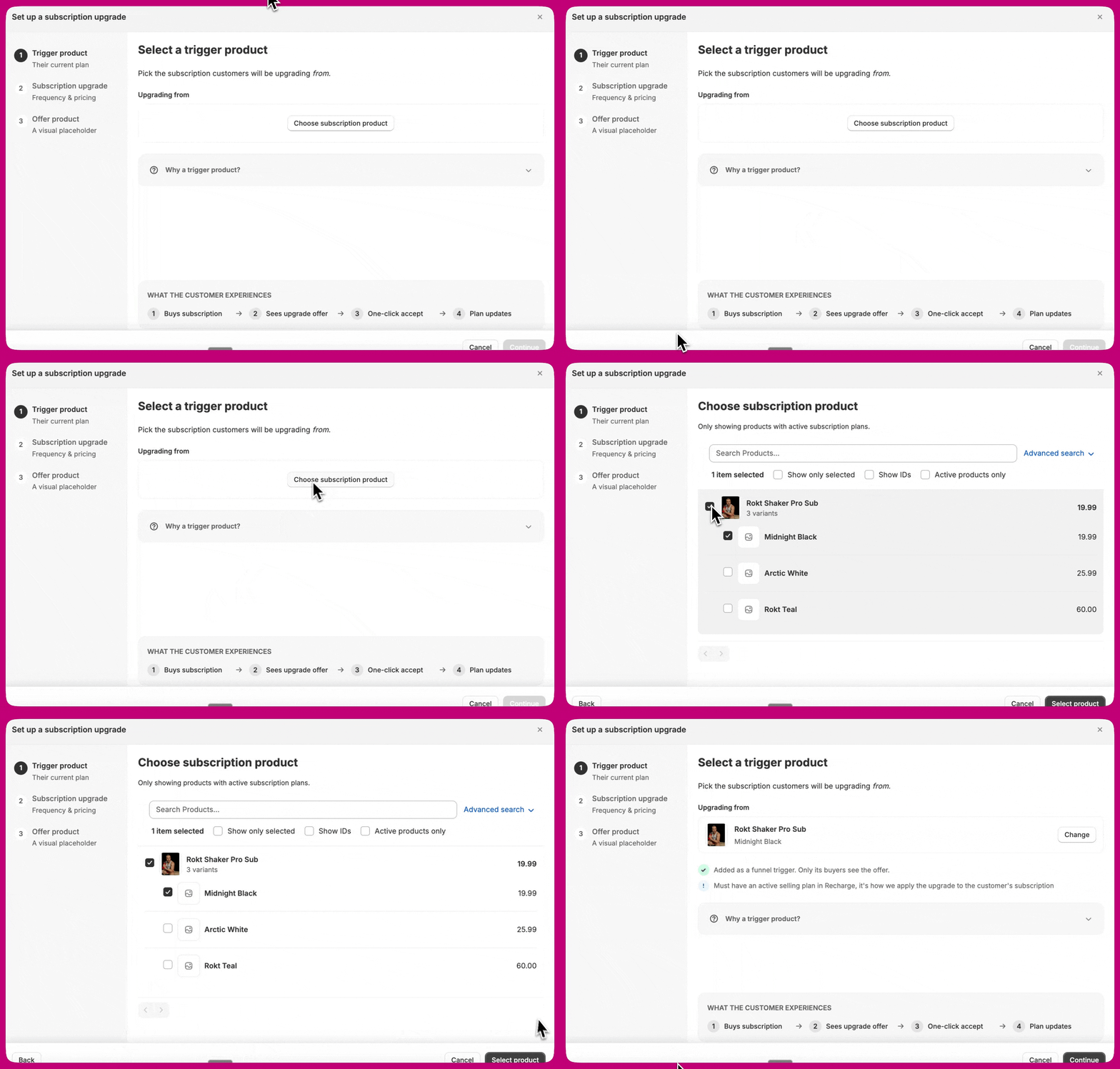
Step 2: Trigger product
Their current plan. Select the trigger product. Pick the subscription customers will be upgrading from.- Click Choose subscription product.
- Only products with active subscription plans appear in the picker.
- Select the product (and a variant if it has variants).
- Click Select product.

Subscription Upgrades target a single variant. The trigger and replacement pickers select one variant each, and the funnel fires on a variant-scoped trigger — so selling plans that differ per variant are handled directly, with no need for a funnel per variant.
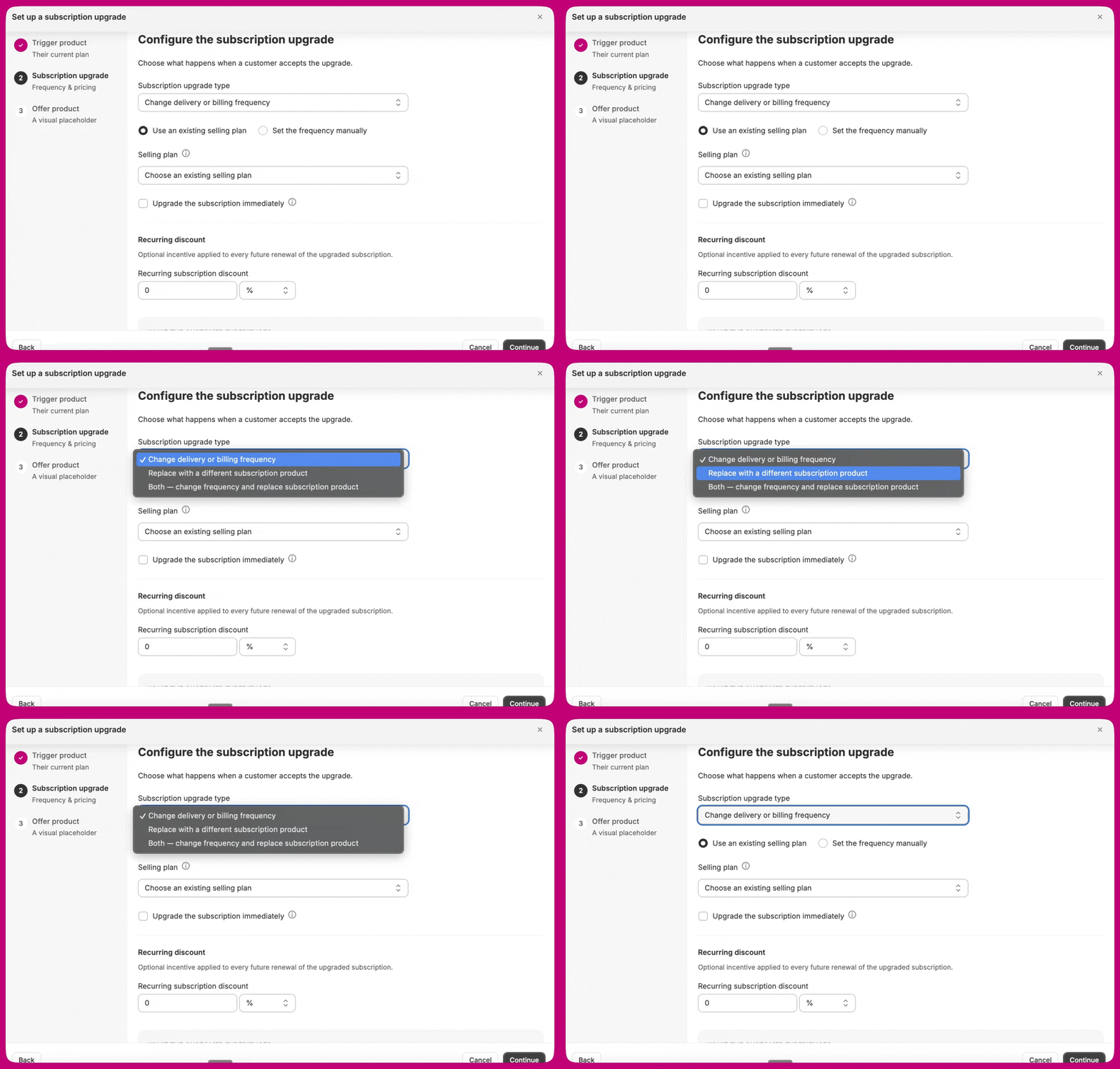
Step 3: Subscription upgrade
Frequency & pricing. Configure the subscription upgrade. Choose what happens when a customer accepts the upgrade.
Subscription upgrade type
Pick one of four options from the dropdown:- Change delivery or billing frequency. Keep the same product, change how often the customer is billed or shipped to.
- Replace with a different subscription product. Keep the same frequency, swap to a different product.
- Both — change frequency and replace subscription product. Do both at once.
- Add another subscribable item to subscription. Leave the existing subscription as is and add a new product to it, on the subscription’s existing cadence.
Which price the Recurring subtotal shows
The Recurring subtotal in the offer tells the customer what their next renewal will cost. Which product that price is taken from depends on the upgrade type you picked:
This is the most common source of confusion. A frequency-only upgrade keeps the same product by design, so its recurring subtotal can only ever show the trigger product’s price, whatever frequency you set. If you expected a different product’s price there, you most likely want Both — change frequency and replace subscription product instead.
The quantity used is taken from Override subscription quantity, which appears only on the replacement types. On a frequency-only upgrade it is always 1.
If you picked “Change delivery or billing frequency”
Choose how to define the new frequency:- Use an existing selling plan. Pick from a dropdown of plans already configured in Recharge, Skio, or Loop. The plan defines the delivery and billing intervals.
- Set the frequency manually. Enter delivery and billing frequencies yourself.
- Delivery frequency, how often the product ships.
- Billing frequency, how often the customer is charged.
Loop does not support prepaid frequencies. The billing frequency field is automatically synced to delivery frequency for Loop stores.
If you picked “Replace with a different subscription product”
Replacement subscription product. Pick the subscription product the customer will be upgraded to. Only products with active selling plans are shown.- Click Choose replacement product.
- Select the product (and a variant if applicable).
- Click Select product.
- When off (default), the existing subscription quantity is preserved on renewal.
- When on, enter the quantity that will apply to renewals of the replacement subscription.
If you picked “Both — change frequency and replace subscription product”
Both sets of fields appear: the frequency configuration from the first option, and the replacement product picker from the second. Fill in both, or the offer will not work.If you picked “Add another subscribable item to subscription”
Item to add to the subscription. Pick the product that will be added to the customer’s subscription. Only products with active selling plans are shown, because the added line has to be a recurring line in your subscription platform.- Click Choose item to add.
- Select the product (and a variant if applicable).
- Click Select product.
Add-item offers do not support a first-order or recurring discount, so the discount fields are hidden for this type. Prepaid subscriptions are not supported on Skio. For the full behaviour, including how Recharge differs from Skio and Loop, see Adding an item to an existing subscription.
Upgrade timing
By default an upgrade takes effect from the customer’s next billing cycle, keeping their existing renewal date. If the timing option is enabled for your store, a checkbox appears under the frequency fields:My fulfillment provider ships the upgraded item on the current orderTicking it starts the new billing interval immediately rather than at the next renewal, and it unlocks the One-time upgrade price field in Step 4.
This checkbox is off by default and is not available on every store. It appears only on the Change delivery or billing frequency and Both — change frequency and replace subscription product upgrade types, and only once the option has been enabled for your store. Contact support through the in-app chat if you need it.
Recurring discount
Optional incentive applied to every future renewal of the upgraded subscription. Not available for the add-item type. How this field appears depends on whether the selected selling plan has stepped pricing policies:- When a selling plan with discount tiers is selected (for example, a Loop plan that applies $20 off on the first charge and $10 off from the second charge onward), the free-entry field is replaced by a list of radio buttons — one per tier. Each option shows the discount amount and the charge range it applies to (for example, “Charge 1” or “Charge 2 onward”). Select the tier you want applied to every future renewal of the upgraded subscription.
- When no selling plan is selected, or the selected plan has no discount tiers, the standard free-entry field appears. Enter the amount and choose Percentage or Fixed amount.
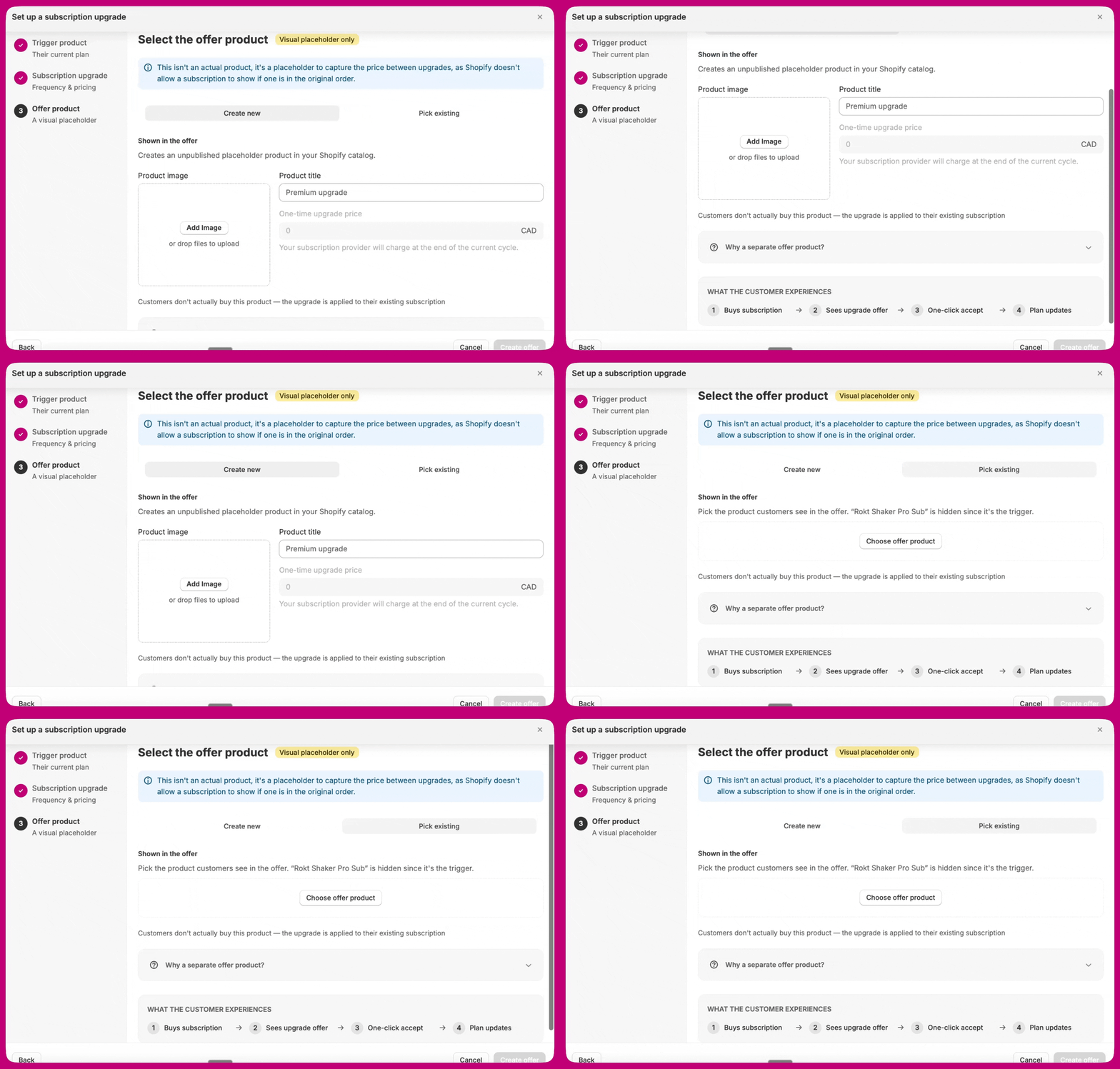
Step 4: Offer product
A visual placeholder. Select the offer product. This is a visual placeholder only, not a real product the customer buys.This is not an actual product, it is a placeholder to capture the price between upgrades, because Shopify does not allow a subscription to show if one is in the original order.
Option A: Create new
Aftersell creates an unpublished placeholder product in your Shopify catalog on your behalf.- Product image. Upload the image shown in the offer card.
- Product title. The name shown in the offer card, for example Premium upgrade.
-
One-time upgrade price. On the Change delivery or billing frequency and Both — change frequency and replace subscription product types this is locked at
0by default, because your subscription provider charges at the end of the current billing cycle and the placeholder product appears on the Shopify order at$0.00. It becomes editable there only when the upgrade-timing checkbox in Step 3 is ticked. On Replace with a different subscription product and Add another subscribable item to subscription the timing checkbox does not apply, so the price field is always editable. See Upgrade timing. What to put in it depends on the upgrade type:- Frequency, replacement, or both — the price difference between the original and the upgraded subscription. The customer keeps their subscription and this charge covers the delta.
- Add another subscribable item — the charge for the added item on this order. Nothing is being swapped, so there is no difference to compute: this is simply what the customer pays now for the new item, which then recurs with their subscription. See Adding an item to an existing subscription.
-
First-order discount. An optional discount applied only to this upgrade purchase, entered as a percentage (
%) or a fixed amount. It sits beside One-time upgrade price and appears whenever that field is editable, on both the Create new and Pick existing tabs. On the add-item type the field still appears but is always saved as0— add-item offers never carry a discount, so set the price you want on the offer product instead.
Why a separate offer product?
- The image, title, and price you set appear in the offer.
- On accept, the displayed price is charged and Recharge, Skio, or Loop applies the upgrade.
- Shopify will not allow a subscription product as a post-purchase upsell after a subscription order, so the product here must be a non-subscription SKU.
Option B: Pick existing
Pick a product you have already created in Shopify. The trigger product is auto-hidden from the picker since it’s a subscription product.- Click Choose offer product.
- The picker shows only products without active subscription plans.
- Select the product and click Select product.

Additional triggers and refinements
The wizard automatically adds the trigger product in Step 2. This section is for any additional triggers you want to layer on top of it.Why product-specific triggers matter
Without a product trigger, your funnel may show to customers who do not have the eligible subscription product in their order. This results in wasted impressions and a subscription modification that silently fails: the offer product gets added to the order, but no subscription is changed in Recharge, Skio, or Loop.Recommended trigger setup
The wizard wires this for you — you don’t need to set it up by hand.
All enabled triggers use AND logic. Every condition must be met for the funnel to show.
Editing an offer after it’s been created
You can change a Subscription Upgrade offer after creating it. A Subscription Upgrade funnel keeps a permanent Setup step in the funnel editor, which re-opens the same wizard pre-filled from the saved offer — its primary button reads Save offer rather than the create-time wording. Use that, or edit the offer’s fields directly in its settings.- In your Aftersell dashboard, go to Post-purchase funnels.
- Open the funnel that contains your Subscription Upgrade offer.
- Select the offer to open its settings, then edit the fields inline — trigger product, upgrade type, upgrade frequency and recurring discount, and the offer product’s image, title, or price.
- Save.
If the offer uses an existing selling plan for its frequency, the frequency fields are set by that selling plan and can’t be edited here. If the plan has stepped discount tiers, the recurring discount field shows those tiers as radio buttons — select the one you want applied to renewals. Switch the offer to setting the frequency manually if you need to enter a custom discount amount instead.